Displaying Tiles on a Snapshot Dashboard
After you have created dashboards for the Snapshot pages, you can add tiles. To modify a dashboard by adding or removing tiles, follow these steps:
-
Navigate to .
-
Access the Fluid Dashboards page.
-
Select the Tiles button for the dashboard that you want to modify.
-
Select the tiles you want to display on the specified dashboard and select Required to ensure that the tile is always shown on that dashboard.
-
Save.
Note:
Oracle recommends that you use only tiles delivered for Snapshot (Team Snapshot, View Snapshot, and Career Snapshot). Also, tiles that are delivered for the Snapshot dashboards may not work on other pages.
Determining the Sequence Order of Tiles on the Dashboard for Snapshot
When you have added tiles to a dashboard, you can select the order in which you want them to display.
-
Navigate to .
-
Select the Fluid Structure Content link.
-
Select the Fluid Pages link.
-
Select a dashboard link.
Snapshot dashboard names are:
-
Summary
-
Promotion Readiness
-
Compensation Review
-
Performance Review
-
Career Planning
- SN Recognitions and Badges
-
-
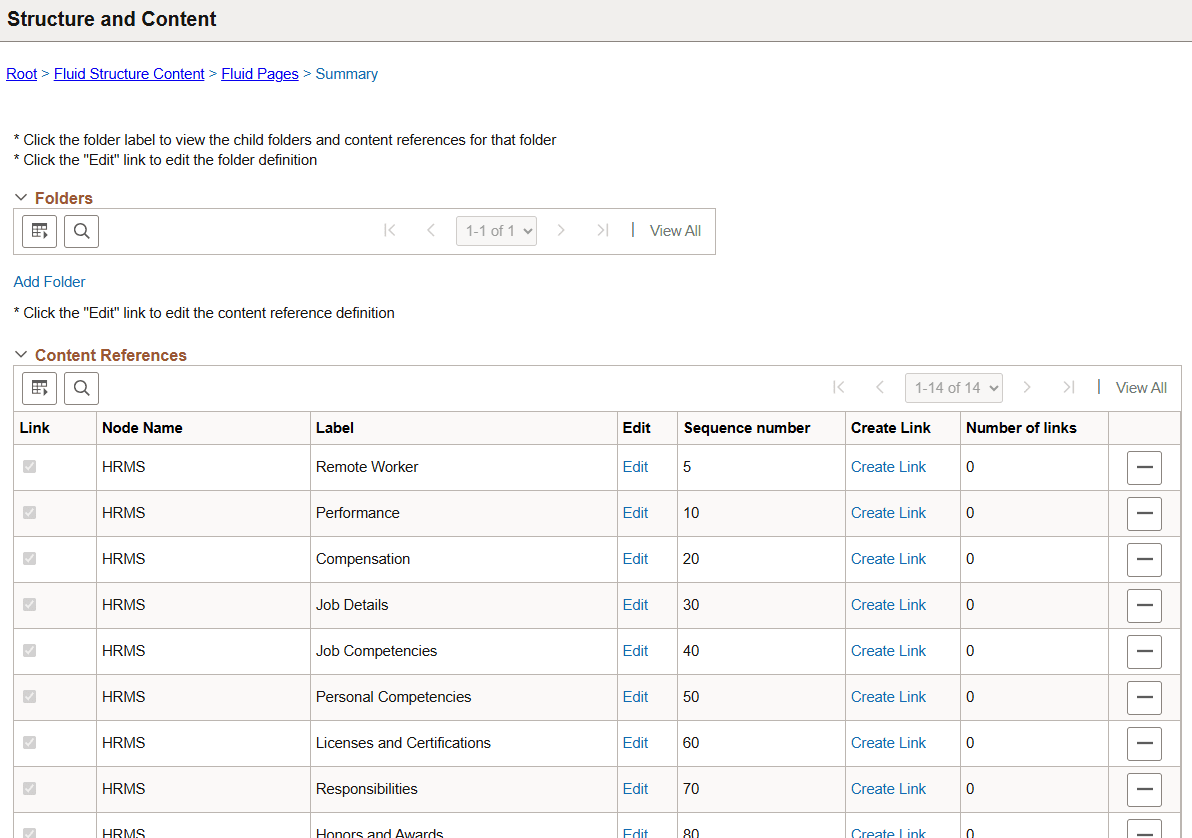
Select the Edit link for the dashboard, in the Sequence number field enter the new sequence, and save your data.
The Structure and Content page displays the content references associated with the dashboard. The Sequence number column displays the order in which the pages and tiles will appear in the Snapshot dashboard.
This example illustrates the sequence numbering for the content references for Snapshot.
For more information on Content References, see the PeopleTools: Portal Technology, “Administering Portals” documentation.