Understanding the Process Flow for Transactions
Most of the transactions in eProfile Manager Desktop can be configured to either:
-
Use an approval process.
-
Automatically update the database.
-
Send notifications to an administrator.
The following table lists each of the self service transactions and the features that can be configured for each:
| Transaction | Use Approval Process | Automatic Database Update | Send Notifications |
|---|---|---|---|
|
Change Full/Part Time Status |
No |
Yes |
Yes |
|
Change Reporting Managers |
Yes |
Yes |
Handled by approval process. |
|
Change Work Locations |
No |
Yes |
Yes |
|
Promote Employees |
Yes |
Yes |
Handled by approval process. |
|
Retire Employees |
No |
Yes |
Yes |
|
Terminate Employees |
No |
Yes |
Yes |
|
Transfer Employees |
Yes |
Yes |
Handled by approval process. |
|
View Employees' Information |
Not Applicable |
Not Applicable |
Not Applicable |
|
Change Jobs (Works Council) |
Not Applicable |
Not Applicable |
Not Applicable |
|
Military Rank Change |
Yes |
Yes, based on Military Processing Definition |
Handled by approval process. |
|
Template-Based Hire |
Not Applicable |
Yes, based on the Template Create - Configuration See PeopleSoft Human Resources Administer Workforce: Understanding Smart HR Templates. |
Not Applicable |
The following diagram illustrates the process flow that begins when a self-service user submits a request. The diagram shows both the basic process flow and the alternate flows for approvals, database updates, and notifications:
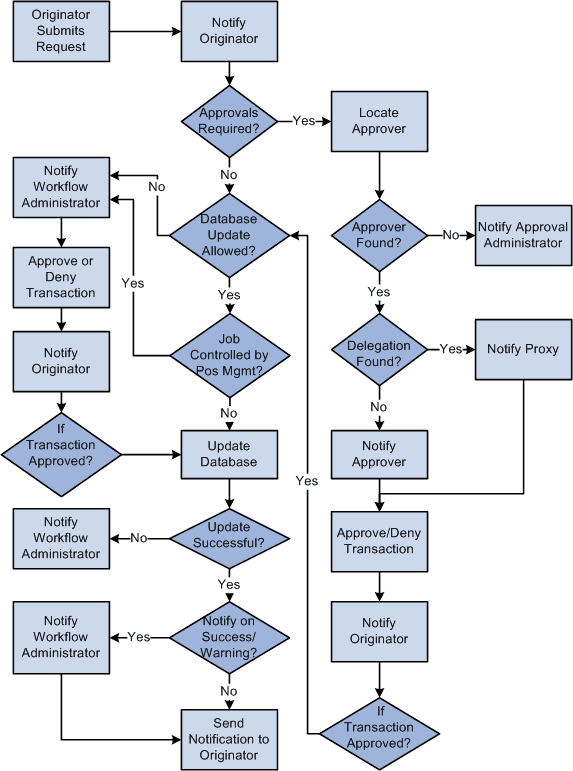
There are four main sections to this process flow:
-
A request is submitted.
-
The request uses an approval process.
-
The request allows automatic updates to the database.
-
The request doesn't allow automatic updates to the database.
Request is Submitted
When a manager submits a request, an email notification confirming that the request was successfully submitted may be sent to the manager. The following table lists the eProfile Manager Desktop transactions, the criteria that determines whether a notification is sent, and the template that is used:
| Transaction | Criteria | Notification Template |
|---|---|---|
|
Change Full/Part Time Status Change Location Retire Employee Terminate Employee |
Notify User - Entry check box is selected on the System Workflow Rules page. |
|
|
Promotion Transfer |
Handled by approval process. The email that is sent depends on is determined by the following conditions:
|
For requests that:
|
|
Reporting Change |
Handled by approval process. The email that is sent depends on is determined by the following conditions:
|
For requests that:
|
Note:
Oracle PeopleSoft delivers Notification Composer Framework to manage the setup and administration of all notifications in one central location.
Once you have adopted the Notification Composer feature, you must use it to create new notifications and manage your existing notifications.
Notifications delivered with HCM Image 47 or later must use Notification Composer.
For more information about Notification Composer Framework, see Enterprise Components: Understanding Notification Composer.
Approval Process Required
Approvals apply only to the Change Reporting Manager, Promote Employee, Transfer Employee, and Military Rank Change transactions. PeopleSoft delivers the following approval process IDs that are set up using the Register Transactions (EOAW_TXN) component.
-
ReportingChgEmployee
-
PromoteEmployee
-
TransferEmployee
-
MilitaryRankChange
When approvals are required, the system uses the following rules to identify the approving manager:
-
For promotions and transfers, the originator must select a promotion or transfer method. If the method is By Position, the Reports To field on the Job Information page determines the approving manager. If the method is By Job Title/Department, the Supervisor ID field on the Job Information page for the new position determines the approving manager.
-
For reporting changes, the Supervisor ID corresponding to the reporting change determines the approving manager.
-
For rank changes, the Career Manager (or clerk) creates the rank change request, identifying approvers and reviewers by role in the Military Rank Change component. The unit commanders method is configured on the Military Processing Definition page. If the method is By Position, the Reports To field on the Job Information page determines the approving manager. If the method is By Job Title/Department, the Supervisor ID field on the Job Information page for the new position determines the approving manager.
See PeopleSoft Human Resources Administer Workforce: Military Rank Change Page, PeopleSoft Human Resources Administer Workforce: Military Processing Definition Page.
Note:
If an approving manager cannot be found, Approval Framework automatically routes the transaction to any person who is in the administrator role listed on the process definition.
Once the approving manager is determined, the system checks to see if a proxy is active for the manager. If so, that proxy becomes the approving manager. A notification is sent to either the approving manager or the proxy that states there is a request that requires his or her attention.
| For | Notification Template |
|---|---|
|
Promote Employee Transfer Employee |
HR_APPROVAL_REQUEST_SINGLE_EE |
|
Reporting Change |
HR_APPROVAL_REQUEST_MULTI_EE |
|
Military Rank Change |
MIL_RANK_CHNG_APPROVAL_REQUEST |
The approving manager either approves or denies the request. If the manager approves the request, the following notification is sent to the originator stating that the request has been approved.
| For | Notification Template |
|---|---|
|
Promote Employee Transfer Employee |
HR_STEP_APPROVAL_SINGLE_EE |
|
Reporting Change |
HR_STEP_APPROVAL_MULTI_EE |
If the manager denies the request, the following notification is sent to the originator stating the request has been denied.
| For | Notification Template |
|---|---|
|
Promote Employee Transfer Employee |
HR_STEP_DENY_SINGLE_EE |
|
Reporting Change |
HR_STEP_DENY_REPCHG_EE |
You can add more approvers to the approval process by modifying the approval process.
Database Update Not Allowed
The system checks to see if automatic updates to the database are allowed. If the Allow DB Update check box on the self service Workflow Configurations page is not selected, the system sends the following notification to the administrator stating the transaction requires their approval:
| For | Notification Template |
|---|---|
|
Change Full/Part Status Change Location Retire Employee Terminate Employee |
|
|
Promote Employee Transfer Employee |
HR_ADMIN_APV_REQ_SINGLE_EE |
|
Reporting Change |
HR_ADMIN_APV_REQ_MULTI_EE |
If the administrator approves the transaction, the system sends the following email to the originator stating the request has been approved and applied to the database:
| For | Notification Template |
|---|---|
|
Change Full/Part Status Change Location Retire Employee Terminate Employee |
|
|
Promote Employee Transfer Employee |
HR_ADMIN_APV_MANUAL_PROC_SINGL |
|
Reporting Change |
HR_ADMIN_APV_MANUAL_PROC_REPCH |
If the administrator does not approve the transaction, the system sends the following email to the originator stating the request has been denied:
| For | Notification Template |
|---|---|
|
Change Full/Part Status Change Location Retire Employee Terminate Employee |
|
|
Promote Employee Transfer Employee |
HR_ADMIN_DENY_SINGLE_EE |
|
Reporting Change |
HR_ADMIN_DENY_REP_CHG_EE |
Database Updates Allowed
The system checks to see if automatic updates to the database are allowed. This processing occurs if the Allow DB Update check box on the self service Workflow Configurations page is selected.
If automatic updates are allowed, the system also checks to see if the transaction involves an employee whose job is controlled by position management. If the job is controlled by position management, an administrator must update the database. The following email notification is sent to the workflow administrator stating that a transaction requires his or her attention:
| For | Template |
|---|---|
|
Change Full/Part Status Change Location Retire Employee Terminate Employee |
|
|
Promote Employee Transfer Employee |
HR_MANUAL_PROC_REQ_SINGLE_EE |
|
Reporting Change |
HR_MANUAL_PROC_REQ_REPCHG_EE |
If the update to the database is a success, the system sends the following email to the originator:
| For | Template |
|---|---|
|
Change Full/Part Status Change Location Retire Employee Terminate Employee |
|
|
Promote Employee Transfer Employee |
HR_TRANSACTION_SAVED_SINGLE_EE |
|
Reporting Change |
HR_TRANSACTION_SAVED_MULTI_EE |
If the update to the database is a success, the system checks to see if the administrator needs to be notified. The system sends the following email, if the check boxes for Notify On Success or Notify on Warnings on the Admin Notification Setup page are selected, or if the system updated the database with a future dated row:
| For | Template |
|---|---|
|
Change Full/Part Status Change Location Retire Employee Terminate Employee |
|
|
Promote Employee Transfer Employee |
HR_CI_UPDATE_SUCCESS HR_CI_WARNINGS_SINGLE HR_CI_FUTURE_ROWS_EXIST |
|
Reporting Change |
HR_CI_UPDATE_SUCCESS_MULT HR_CI_WARNINGS_MULTI HR_CI_FUTURE_ROWS_EXIST_MULTI |