Generating the Statement of Income and Withholding Tax (IREN) Report
To set up parameters for IREN reporting, use the IRRF Parameters BRA (GPBR_IREN) component.
This topic provides an overview of the Comprovante Anual de Rendimentos Pagos e de Retenção de Imposto de Renda na Fonte - Pessoa Física report (Statement of Income and Withholding Tax or IREN report), lists prerequisites, and discusses how to produce the IREN report.
Pages Used to Produce the IREN Report
| Page Name | Definition Name | Usage |
|---|---|---|
|
Recpnt/Benef Relationship BRA Page (recipient/beneficiary relationship BRA page) |
GPBR_RECBEN_REL |
Identify which of a payee's deduction recipients to include in the annual IREN report. |
|
GPBR_IREN |
Define IREN parameters for a company. |
|
|
GPBR_RC_IREN |
Generate the IREN report. |
Understanding the IREN Reporting Process
To produce the IREN report, you identify the elements that calculate the values shown in the report. To include deductions that were paid to certain recipients, you must select the recipients before generating the report.
Understanding Payroll Results and eSocial S-5002 Comparative Analysis
Beginning in 2025, Global Payroll Brazil introduces a new feature to enhance compliance with Brazilian tax reporting standards, specifically for IRRF (income tax) in connection with eSocial S-5002 event requirements.
This enhancement adds the Data Source field to the IREN Report BRA page, allowing administrators to select data to generate the report from payroll results, eSocial S-5002 events, or both (enabling comparative analysis). The comparative analysis feature allows users to review payroll calculation results alongside eSocial S-5002 data in a single report, highlighting any variances between the two sources. In addition, with the replacement of DIRF, health-related deductions and reimbursements will be reported using parameters from the Wage Type Table – Health Data page. For reporting years before 2025, the DIRF parameters and associated functionality remain in use and accessible.
Considerations for Comparative Analysis
To ensure meaningful outcomes from the comparative analysis, keep the following points in mind:
-
Before performing a comparison, ensure that payroll has been finalized and eSocial S-5002 processing has been completed for the same employees and periods.
-
Some differences may occur due to varying reporting scopes or timing (e.g., items not included in S-5002 or processed at different times). The comparison report helps to identify and resolve these discrepancies.
-
Numeric values used in the comparison—such as earnings, deductions, PLR, and exempt amounts—come from system configuration, including PIN mapping, IREN tables, and health plan and eSocial mappings. To ensure accurate results:
-
Verify that all local configurations (wage types, PINs, mapping tables) meet statutory and eSocial requirements.
-
Perform test runs for selected employees. It is recommended to review the output with your Tax or Payroll specialists before relying on the comparison for official use.
-
Recpnt/Benef Relationship BRA Page
Use the Recpnt/Benef Relationship BRA (recipient/beneficiary relationship BRA) page (GPBR_RECBEN_REL) to identify which of a payee's deduction recipients to include in the annual IREN report.
Navigation:
This example illustrates the fields and controls on the Recpnt/Benef Relationship BRA page..
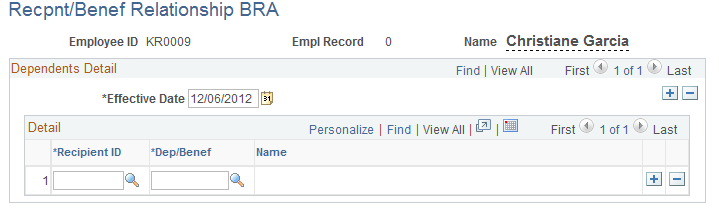
For the selected employee, identify any deduction recipients that are to be included in the IREN report. Deductions paid to the selected recipient will be listed in the report along with the recipient's name. (Use the Add Deduction Recipients page to specify which deduction a recipient is to receive.)
IREN Parameters BRA Page
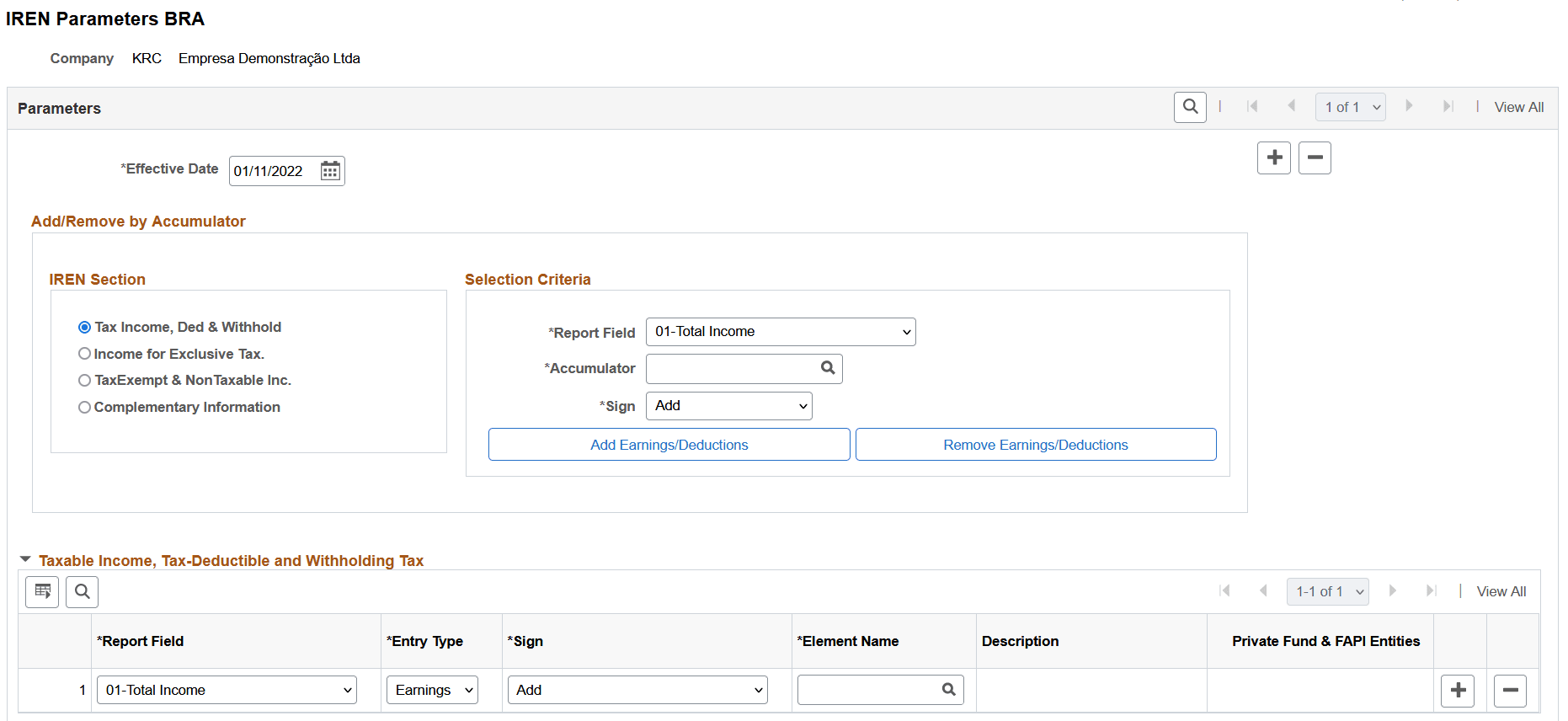
Use the IREN Parameters BRA page (GPBR_IREN) to define IREN parameters for a company.
Navigation:
This example illustrates the fields and controls on the IREN Parameters BRA page (1 of 2).
This example illustrates the fields and controls on the IREN Parameters BRA page (2 of 2).
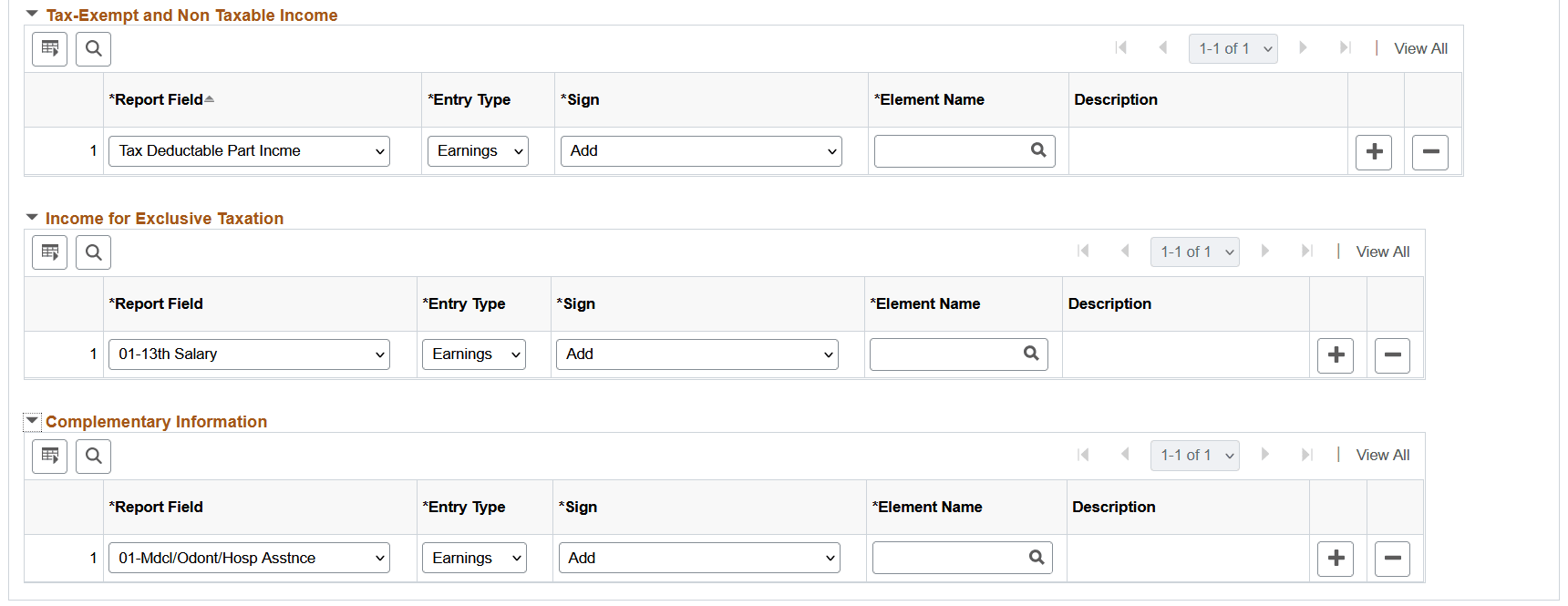
Each section of this page corresponds to a section of the IREN report that has the same name. Map the report fields in each section to the elements that will provide the values for these fields.
Add/Remove by Accumulator
You can add or remove earnings or deductions to a section of the report by selecting the appropriate report section in the IREN Section region of the page. Then, specify the Report Field and Accumulator, and finally click the Add Earnings/Deductions button or the Remove Earnings/Deductions button and the system adds or removes the appropriate earnings or deductions, based on the accumulator you specified.
| Field or Control | Description |
|---|---|
|
IREN Section |
Click the name of the report section for which you wish to add or remove earnings or deductions. |
|
Report Field |
Select the field in the IREN report, based on the section you choose, for which you wish to add or remove earnings or deductions. |
|
Accumulator |
Specify the accumulator for which you want to add or remove earnings or deductions. |
|
Add Earnings/Deductions and Remove Earnings/Deductions |
Click to add or remove the earnings or deductions to the IREN report based on the specified accumulator. |
Report Section Regions
For each report section, specify the entries in the report fields that you want to include in the report.
| Field or Control | Description |
|---|---|
|
Report Field |
Specify the report field for which you wish to add elements. |
|
Entry Type |
Specify whether the element is either an earnings element or a deductions element. |
|
Element Name |
Specify the element name that you wish to add to the specified section of the report. |
|
Private Fund & FAPI Entities |
Select the private fund and FAPI entity if the selected report is 03-Cntribs Private Fund. Private fund and FAPI entities are defined on the PeopleSoft Human Resources Administer Workforce: Private Fund & FAPI Entities Page. |
IREN Report BRA Page
Use the IREN Report BRA page (GPBR_RC_IREN) to generate the IREN report.
Navigation:
This example illustrates the fields and controls on the IREN Report BRA page (1 of 2).
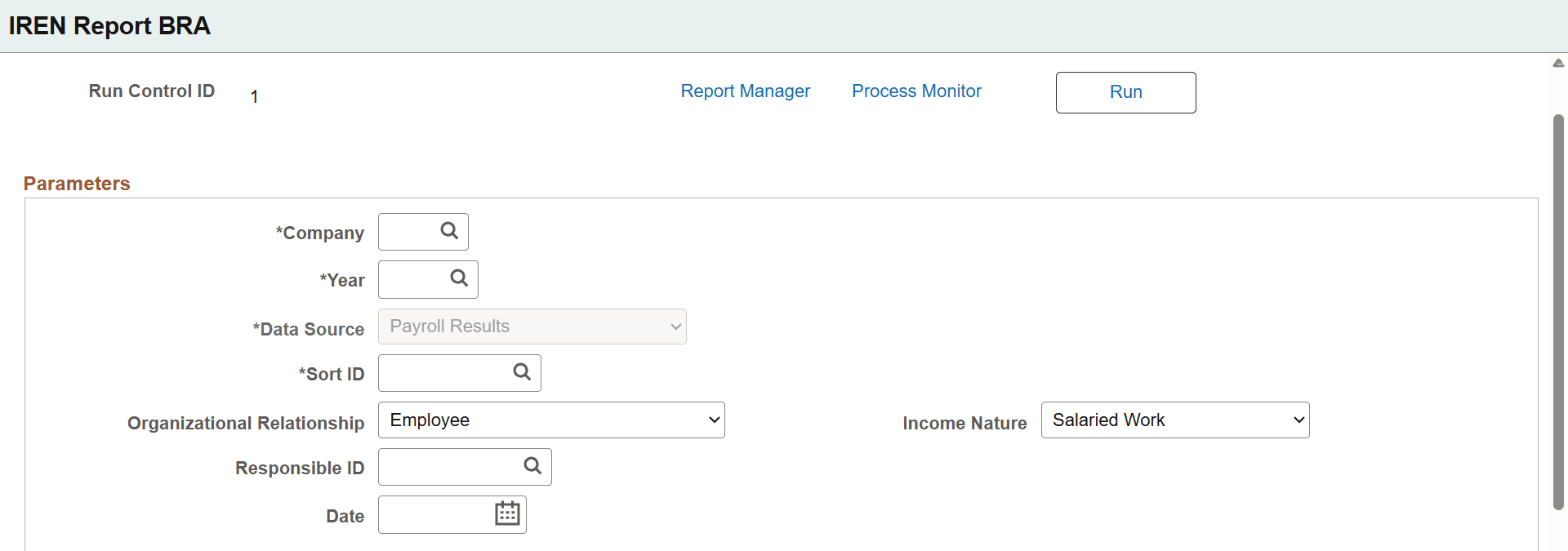
This example illustrates the fields and controls on the IREN Report BRA page (2 of 2).
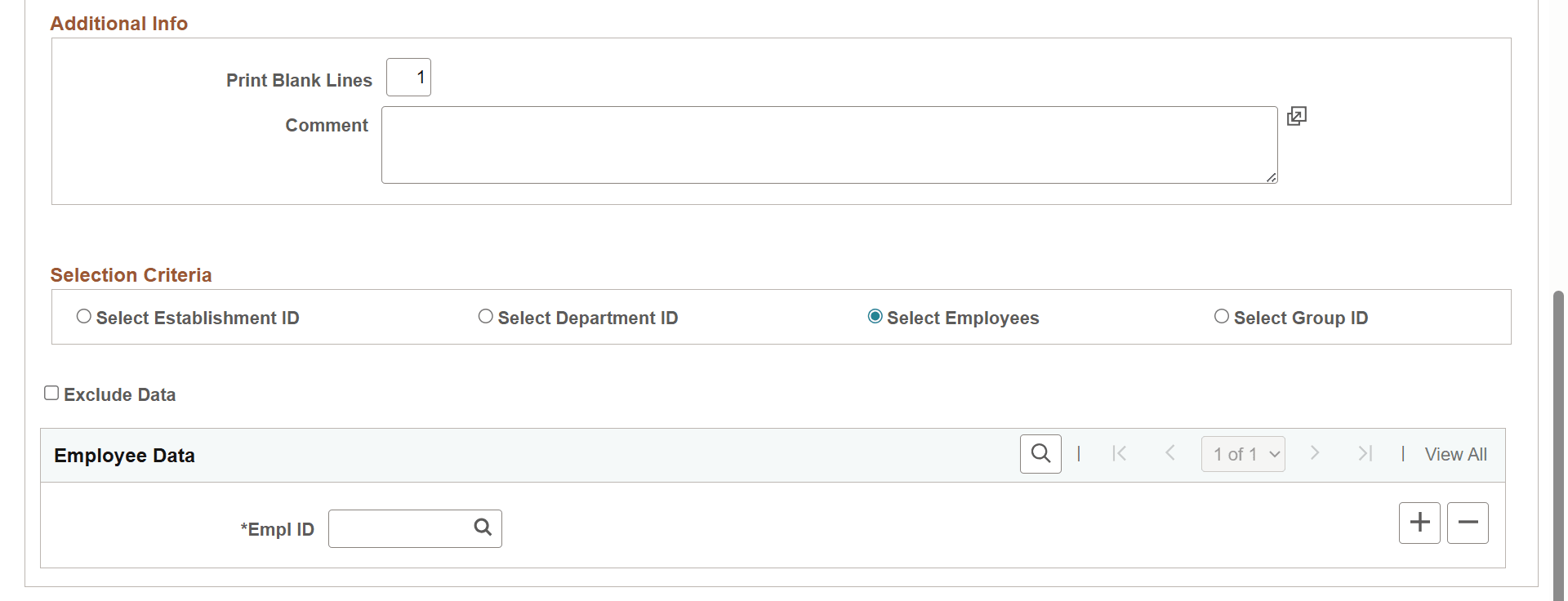
| Field or Control | Description |
|---|---|
| Data Source |
Select the data source to use for the IRRF report. Values include: Both: Use both payroll and eSocial S-5002 data for side-by-side comparison (capability is available beginning with calendar year 2025). Event S-5002: Use only eSocial S-5002 event data. Payroll Results: Use only internal payroll results (legacy behavior). This field becomes editable when the value of the Year field is 2025 or later. |
|
Organizational Relationship |
You can generate the report for employees, contingent workers, or persons of interest. |
|
Income Nature |
You can include salaried or unsalaried workers. |
|
Responsible ID |
Identify the person who is responsible for this report. |
|
Date |
Enter the date to print on the report. |