Running the Payslip Report
This topic discusses how to generate the payslip report.
Page Used to Run the Payslip Report
| Page Name | Definition Name | Usage |
|---|---|---|
|
GPBR_RC_PAYSLIP |
Generate a payslip. Note that you must first define the Group ID to generate a payslip. All groups selected in the Group ID field will automatically be re-created during the payroll run. |
Create/Print Payslips BRA Page
Use the Create/Print Payslips BRA page (GPBR_RC_PAYSLIP) to generate a payslip.
Note that you must first define the Group ID to generate a payslip. All groups selected in the Group ID field will automatically be re-created during the payroll run.
Navigation:
This example illustrates the fields and controls on the Create/Print Payslips BRA page.
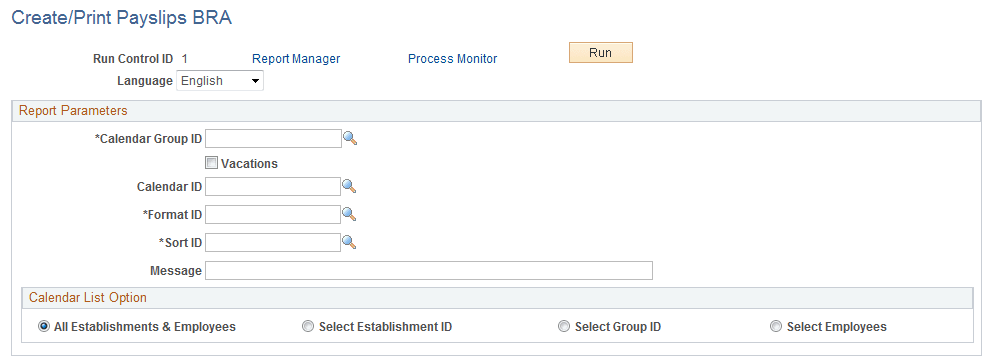
| Field or Control | Description |
|---|---|
|
Calendar Group ID and Calendar ID |
Select the calendar group ID and then select the calendar. |
|
Vacations and Run Type |
Select to indicate this is a vacations payslip and then select the run type. When selected, the Calendar ID field becomes the Run Type field. |
|
Format ID |
Select the Format ID. This value is defined on the Element Lists BRA page and defines the elements listed in the payslip. |
|
Sort ID |
Select the Sort ID. This value is defined on the Sort ID BRA page. |
|
Message |
Enter the text for a message that you want to appear on the printed payslips. |
|
Calendar List Option |
Select a method for selecting employees for whom to create a payslip. |
|
Establishment ID, Group ID, and EmplID |
Based on the selection you make in the Calendar List Option field, one of these fields appears. Enter the criteria that you want to use to select employees. |
Related Topics