Subrogation and Certification Page
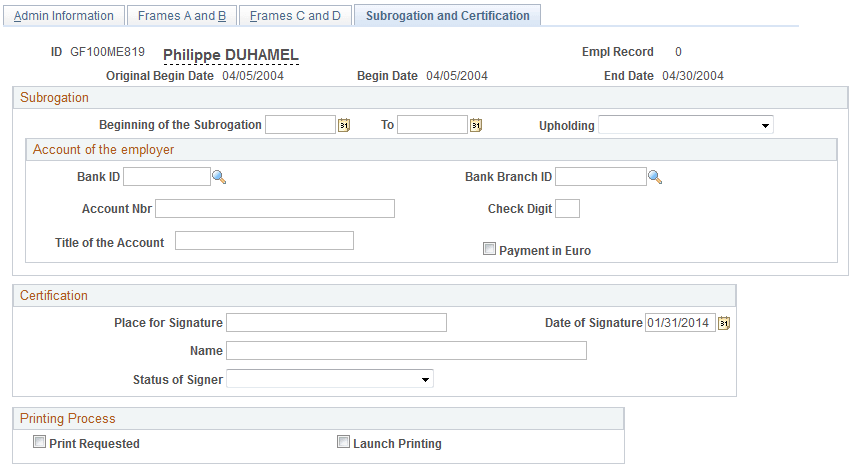
Use the Subrogation and Certification page (GPFR_ATMP_4) to enter the information that the social security agency needs to pay the social security allowance to your organization, rather than directly to the payee.
This information applies to industrial accidents and occupational illness.
Navigation:
This example illustrates the fields and controls on the Accident/Illness Cert FRA - Subrogation and Certification page. You can find definitions for the fields and controls later on this page.
Subrogation
| Field or Control | Description |
|---|---|
|
Beginning of the Subrogation |
Enter the begin date for which you are submitting a claim for subrogation. |
|
To |
Enter the end date for which you are submitting a claim for subrogation. |
|
Upholding |
Select Integral Upholding or Partial Upholding. |
Account of the employer
| Field or Control | Description |
|---|---|
|
Bank ID |
Enter the bank ID that the social security agency should use to deposit the funds. |
|
Bank Branch ID |
Enter the bank branch ID that the social security agency should use to deposit the funds. |
|
Account # (account number) |
Enter the account number that the social security agency should use to deposit the funds. |
|
Check Digit |
Enter the digit of the check that the social security agency should use to deposit the funds. |
|
Title of the Account |
Enter the title of the bank account into which the funds are to be transferred. |
|
Payment in Euro |
Select if you want to receive the allowance in euros. |
Certification
The values of the fields in the Certification group box can be predefined on the Certification page, which you access by clicking the Certification by the Employer link on the Extract Certificates Data FRA page You can also enter the certification information directly on the Subrogation and Certification page.
See Certification Page.
Printing Process
| Field or Control | Description |
|---|---|
|
Print Requested |
Indicates whether a certificate has been printed for the absence. This check box is selected automatically if a certificate has been printed. |
|
Launch Printing |
When you select this check box, the Launch button appears. Click this button to access the Certificates Report FRA page and print the certificate. |