Implementing Professional Tax Framework
Global Payroll for India PeopleSoft supports on implementing the Professional Tax framework by setting up the legislative deduction according to the State Government slabs, while processing payroll.
Pages Used to Implement Professional Tax Framework
| Page Name | Definition Name | Usage |
|---|---|---|
|
GP_BRACKET3 |
Define the brackets for professional tax calculations. The brackets are:
|
|
|
GP_VARIABLE |
Helps to trigger the professional tax calculation using the new professional tax setup. |
|
|
GPIN_PT_SETUP |
Define the key elements to calculate the professional tax for each state. |
|
|
PSXLATMAINT |
to maintain translate values. |
|
|
GPIN_PT_SETP_SLABS |
Define the salary range for calculating professional tax along with any other additional tax. |
|
|
unresolvable-reference.html#GUID-6275FE4C-14E3-4A5A-B55B-D1B35BE7CEF4 |
GPIN_TDS_GEN |
Update the employee specific tax details. The PT VR ENABLE N PT variable is enabled to view the updated page. |
|
GPIN_PR_RC |
To generate the professional tax report |
Brackets Pages
Use Brackets Pages to define the brackets for professional tax calculations. There are two brackets:
-
PT BR DD FREQUENCY
-
PT BR STATE RATES
The PT BR DD FREQUENCY bracket stores the deduction frequency data for each state codes.
Navigation:
.
This examples illustrate the fields and controls of the Search Keys tab in Brackets — Data page.
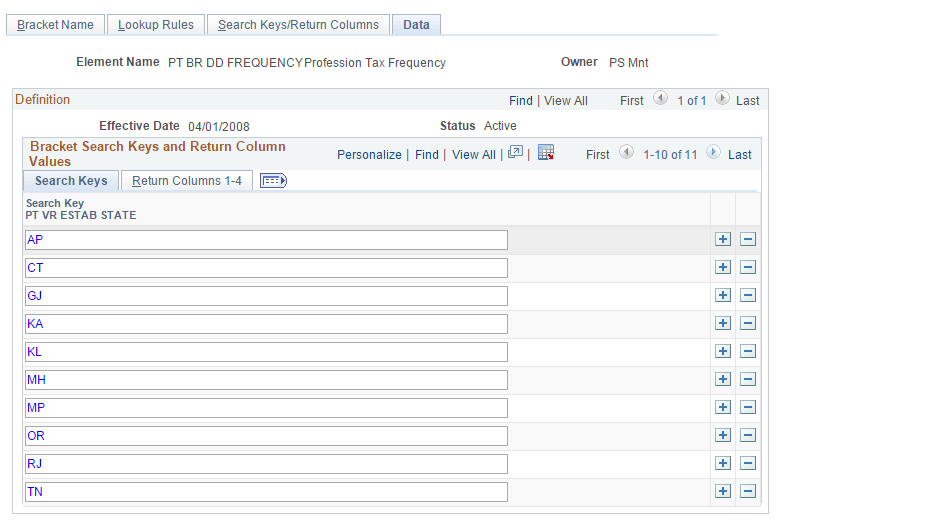
The fields represent the nine states which are supported by the system.
| Field or Control | Description |
|---|---|
|
AP |
Andhra Pradesh |
|
CT |
Chandigarh |
|
GJ |
Gujarat |
|
KA |
Karnataka |
|
KL |
Kerala |
|
MH |
Maharashtra |
|
MP |
Madhya Pradesh |
|
OR |
Odisha |
|
RJ |
Rajasthan |
|
TL |
Tamil Nadu |
The PT BR STATE RATES stores the professional tax rates against the income slab for each state.
Note:
The bracket PT BR DD Frequency supports Annual and Monthly PT ( Professional Tax) deduction. For states Tamilnadu and Kerala, where the PT needs to deducted in semi annual basis, use separate formula PT FM SA D along with PT FM SA GC to calculate the month of PT deductions.
Navigation:
.
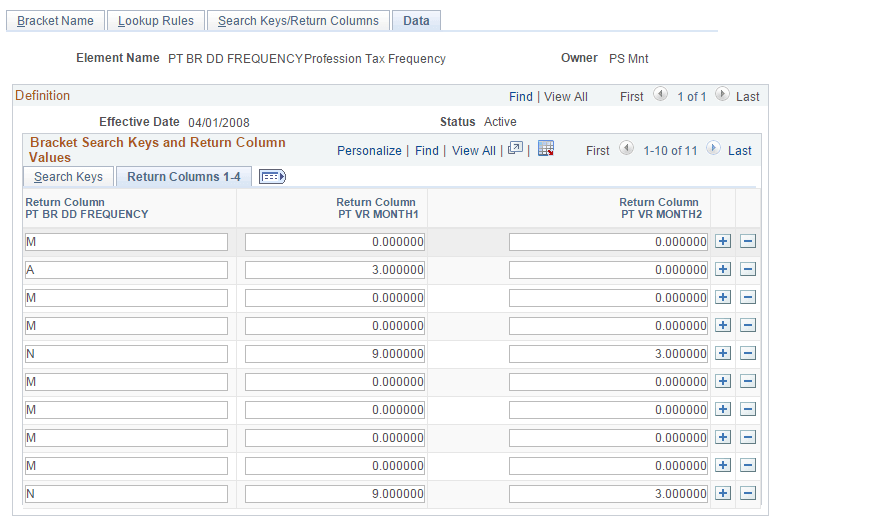
This example illustrates the fields and controls of the Return Columns tab in Brackets — Data page
| Field or Control | Description |
|---|---|
|
Return ColumnPT BR DD FREQUENCY |
Represents the first alphabet of the state codes. |
|
Return ColumnPT BR MONTH1 |
Enter the variable that represents the first month in which the professional tax is getting deducted. |
|
Return ColumnPT BR MONTH2 |
Enter the variable that represents the second month in which the professional tax is getting deducted. For example, if PT BR MONTH1 is 9 and PT BR MONTH2 is 3, then the first tax deduction happens in the September and the second deduction happens in March. |
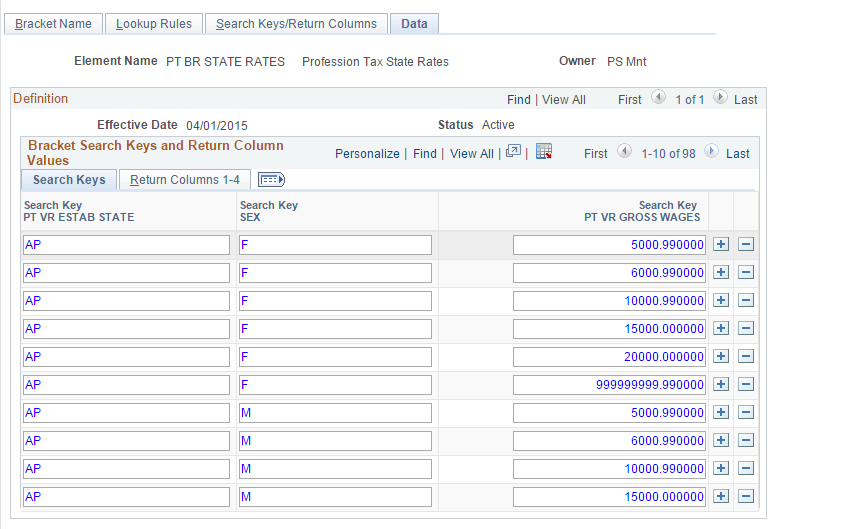
The PT BR STATE RATES stores the professional tax rates against the income slab (lower limit and upper limit) for each state.
Navigation:
.
This example illustrates the fields and controls of the Return Columns tab in Bracket — Data (PT BR STATE RATES) page
Variables — Definition page
Use Variables — Definition page (GP_VARIABLE) to trigger the professional tax calculation using the new professional tax setup.
Navigation:
.
This example illustrates the fields and controls of the Variables — Definition page.
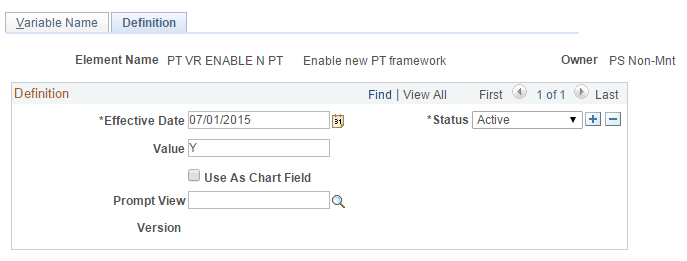
| Field or Control | Description |
|---|---|
|
Effective Date |
Enter the date from which the variable defined be effective. |
Note:
The professional tax calculations can be done even in the mid of the year. The switching will not be having any impact on the accumulators since the same accumulator is going to be maintained and the system will calculate the PT irrespective of the switch.
Professional Tax Details IND — Definition Page
Use Professional Tax Details IND — Definition Page (GPIN_PT_SETUP) to create the key elements to calculate the professional tax .
The Global Payroll for India supports professional tax for nine states. There are certain details required to calculate professional tax such as deduction frequency, income range and exemption category for those nine states.
Navigation:
.
This example illustrates the fields and controls of the Professional Tax Details IND — Definition Page
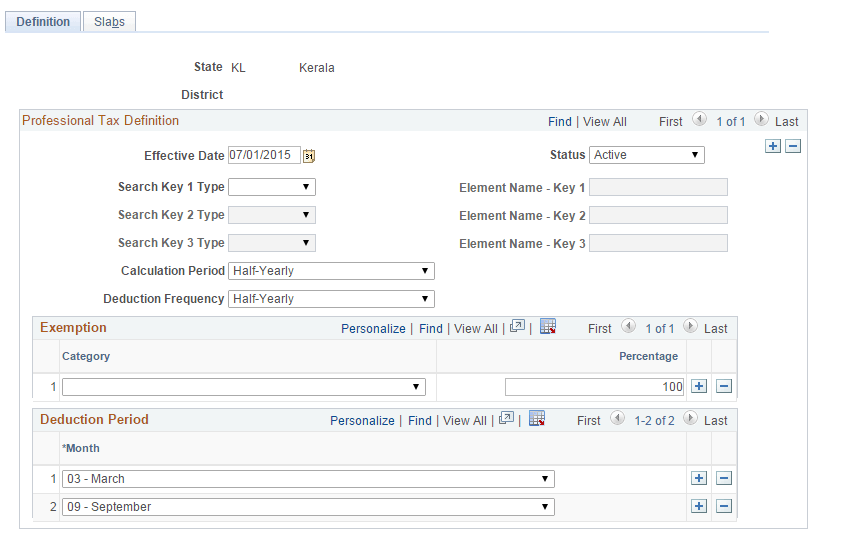
| Field or Control | Description |
|---|---|
|
Effective Date |
Specify date from which the tax details becomes effective. When there is a change in the tax slabs or any new exemption, add a new effective dated row. |
|
Search Key |
Refers to different type of employees, classification within employee group which is in turn used in defining the professional tax slabs for each type of employees. For example, in Maharashtra professional tax rates for male and female employees are different. Use the search key to configure such classifications. |
|
Element Name |
Corresponds to the respective Search key defined. For each category (combination of Search key and Element Name), you can define different gross wages or tax rates as applicable. |
|
Calculation Period |
Define the frequency of employee’s income based on which the professional tax is calculated. This varies between states and cane be Monthly, Quarterly, Half-yearly and Yearly |
|
Deduction Frequency |
Define the frequency with which the system deducts the professional tax from employee’s salary. Varies between states and can be Monthly, Quarterly, Half-yearly and Yearly. |
|
Category |
Configure the exemption category and percentage of exemption in the new set-up page. |
Note:
Profession Tax rates/updates are not maintained by Peoplesoft. A red paper is made available for any changes that Profession Tax may need.
Note:
Deduction Period is applicable when the deduction frequency is not Monthly. When the deduction frequency is half-yearly the deduction period grid enables to select the months in which the professional tax deduction has to be done from the employee. The number of rows in the grid must match with the deduction frequency selected except for monthly selection.
Translate Values Page
Navigation:
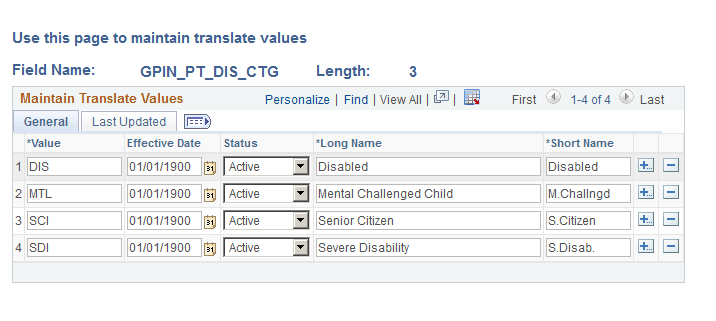
Use Translate Values Page (PSXLATMAINT) to add a new value under the exemption category and to maintain the translate values.
.
This example illustrates the fields and controls of the Translate Values Page.
Professional Tax Details IND — Slabs Page
Navigation:
Use Professional Tax Details IND — Definition Page (GPIN_PT_SETP_SLABS) to define the salary range for calculating professional tax along with any other additional tax.
.
This example illustrates the fields and controls of the Professional Tax Details IND — Slabs Page.
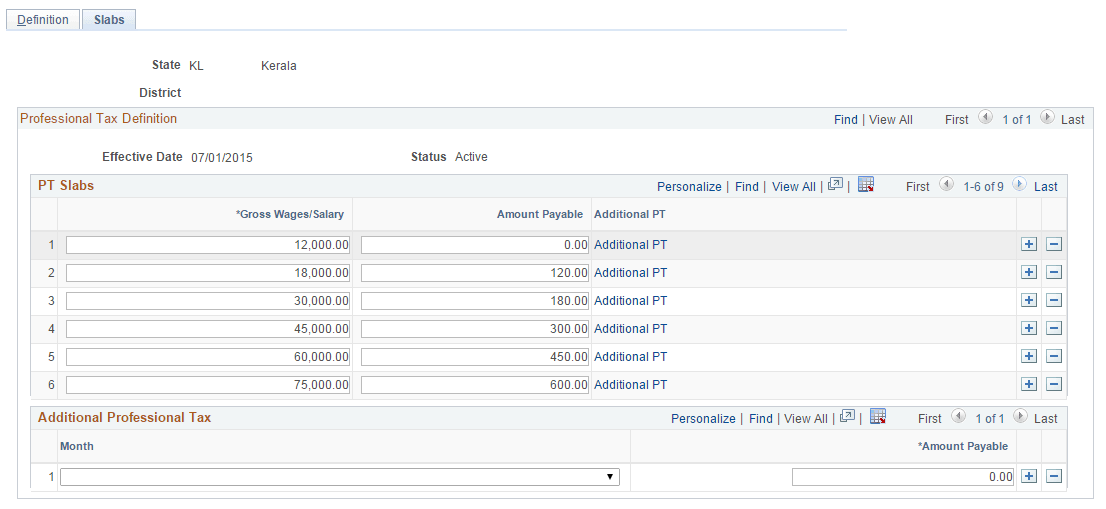
PT Slabs defines the state specific professional tax.
| Field or Control | Description |
|---|---|
|
Gross wages/ Salary |
Defines upper limit of Income slab for the respective search keys. The amount is in sync with the calculation period in definition tab. If Income frequency is yearly, gross salary must be an annual income. |
|
Amount Payable |
Amount of Professional tax to be deducted for the corresponding income range. |
|
Additional PT |
Corresponds to any additional professional tax to be deducted for the respective gross salary range. |
Note:
The Additional Professional Tax grid is different from the Additional PT link under PT Slabs grid. Some states have additional deduction of professional tax in any specific month, then you can select the month on which the Additional PT has to be deducted and the applicable amount. This deduction happens only for such category of employee in that specific month irrespective of income ranges.
ASSEDIC Rates FRA Page
Use the ASSEDIC Rates FRA page (GPFR_ASS_RATES) to set up rates for ASSEDIC contributions.
PeopleSoft delivers these rates, but you can maintain them when the government issues updates.
Navigation:
This example illustrates the fields and controls on the ASSEDIC Rates FRA page. You can find definitions for the fields and controls later on this page.
Unemployment Insurance Contrib (unemployment insurance contributions)
The fields in this region display the Payee and Employer contribution percentages for the portion of gross salary below the A ceiling and Payee and Employer contribution percentages for the portion of gross salary below the B ceiling but above the A ceiling.
Note:
The field names in this region are dynamically displayed based on the values entered on the Ceilings page. These values change each year
Salary Guarantee Association
The field in this region displays the Employer contribution percentage for FNGS.
Note:
There is only an employer contribution percentage for FNGS, not for payees. This rate is based on the B ceiling, which is displayed dynamically. If the gross salary is over this limit, the contribution is still based on the B ceiling.