Absence Entitlement and Absence Take Processes
Absence processing is done by the following processes:
-
Entitlement process
This process updates frequency-based entitlements for payees and makes entitlement available. For example, if entitlement is granted monthly, you run the entitlement process once a month, even if you run weekly payrolls. You do not run this process for per-absence entitlements because they are updated by the Take process. You can run the Entitlement process before or after the Take process.
-
Take process
During this process, the system looks at each daily record and determines the amount of time that should be paid or unpaid, according to your absence rules. It converts paid and unpaid units to positive input and adjusts entitlement balances.
After running the Entitlement and Take processes, you run the payroll process to compensate payees for paid absences.
This diagram illustrates the absence processing cycle.

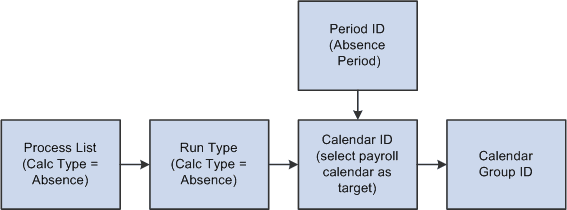
Following are the steps to prepare for running the Entitlement and Take processes:
-
Create one or more absence process lists to define the absence take elements or frequency-based entitlement elements that are to be resolved during processing.
-
Associate the process list with a run type.
-
Create a calendar for the absence processing period.
-
Attach the calendar to a calendar group ID.
You can attach an absence calendar and a pay calendar to the same calendar group ID.
Typically, you create process lists and attach them to run types when you implement Global Payroll. Then perform the remaining tasks on a regular basis.
This diagram illustrates the preparation steps for absence processing.
Useful Features of Process Lists
Useful features of process lists include:
-
The absence period can be the same as or different from the pay period. For example, January absences can be paid in January or February. You specify the target calendar pay for each absence process.
-
You can run the entitlement and take processes together or separately.
-
More than one Take process can target the same pay calendar. For example, vacations taken in January and sick time taken in February can be paid in February. To accomplish this, create two absence process lists, one for vacations and another for sick time, and attach each process list to a separate absence calendar. On each absence calendar, select the pay calendar as the target calendar.
-
The system can process absence takes according to their sequence on the process list or in chronological order. To process absences in chronological order, you include take elements in an absence take topic of a process list.
Guidelines for Creating Process Lists
Here are guidelines for creating process lists:
-
When setting up process lists, select Absence as the Calculation Type on the Process Lists - Definition page.
-
You can place entitlement and take elements on the same or different process lists.
-
Do not include per-absence entitlement elements in a process list.
An entitlement of this type is resolved by the Take process each time that an absence occurs.
-
Consider the order in which you add elements to the process list.
Place the entitlement elements before the take elements.
-
If any take elements are mapped so that the system generates the same take for both elements simultaneously, place the source element before the "mapped to" element. Otherwise, the mapped element is not resolved. (You can map elements using the Mapped To field on the Absence Take - Day Formula page.)
-
To have absence events processed in chronological order, add the take elements to an absence take section of the process list.
Guidelines for Creating Absence Calendars
Here are guidelines for creating absence calendars:
-
Take and Entitlement processes must be associated with a pay calendar.
Select the pay calendar as the target calendar when you create the calendar for the Take and Entitlement processes.
-
The absence period can be the same as or different from the pay period.
-
You can run some or all processes during the same run by attaching the appropriate calendars to the same calendar run ID.
-
You can run the Entitlement and Take processes in any order; typically you run Entitlement first.
Timing can affect entitlement balances, as shown in this example:
Payees are entitled to 20 hours of vacation per month. In January, a payee takes 15 hours of vacation. The payee has no carryover from the prior year, so as of 1 January, the entitlement balance is 0.
-
If you run the absence Entitlement process first, the employee receives the monthly entitlement of 20 hours. When you run the Take process, the system subtracts 15 hours, leaving an entitlement balance of 5 hours.
-
If you run the Take process first, the employee has a negative entitlement balance of 15 hours. When you run the Entitlement process, the balance becomes 5 hours. If your organization doesn't allow a negative balance, the payee might have to take the 15 hours as unpaid time or have the 15 hours deducted from the entitlement that is associated with another absence take. Only when the entitlement process is run does the payee receive the full 20 hours.
-
Running the Entitlement or Take Process
After defining the Calendar Run ID, you're ready to start the process. Complete the Calculate Absence and Payroll page and use PeopleSoft Process Scheduler to start the process.