Renaming Elements
Page Used to Rename Elements
| Page Name | Definition Name | Usage |
|---|---|---|
|
GP_PIN_RENAME |
Change an element's PIN code. |
Understanding How to Rename Elements
Sometimes the compare process finds an element in the target database whose PIN code is the same as the source element's, but the two elements have different element types or owners. In this case, you receive one of the following error messages: "Element Owner/Type Conflict" or "Mbr Element Owner/Type Conflict."
To continue exporting the element, you can use the Element Rename Utility to change the PIN code of the target element. After changing the PIN code, always rerun the compare process.
When you instruct the system to change an element's PIN code, it checks the following:
-
Is the new PIN code already in use?
If yes, the system generates an error.
-
Is the old PIN code used in PeopleSoft Time and Labor?
If yes, the system creates a warning. Remap the element in Time and Labor to reflect the new code.
-
Is the new PIN code the same as the old PIN code?
If yes, the system issues a warning.
Important:
Do not rename an element when you are in the process of creating a package.
PeopleSoft created elements cannot be renamed.
WARNING:
Time and Labor stores PIN code information, so if you make a change, you must update Time and Labor data accordingly.
Rename Element Codes Page
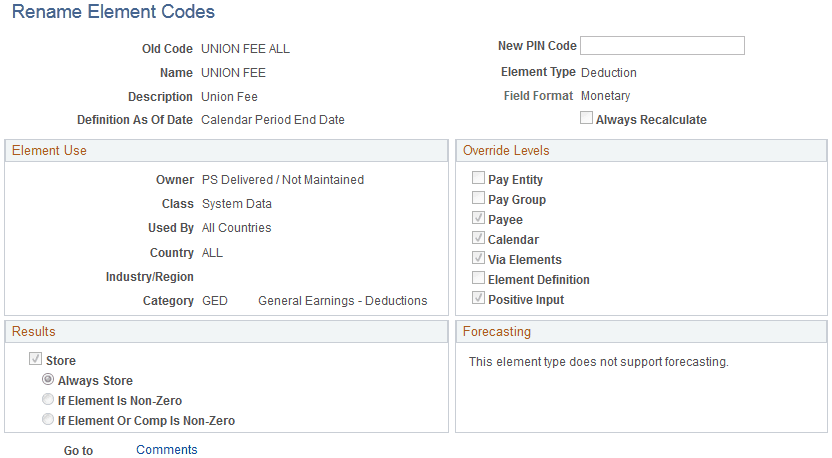
Use the Rename Element Codes page (GP_PIN_RENAME) to change an element's PIN code.
Navigation:
This example illustrates the fields and controls on the Rename Element Codes page.
| Field or Control | Description |
|---|---|
|
New PIN Code (new pay item name code) |
Enter the new code. The old PIN code is replaced when you save. Note: When renaming a PIN, make sure that you use the PIN name plus the country suffix. For example: PIN NAME DEU. |