Setting Up the Integration in the Enterprise Database
The Enterprise database must be set up to receive the data transferred from the EnterpriseOne database and to send the payroll accounting data. Scripts that you run as part of the integration installation accomplish most of these steps. Use the instructions in this topic to verify and complete the setup.
Pages Used to Set Up the Integration in the Enterprise Database
| Page Name | Definition Name | Usage |
|---|---|---|
|
Service Operations - General Page |
IB_SERVICE |
Activate service operations. |
|
Service Operations - Handlers Page |
IB_SERVICEHDLR |
Verify that handlers for service operations are active. |
|
IB_NODE |
Verify the Integration Broker node definition for integration with EnterpriseOne. |
|
|
IB_NODECONN |
Verify connector properties. |
|
|
IB_NODEROUTINGS |
Verify activation of the routings used in this integration. |
|
|
IB_MONITOR_QUEUES |
Verify the status of queues. |
Verifying Service Operation Version and Handler Activity
The integration between Global Payroll and General Ledger uses service operations, along with their associated handlers and routings to perform message and subscription integration. Before you continue with the integration setup, you must ensure that these objects are active.
To activate a service operation version:
-
Access the Service Operation - General page
-
Select the Active check box in the Default Service Operation Version group box.
To verify that a handler is active for a given service operation:
-
Access the Service Operation - Handlers page
-
Verify that the value of the Status field is Active for the handlers associated with the service operation.
Verify the service operation and handler activity for the following service operations:
-
ACCOUNT_CHARTFIELD_FULLSYNC
-
ACCOUNT_CHARTFIELD_SYNC
-
BUS_UNIT_FS_SYNC
-
BUS_UNIT_GL_FULLSYNC
-
BUS_UNIT_GL_SYNC
-
COST_CENTER_FULLSYNC
-
COST_CENTER_SYNC
-
GP_POST_GL
-
GP_POST_GL_REPLY
-
MARKET_RATE_REQ
-
MARKET_RATE_SYNC
Note:
It is not necessary to activate routings using the Routings page in the Service Operation component. You can activate all the routings for a specific node at once using the Routings page of the Nodes component.
Node Definitions Page
Use the Node Definitions page (IB_NODE) to verify the Integration Broker node definition for integration with EnterpriseOne.
Navigation:
This example illustrates the fields and controls on the Node Definitions page.
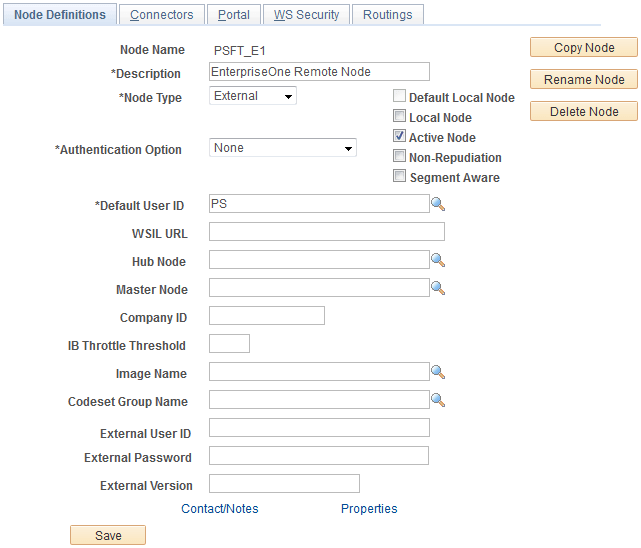
The PSFT_E1 node is delivered as an example for the integration from HR to EnterpriseOne.
It is recommended that you copy the PSFT_E1 node to one that matches your naming convention and system configuration.
Activate the node and verify the following settings:
| Field or Control | Description |
|---|---|
|
Node Type |
External |
|
Authentication Option |
None |
Nodes - Connectors Page
Use the Nodes - Connectors page (IB_NODECONN) to verify connector properties.
Navigation:
This example illustrates the fields and controls on the Connectors page.
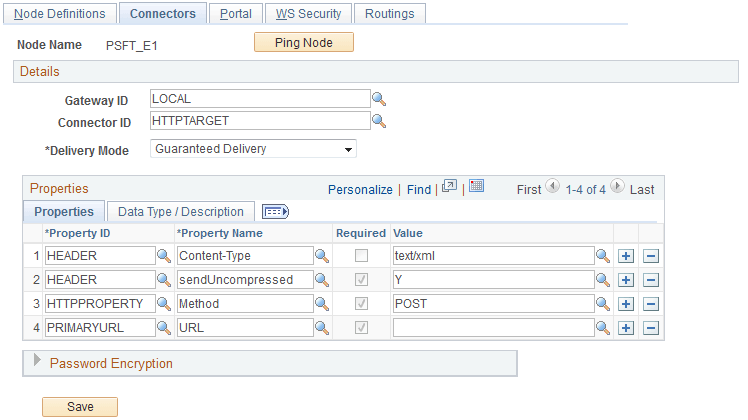
Verify and complete the properties setup as defined in the table below.
| Property ID | Property Name | Required | Value |
|---|---|---|---|
|
HEADER |
Content-Type |
text/xml |
|
|
HEADER |
sendUncompressed |
select |
Y |
|
HTTPPROPERTY |
Method |
select |
POST |
|
PRIMARYURL |
URL |
select |
The URL points to the EnterpriseOne Integration Server. Enter it in the following format: http://<XPI IS MachineName>:<IS port>/invoke/PSFT_Dispatcher.Inbound:InboundServiceDispatcher |
Note:
The Properties group box is available on this page only if you configure your gateway properly.
See PeopleTools: Integration Broker Service Operations Monitor product documentation.
Nodes - Routings Page
Use the Nodes - Routings page (IB_NODEROUTINGS) to verify activation of the routings used in this integration.
Navigation:
This example illustrates the fields and controls on the Nodes - Routings page.
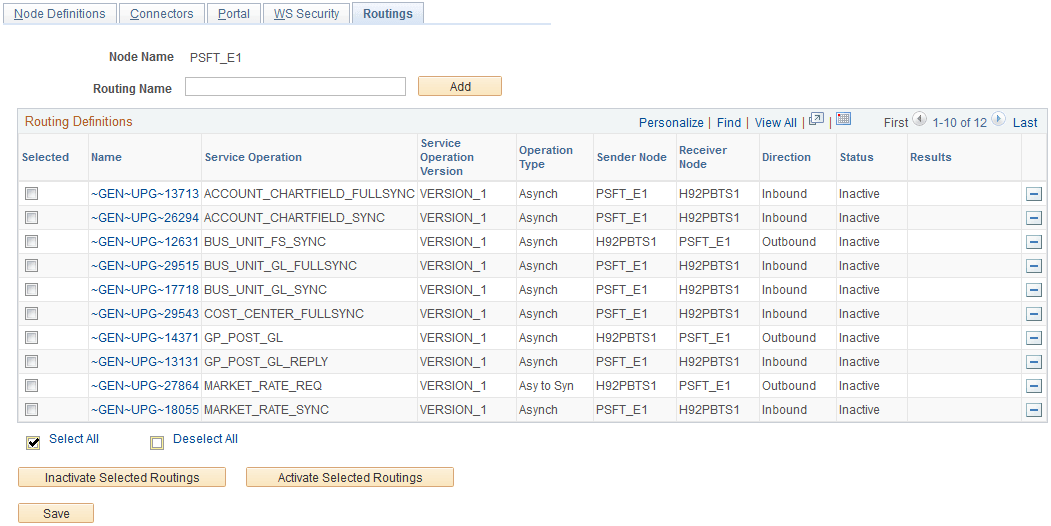
For each service operation listed in the table below, verify that the routing type, sender node, and receiver node are set to the values listed in the following table, and that the Status is Active. If necessary, click the Details link next to a service operation to access the Service Operations page.
| Service Operation | Operation Type | Sender Node | Receiver Node |
|---|---|---|---|
|
ACCOUNT_CHARTFIELD_FULLSYNC |
Asynch |
PSFT_E1 |
PSFT_HR |
|
ACCOUNT_CHARTFIELD_SYNC |
Asynch |
PSFT_E1 |
PSFT_HR |
|
BUS_UNIT_FS_SYNC |
Asynch |
PSFT_HR |
PSFT_E1 |
|
BUS_UNIT_GL_FULLSYNC |
Asynch |
PSFT_E1 |
PSFT_HR |
|
BUS_UNIT_GL_SYNC |
Asynch |
PSFT_E1 |
PSFT_HR |
|
COST_CENTER_FULLSYNC |
Asynch |
PSFT_E1 |
PSFT_HR |
|
COST_CENTER_SYNC |
Asynch |
PSFT_E1 |
PSFT_HR |
|
GP_POST_GL |
Asynch |
PSFT_HR |
PSFT_E1 |
|
GP_POST_GL_REPLY |
Asynch |
PSFT_E1 |
PSFT_HR |
|
MARKET_RATE_REQ |
Asy to Syn |
PSFT_HR |
PSFT_E1 |
|
MARKET_RATE_SYNC |
Asynch |
PSFT_E1 |
PSFT_HR |
See PeopleTools: Integration Broker Service Operations Monitor product documentation.
Queue Status Page
Use the Queue Status page (IB_MONITOR_QUEUES) to verify the status of queues.
Navigation:
This example illustrates the fields and controls on the Queue Status page.
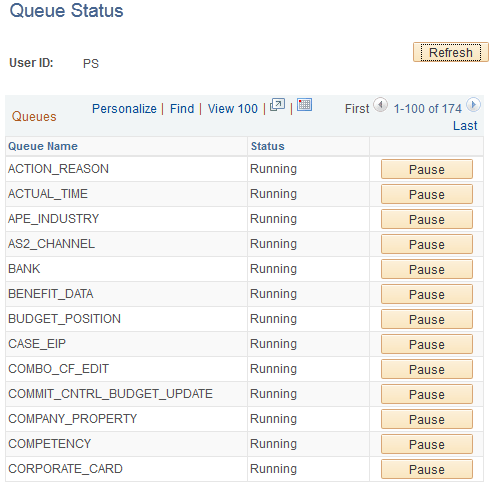
Verify that the status is Running for each of the following queues:
-
ENTERPRISE_SETUP
-
GP_POST_GL
-
GL_SETUP
-
MARKET_RATES
If the status is Paused for any of the listed channels, click Run to change the status.
See PeopleTools: Integration Broker Service Operations Monitor product documentation.