Defining Transaction Summary Configuration
Transaction Summary page in the ‘Create Personnel Action Process’ displays the changes made by the user along with the existing data. This helps the users to review the changes before submission. As an administrator, you can configure the fields that need to be displayed based on the selected NOA code.
Use the Transaction Summary Configuration page to configure the fields to be displayed for each NOA code.
Navigation:
Set Up HCM, Product Related, Workforce Administration, Workforce Data USF, Transaction Summary Configuration
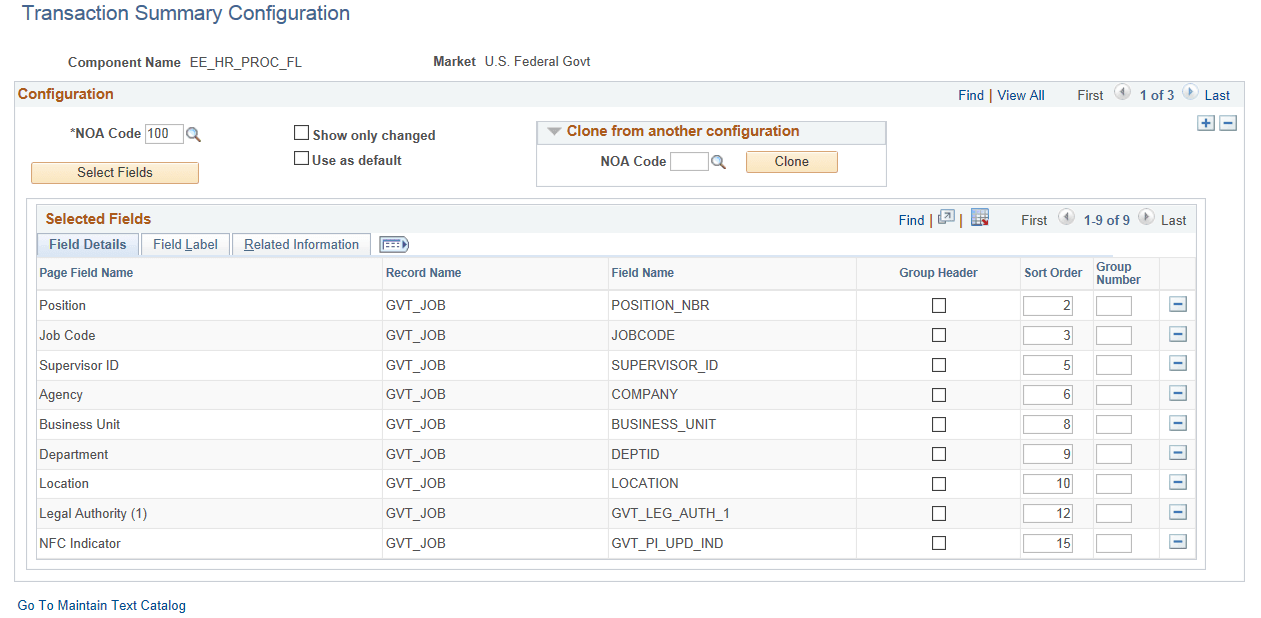
This example illustrates the fields and controls on the Transaction Summary Configuration page.
| Field or Control | Description |
|---|---|
|
NOA Code |
Select the Nature of Action Code(NOA). The fields in the Summary page will be displayed based on the configuration of the selected NOA code. |
|
Show Only Changed |
Use the “Show only changed” check box to list only the modified fields in the transaction summary page. On selecting the check box, only the modified fields, out of the selected fields in the configuration, would be displayed in the summary. |
|
Use as default |
Use the ‘Default’ check box to select one configuration as the default configuration. If no specific configuration is defined for a NOA code, this default configuration will be used to display the summary data. |
|
Clone |
Click the Clone button to copy configuration from another NOA Code. You can select the NOA code from which the configuration is copied. |
|
Select Fields |
Click on “Select Fields” button to open the field selector component in a modal window. This modal window lists all the visible pages in the selected component and the fields corresponding to each pages. You can select the fields that needs to be added in the Transaction Summary Page. Note: Derived record fields, Related record fields and Invisible fields are excluded. For more information on configuring related fields, see ‘Selected Fields — Related Information’ section in this document. |
Selected Fields — Field Details
In this section, the fields that are selected for Transaction Summary will be listed. You can add further configuration to these fields.
| Field or Control | Description |
|---|---|
|
Group Header and Group Number |
You can select and group the fields to appear together in the Transaction Summary page. Select the check box to choose a field as a header for group. Enter the number of the group to which the field belongs in The Group Number field. For example, consider that you want to group Field A, Field B, and Field C and make Field A as the group header. In this case, enter ‘1’ as the Group Number for Field A and put the same number for all the fields which you wish to include in the group. Note: If the group number of a header field is changed, then the group number of all the fields in that group will get updated. All members of the group should be from the same record, and the header must be a key field. |
|
Sort order |
Enter the order in which the fields to be displayed. When saved, the order number values will be updated to form a continuous sequence. |
Selected Fields — Field Label
In this section, you can modify the existing label of the field.
| Field or Control | Description |
|---|---|
|
Override Label |
Select the ‘Override label’ check box, if you want to override the existing label. |
|
Text ID |
Select the Text Id corresponding to the new label. Text Id field is enabled only if you select the ‘Override label’ check box. Note: Use the ‘Go to Maintain Text Catalog’ link to add a new Text Id. |
Selected Fields — Related Information
In this section, you can configure which fields to be displayed as the related fields.
| Field or Control | Description |
|---|---|
|
Show Related Information |
Select the check box if you want to display the related information along with the field in summary page. |
|
Change Related Field |
Click the button to open Related Information window. In the new window, you can select ‘Choose from Page Fields’ option (choose any of the listed record fields) or select ‘Choose Other’ and enter the field name directly. Note: This button is enabled only if you select the ‘Show Related Information’ check box. |