(PreBoarding phase only) PreBoarding Summary Page
Use the Summary page (HR_OBD_PB_SUM_FL) to view a summary of the PreBoarding phase of your activity guide, mark individual steps a complete, return to a specific step, and mark the PreBoarding phase of the process as complete.
Note:
This page is delivered as part of the Standard PreBoarding template and is available for future workers only. As of the first day of work, the activity guide moves to the OnBoarding phase of the process and this page is hidden and replaced by the Overall Summary page.
Important:
The PreBoarding Summary step should be added if the activity guide template supports both PreBoarding and OnBoarding phases.
Navigation:
Select the step from the activity guide navigation or use the navigation buttons.
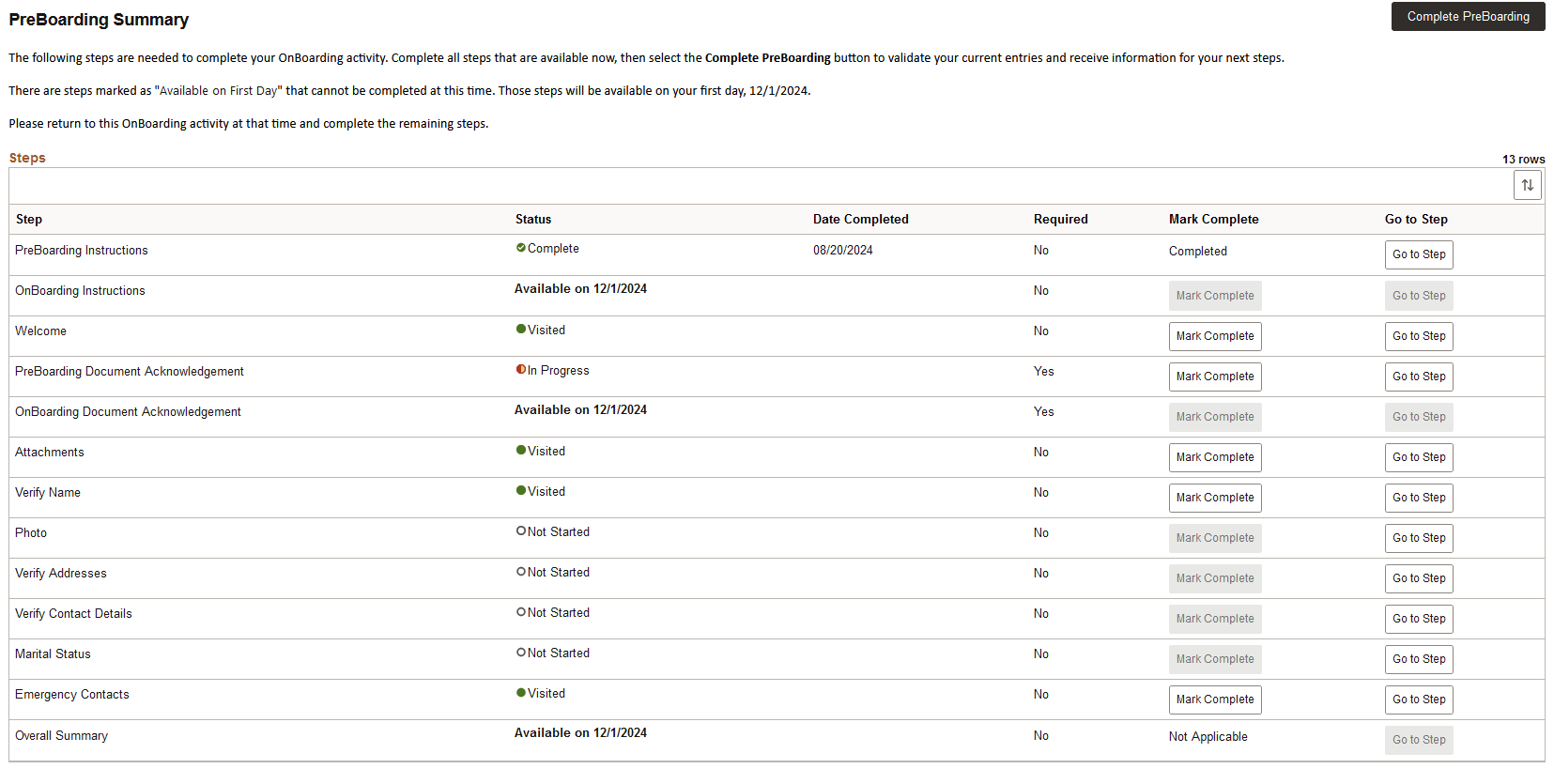
This example illustrates the PreBoardingSummary page for the tablet.
This example illustrates the PreBoarding Summary page for the smartphone.
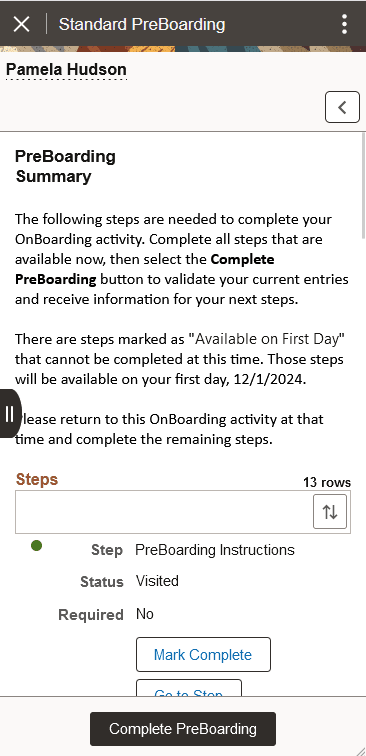
View a summary of the steps you have visited and completed. Additionally, view information about any tasks that you need to complete for this OnBoarding event.
| Field or Control | Description |
|---|---|
|
Complete PreBoarding button |
Select this button to mark the PreBoarding phase of the activity guide complete. Marking it complete is used for reporting and reminder purposes. The process will do the following:
Employees can return to the PreBoarding activity guide process up until the first day of work. |
Steps
Use the Steps section to view a summary of the statuses of each step in this process and what is required and when.
| Field or Control | Description |
|---|---|
|
Status |
Displays the status of the step. When a step is not available until the first day of work, and therefore part of the OnBoarding phase, the status will display the date when that step will become available. |
|
Date Completed |
Displays the date you completed this step. If you have not completed any steps, this field will be hidden. |
|
Required |
If a step is required, this field will display Yes. If it is not required, the field shows No. |
|
Due Date |
Displays the due date by when you should complete this step. If none of your steps have a due date, then this field will be hidden. Note: The delivered PreBoarding steps are not set up with due dates but the administrator can configure a step attribute to have a due date on the template. |
|
Mark Complete button or text |
This field will display one of the following options:
|
|
Go to Step button |
Select this button to easily navigate back to a step. If you have completed a step or the step is not yet available, this button is display only. |