Summary Page (or Overall Summary) Page
Use the Summary or Overall Summary page (AGC_SUMMARY_FL) to view a summary of your OnBoarding activities, mark individual steps as complete, return to a specific step, or mark this OnBoarding process as complete.
Note:
This page is delivered as part of the Standard PreBoarding, Standard OnBoarding, Standard Multi-Participant OnBoarding, OnBoarding for CAN, and OnBoarding for USA templates. However, when entering the OnBoarding phase of the Standard PreBoarding activity guide process, this page name is configured to display as Overall Summary.
Important:
Oracle recommends that you add the Summary step as the last step in activity guide processes.
Navigation:
Select the step from the activity guide navigation, or use the navigation buttons, as needed.
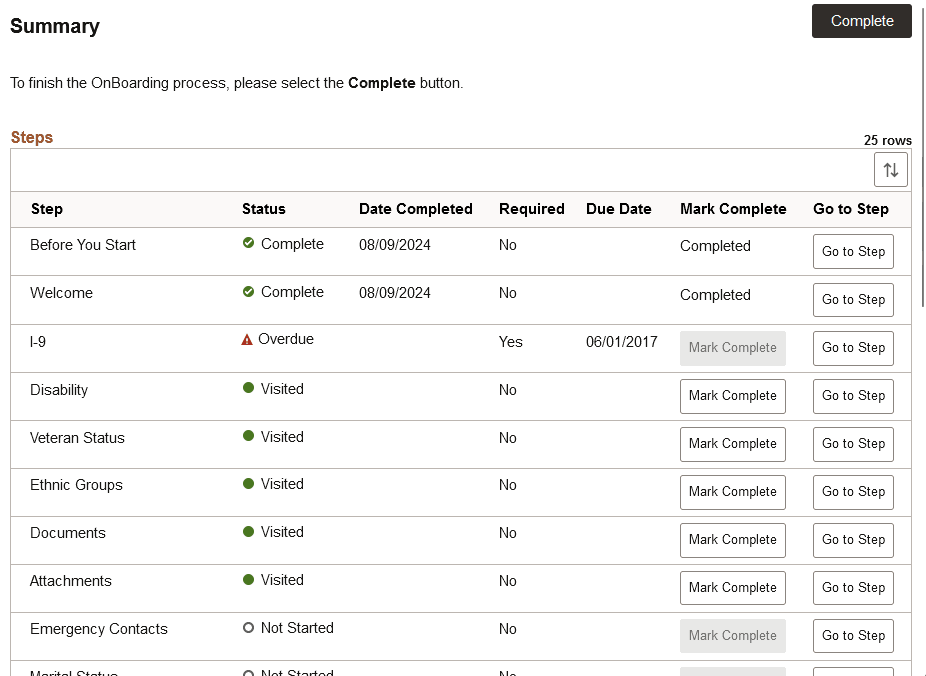
This example illustrates the Summary page for the employee.
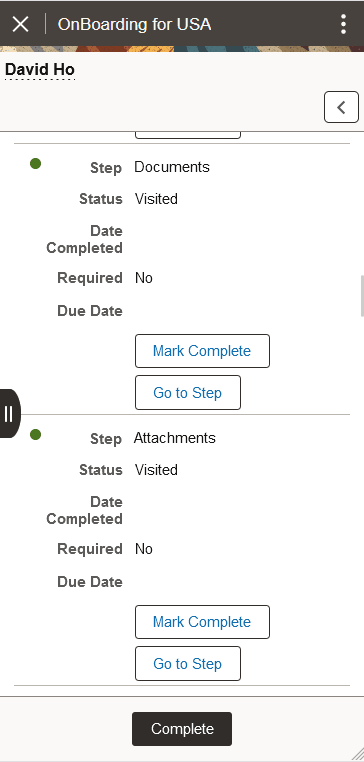
This example illustrates the Summary page for the smartphone.
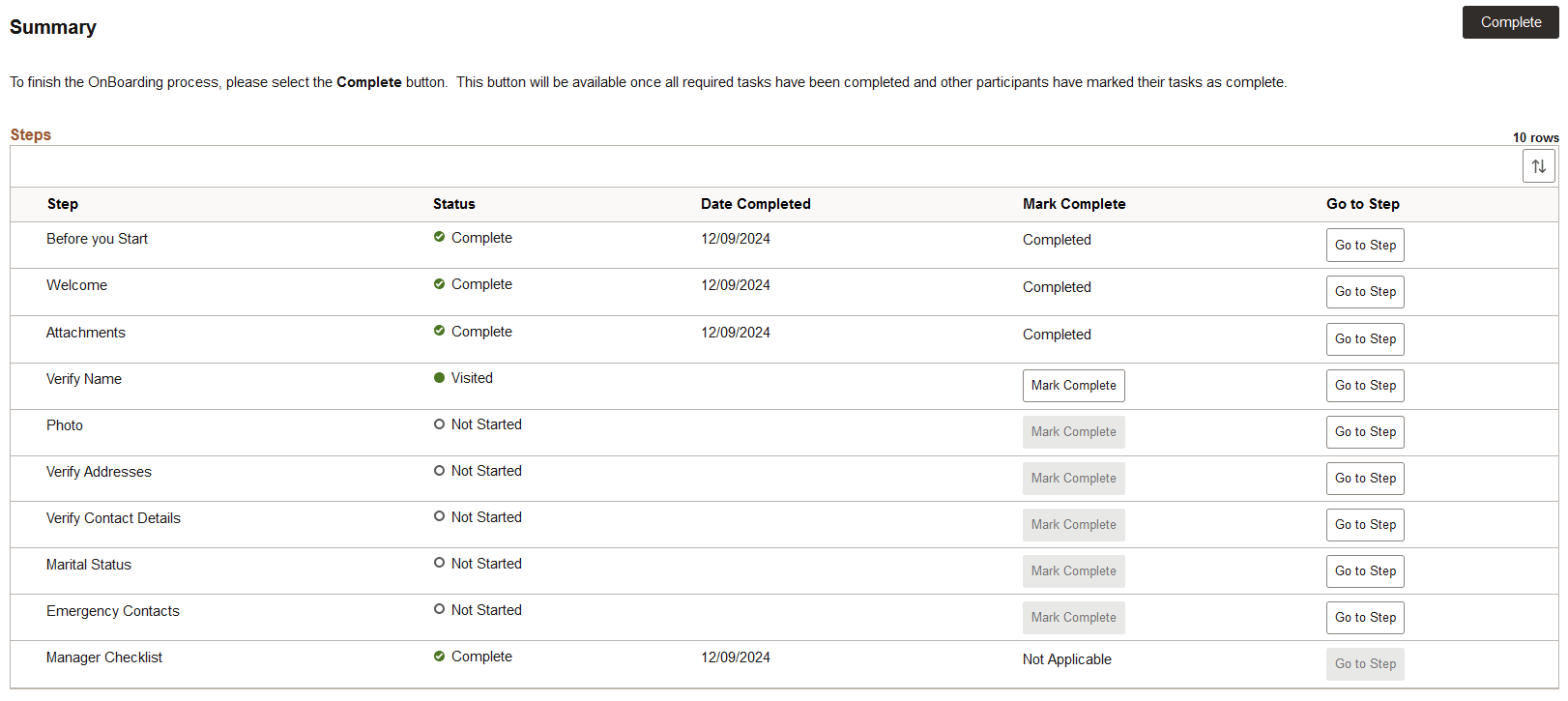
This example illustrates the Summary page for the employee when completing a multi-participant activity guide.
View a summary of the steps you have visited and completed. Additionally, view information about any tasks that you need to complete for this OnBoarding event.
When accessing a multi-participant activity guide process, the text at the top of the page will indicate that the Complete button will be available when all participants have completed all required steps.
WARNING:
Oracle recommends that any step to be completed by another user be configured as Required to prevent the employee from completing the activity guide instance before other users can complete their tasks. See the Enterprise Components: Configure Attributes Page of the template to mark a step as required.
| Field or Control | Description |
|---|---|
|
Complete button |
Select this button to mark the activity guide complete. The system will verify that all the required steps have been completed and displays a message if any are incomplete. This closes the OnBoarding activity guide transaction process. Note: Once the activity guide has been marked complete, the OnBoarding dashboard tile will no longer be available. |
Steps
Use the Steps section to view a summary of the statuses of each step in this process and what is required and when.
| Field or Control | Description |
|---|---|
|
Status |
Displays the status of the step. |
|
Date Completed |
Displays the date you completed this step. If you have not completed any steps, this field will be hidden. |
|
Required |
If a step is required, this field will display Yes. If it is not required, the field shows No. |
|
Due Date |
Displays the due date by when you should complete this step. If none of your steps have a due date, then this field will be hidden. |
|
Mark Complete button or text |
This field will display one of the following options:
|
|
Go to Step button |
Select this button to easily navigate back to a step. If you have completed a step or the step is not yet available, this button is display only. This button is not available for steps that belong to other participants. |