(PreBoarding phase) PreBoarding Document Acknowledgement Page
Use the PreBoarding Document Acknowledgement page (HR_OBD_ATT_DNLD_FL) to view, acknowledge, or upload documents provided by the organization that are available prior to your first day of work.
Note:
This page is delivered as part of the Standard PreBoarding template and is available for future and potentially current workers. As of the first day of work, the activity guide moves to the OnBoarding phase of the process. If you have marked this step as complete during PreBoarding, it will not be available during the OnBoarding phase. If you have not completed the step or if this step were marked as required it would continue to appear in the OnBoarding phase.
Note:
You can configure your activity guides to use document groups and filter your documents by categories. This enables you to display like documents in different steps. For more information on this, see Understanding Document Groups.
Navigation:
Select the step from the PreBoarding activity guide navigation or use the navigation buttons.
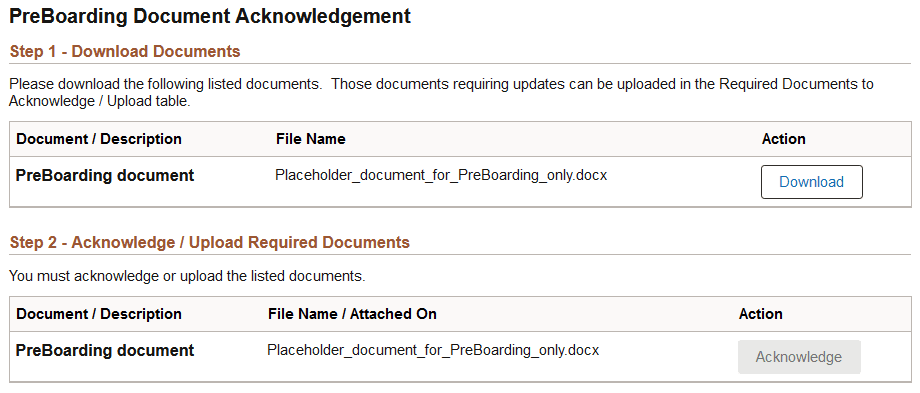
This example illustrates the PreBoarding Documents Acknowledgement page for a tablet.
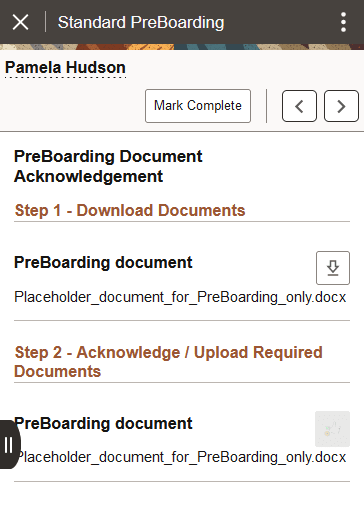
This example illustrates the PreBoarding Documents Acknowledgement page for a smartphone.
Use this page to view the documents for the PreBoarding phase of the OnBoarding process.
Available documents are defined on the Configure Documents - Templates Page. Administrators define documents using one of these three options:
-
None: These documents are available within the Step 1 - Download Documents section of this page. No further action is required from the worker other than to view or download the document.
-
Acknowledge Document: These documents are available in both sections of this page. You must acknowledge these documents using the Acknowledge button prior to completing the process.
-
Upload Document: These documents are available in both sections of the page. These documents require you to upload a document using the Upload button, which will be available to the administrator on the Employee Documents Page.
Step 1 - Download Documents
This section displays all documents provided for this template.
| Field or Control | Description |
|---|---|
|
Document / Description and File Name |
Displays the name of the file in bold and a short description. The file name that will download to your device appears in the File Name field. |
|
Download or |
Select this button to view and download the document attachment and (when an action is required for a document) enable the Upload or Acknowledge button for the corresponding document row in the Step 2 - Acknowledge / Upload Required Documents section. When you have downloaded a document, a check mark will appear for that row to indicate that you have downloaded the attachment. The system will also issue a message letting you know what actions you need to take in the Step 2 - Acknowledge / Upload Required Documents section. |
 (Detach Attachment) icon button
Step 2 - Acknowledge / Upload Required Documents
This section displays all documents for this template that require an action. Not all documents in the Step 1 - Download Documents section will require an action and will therefore not have corresponding rows in this section.
| Field or Control | Description |
|---|---|
|
Acknowledge or |
This button is available after you have selected the Download button from the corresponding document in the Step 1 - Download Documents section. Select this button to acknowledge that you have received and read the corresponding document available in the Step 1 - Download Documents section of this page. |
|
Upload or |
This button is available after you have selected the Download button from the corresponding document in the Step 1 - Download Documents section. Click this button to open the File Attachment page and upload the file. After you have selected and uploaded the file, click Done to return to this page. The uploaded file will appear as an active link in the File Name / Attached On row accompanied by the date and time the file was uploaded. |
|
Delete or |
This button is available after you have uploaded a file. Click to remove the uploaded file. Once all required actions have been completed by the employee and the step is marked complete, the Delete button will be disabled. |
 (Acknowledge) icon button
 (Add Attachment) icon button
 (Delete Attachment) icon button
Related Topics