Coverage Formula Table Page
Use the Coverage Formula Table page (BN_FORMULA) to create coverage calculation formulas.
Navigation:
You can select from existing formulas to calculate life insurance coverage or create your own coverage calculation formulas, both from the Coverage Formula Table page.
This example illustrates the fields and controls on the Coverage Formula Table page. You can find definitions for the fields and controls later on this page.
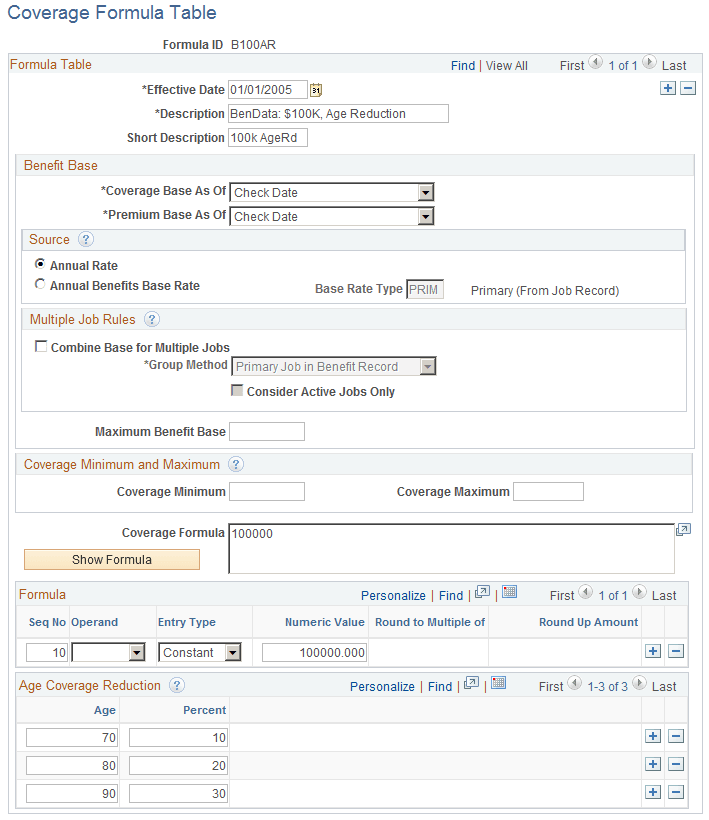
Benefit Base
| Field or Control | Description |
|---|---|
|
Coverage Base As Of |
Select the employee's salary that the system will use for coverage calculation. Values are:
|
|
Premium Base As Of |
Select the employee's salary that the system will use for premium calculation. The options are:
|
Source
| Field or Control | Description |
|---|---|
|
Annual Rate |
Select this field for the system to use the regular compensation base entered on the Job Data - Compensation page in Workforce Administration. |
|
Annual Benefits Base Rate |
Enter a rate from the drop-down menu. The system uses the rates defined in the Annl Benef Base Rt Type Tbl page. |
Multiple Job Rules
| Field or Control | Description |
|---|---|
|
Combine Base for Multiple Jobs |
Select this option if you want to aggregate salary from multiple jobs as a basis for a coverage determination. |
|
Group Method |
This field is available if you selected the Combine Base for Multiple Jobs option. Select the grouping method for the system to use when selecting jobs to contribute to the total benefit base. Values are:
|
|
Consider Active Jobs Only |
Select to have the system consider only jobs with an active status. |
|
Maximum Benefit Base |
Enter the maximum amount of benefit base that can be used in the coverage formula calculation. Note: This is most often used in disability plans to limit the amount of salary subject to replacement. |
Coverage Minimum and Maximum
| Field or Control | Description |
|---|---|
|
Coverage Minimum |
Enter the minimum amount of coverage that an employee can receive. If the calculated coverage falls below this amount, this amount will be covered as a default. |
|
Coverage Maximum |
Enter the maximum amount of coverage that an employee can receive. If the calculated coverage exceeds this amount the coverage is capped. |
Coverage Formula
| Field or Control | Description |
|---|---|
|
Coverage Formula |
Displays the formula in an algebraic format. |
|
Show Formula |
Click to refresh the Coverage Formula field. |
Formula
| Field or Control | Description |
|---|---|
|
Operand |
Select from these mathematical options to build your formula. |
|
Entry Type |
Select an entry type. Values are:
|
|
Numeric Value |
This field is available if you select Constant in the Entry Type field. Enter a numeric value. |
|
Round to Multiple of |
Enter a numeric value to designate the precision of the rounded number. Typical multiples are 100 and 1000. |
|
Round Up Amount |
Enter a numeric value to designate when a number gets rounded. |
Age Coverage Reduction
| Field or Control | Description |
|---|---|
|
Age |
Enter the age of employee. The system determines the age by the pay period end date. |
|
Percent |
Enter a percentage that the system will deduct from the employee's coverage. |
An Example for Creating a Formula
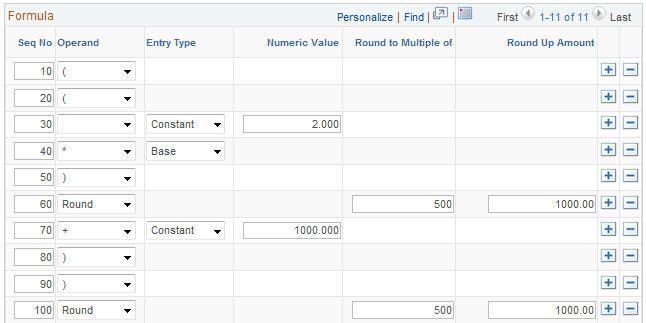
Here is an example for setting up the formula for ((2 X BASE) ROUND + 1000)) ROUND
-
For Seq No field 10, select the ( symbol in the Operand field.
-
Add a row.
-
For Seq No field 20, select the ( symbol in the Operand field.
-
Add a row.
-
For Seq No field 30, select Constant in the Entry Type field and enter 2 in the Numeric Value field.
-
Add a row.
-
For Seq No field 40, select the * symbol in the Operand field and select Base in the Entry Type field.
-
Add a row.
-
For Seq No field 50, select the ) symbol in the Operand field.
-
Add a row.
-
For Seq No field 60, select Round in the Operand field, enter 1000 in the Round to Multiple of field, and enter 500.00 in the Round Up Amount field.
-
Add a row.
-
For Seq No field 70, select + in the Operand field, select Constant in the Entry Type field, and enter 1000.00 in the Numeric field.
-
Add a row.
-
For Seq No field 80, select the ) symbol in the Operand field.
-
Add a row.
-
For Seq No field 90, select the ) symbol in the Operand field.
-
Add a row.
-
For Seq No field 100, select Round in the Operand field, enter 500.00 in the Round to Multiple of field, and enter 1000 in the Round Up Amount field.
The formula creation area should look like this:
This example illustrates the fields and controls on the Formula creation area. You can find definitions for the fields and controls later on this page.
When you are done and have clicked Save Formula or Save, the formula that you created appears in the Coverage Formula Scroll area.
This example illustrates the fields and controls on the Completed customized formula. You can find definitions for the fields and controls later on this page.

Other examples of formulas you may want to create are:
-
Flat Amount
-
2 x Base
-
(2 x Base) Round
-
(2 x Base) Round + Flat Amount
-
((2 x Base) + Flat Amount) Round
-
(Base + Flat Amount) Round
-
((2 x Base) Round + Flat Amount) Round