Modifying Actuals Distribution Prior to General Ledger Posting Using the Actuals Distribution Component
To modify actuals distribution prior to general ledger posting, use the Review Actuals Distribution component (PAYCHECK_DIST).
Pages Used to Modify Actuals Distribution
| Page Name | Definition Name | Usage |
|---|---|---|
|
PAY_CHECK_DIST_ERN |
View and modify the actuals distribution after running the Actuals Distribution process and prior to posting to general ledger. When you make changes on this page, the system performs an edit when you save the page to ensure that the total amount of earnings, deductions, and taxes redistributed compares to the paycheck totals. |
|
|
PAY_CHECK_DIST_DED |
View and modify the actuals distribution after running the Actuals Distribution process and prior to posting to general ledger. |
|
|
PAY_CHECK_DIST_TAX |
(USA, USF) View and modify the actuals distribution after running the Actuals Distribution process and prior to posting to general ledger. |
|
|
Review Actuals Distribution - Taxes Page |
PAY_CHECK_DIST_CTX |
(CAN) View and modify the actuals distribution after running the Actuals Distribution process and prior to posting to general ledger. The Canadian Review Actuals Distribution - Taxes Page is similar to the USA Review Actuals Distribution - Taxes Page. |
Understanding the Review Actuals Distribution Component
Use the Review Actuals Distribution component to modify funding distribution information in PeopleSoft Human Resources after you've run the Actuals Distribution process but before posting to PeopleSoft General Ledger using the Actuals GL Interface process (PAYGL02). Use the Actuals Distribution component to change the funding source, but not the total amount. Actuals, including your changes, are posted to PeopleSoft Financials when you run the Actuals GL Interface process.
Common Elements Used in Modifying Actuals Distribution
| Field or Control | Description |
|---|---|
|
Corrected and Correction Date |
Indicates if the distribution information of this paycheck has been corrected and, if so, the date it was corrected. |
|
Off Cycle |
Indicates if this was an off cycle pay period. |
|
Separate Check |
If all of the earnings, deductions, or taxes are on a single paycheck for this pay period, this field displays 0 (zero). If they are on separate checks (for example, a regular earnings check and a bonus earnings check), the field displays a number between 1 and 9. |
|
Empl Record |
The employee record number associated with this paycheck. |
|
Department, Job Code, and Position |
Select the department and job code or position to which the earnings, deductions, or taxes are distributed. The Job Code and Department fields populate automatically when you select a position. |
|
Currency |
The currency of the earnings, deductions, or taxes associated with the Job Code or Position. |
|
Position Pool ID |
Displays the Position Pool ID of the Position, if applicable. |
|
Fiscal Year, Period, Combination Code, and Account |
Enter the fiscal year, period, combination code, and account to which to distribute the earnings. The Account field is only available if the account override for the expense type (earnings, deductions, or US or Canadian taxes) is selected on the Dept Budget Date page. |
|
Edit ChartFields |
Select the Edit ChartFields link to search for an existing combination code or select a unique combination of ChartFields on the ChartField Detail page. See Application Fundamentals: Editing ChartField Combinations in HCM Transactions. |
Review Actuals Distribution - Earnings Page
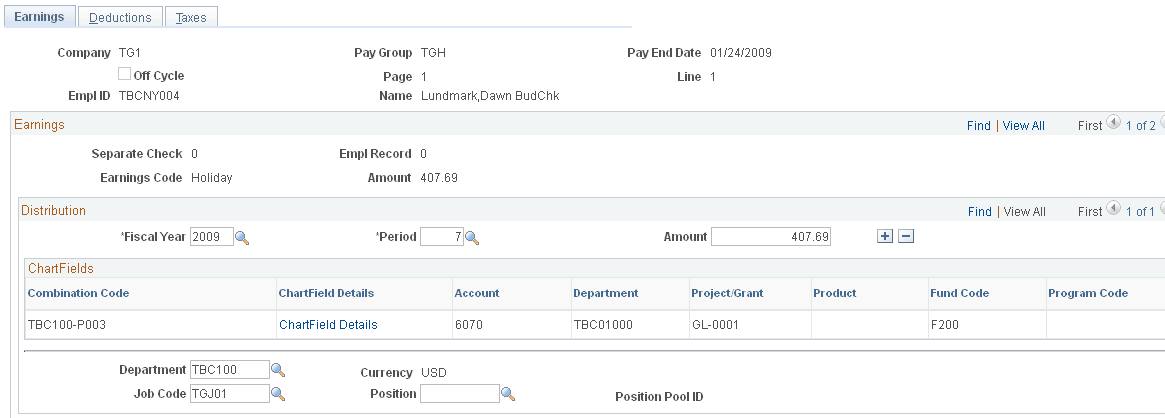
Use the Review Actuals Distribution - Earnings page (PAY_CHECK_DIST_ERN) to view and modify the actuals distribution after running the Actuals Distribution process and prior to posting to general ledger.
When you make changes on this page, the system performs an edit when you save the page to ensure that the total amount of earnings, deductions, and taxes redistributed compares to the paycheck totals.
Navigation:
This example illustrates the fields and controls on the Review Actuals Distribution - Earnings page.
Note:
More of the page exists than is shown in the example. Scroll horizontally in the database to view fields in the entire CharfFields group box.
| Field or Control | Description |
|---|---|
|
Earnings |
Enter the amount of earnings to be distributed to this combination code in this accounting period. The sum of the earnings in the Distribution group box must equal the displayed Earnings amount for the Earnings group box. |
|
Account |
If earnings account mapping is enabled for the corresponding department budget, this field is available for entry. When the ChartField Details column is visible, it will contain a link to the page where the user may select a combination code or account value that determines the value of the Account field on the Earnings page. |
Review Actuals Distribution - Deductions Page
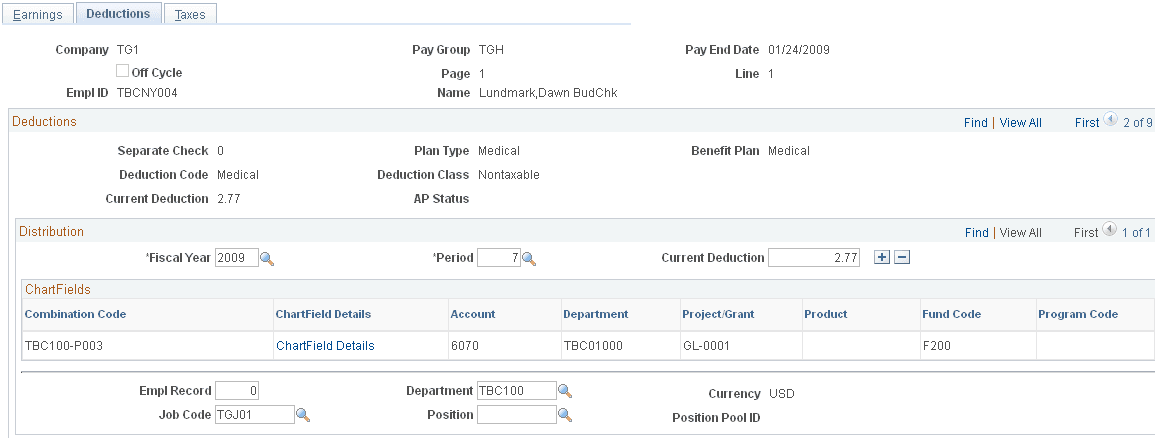
Use the Review Actuals Distribution - Deductions page (PAY_CHECK_DIST_DED) to view and modify the actuals distribution after running the Actuals Distribution process and prior to posting to general ledger.
Navigation:
This example illustrates the fields and controls on the Review Actuals Distribution - Deductions page.
Note:
More of the page exists than is shown in the example. Scroll horizontally in the database to view fields in the entire Deductions group box.
| Field or Control | Description |
|---|---|
|
Current Deduction |
Enter the deduction amount to be distributed to this combination code in this accounting period. The sum of the deductions in the Distribution group box must equal the displayed Current Deduction in the Deductions group box. |
|
Account |
If deduction account mapping is enabled for the corresponding department budget, this field is available for entry. When the ChartField Details column is visible, it will contain a link to the page where the user may select a combination code or account value that determines the value of the Account field on the Deductions page. |
Review Actuals Distribution - Taxes Page
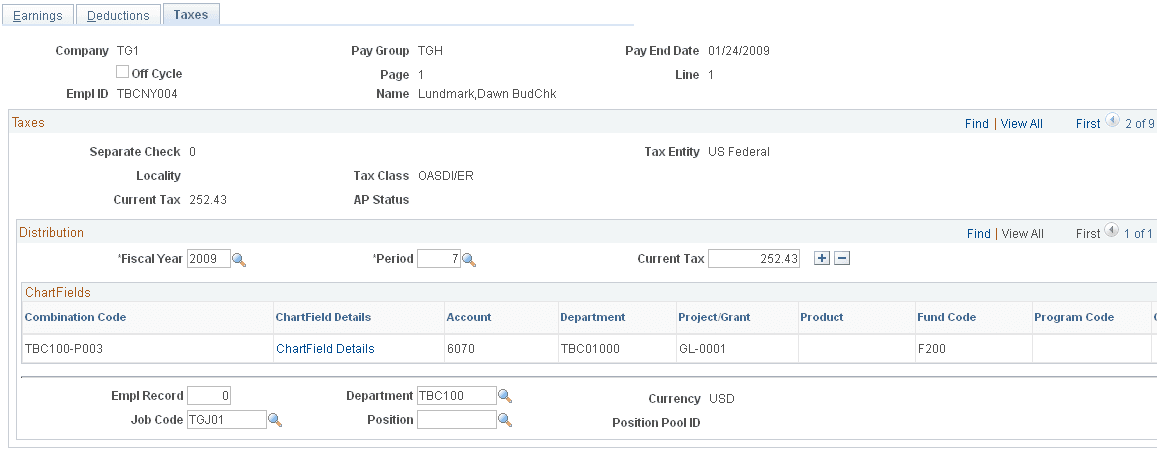
(USA, USF) Use the Review Actuals Distribution - Taxes page (PAY_CHECK_DIST_TAX) to view and modify the actuals distribution after running the Actuals Distribution process and prior to posting to general ledger.
Note:
(CAN) The Review Actuals Distribution - Taxes page (PAY_CHECK_DIST_CTX) for Canada is similar to the page for USA.
Navigation:
This example illustrates the fields and controls on the Taxes page (1 of 2).
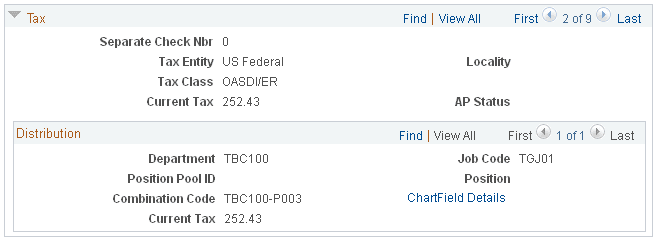
This example illustrates the fields and controls on the Taxes page (2 of 2).
Note:
More of the page exists than is shown in the example. Scroll horizontally in the database to view fields in the entire ChartFields group box.
You can fund the tax from multiple combination codes by entering more than one row.
| Field or Control | Description |
|---|---|
|
Current Tax |
Enter the amount of the Current Tax to be funded by this combination code. The total of the values in the Current Tax field must equal the amount in the Current Tax field in the upper group box. |
|
Account |
If tax account mapping is enabled for the corresponding department budget, this field is available for entry. When the ChartField Details column is visible, it will contain a link to the page where the user may select a combination code or account value that determines the value of the Account field on the Taxes page. |