Selecting and Editing Promotable Employees
This section discusses how to select and edit promotable employees.
Pages Used to Select and Edit Promotable Employees
| Page Name | Definition Name | Usage |
|---|---|---|
|
FPMPROMTABL_PNL |
Define promotion criteria. |
|
|
RUNCTL_FPA800 |
Select the promotable employee population by running the Extract Promotable Employees SQR process (FPA800). |
|
|
FPAEEPROM_PNL |
View details of employees who were selected for promotion. This page displays details of one employee at a time and you can scroll through each employee's information. The second Promotable Employees page in the component displays a summary list of employees selected for promotion. |
|
|
Promotable Employees Page |
FPAEEPROMGRID_PNL |
View and edit the list of employees that are selected for promotion. |
|
RUNCTL_FPAPROM |
Run the Promotable Employees report. |
|
|
FPMPROMTABL2_PNL |
Define simulation criteria. |
|
|
Decision Aid Page |
FPAEEPROM01_PNL |
View details of employees who were selected in the promotion simulation. This page displays details of one employee at a time and you can scroll through each employee's information. The second Decision Aid page in the component displays a summary list of employees selected in the promotion simulation. |
|
Decision Aid Page |
FPAEEPROM02_PNL |
View the list of employees that are selected in the promotion simulation. |
Promotable Employee Criteria Page
Use the Promotable Employee Criteria page (FPMPROMTABL_PNL) to define promotion criteria.
Navigation:
This example illustrates the fields and controls on the Promotable Employee Criteria page. You can find definitions for the fields and controls later on this page.
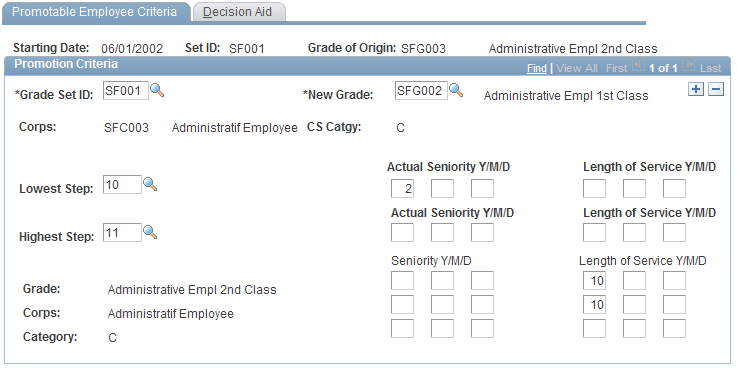
To define promotion criteria:
-
Enter the grade after promotion in the New Grade field.
-
Enter the statutory criteria for step and seniority.
Each criterion is optional.
Select Promotable Employees Page
Use the Select Promotable Employees page (RUNCTL_FPA800) to select the promotable employee population by running the Extract Promotable Employees SQR process (FPA800).
Navigation:
To create a list of promotable employees, enter the starting date (date of eligibility for promotion) and the grade of origin.
Note:
The starting date is the date used to calculate seniority.
The Extract Promotable Employees SQR process (FPA800) creates a list of promotable employees according to statutory criteria. This list is stored, but it can be modified.
Promotable Employees Page
Use the Promotable Employees page (FPAEEPROM_PNL) to view details of employees who were selected for promotion.
This page displays details of one employee at a time and you can scroll through each employee's information. The second Promotable Employees page in the component displays a summary list of employees selected for promotion.
Navigation:
This example illustrates the fields and controls on the Promotable Employees page. You can find definitions for the fields and controls later on this page.
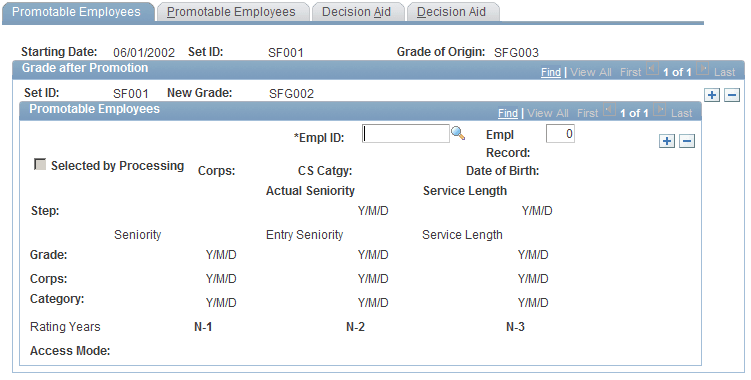
Review the list of promotable employees. You can add or delete employees to include in the Promotable Employee report.
Promotable Employees Report Page
Use the Promotable Employees Report page (RUNCTL_FPAPROM) to run the Promotable Employees report.
Navigation:
Enter the starting date and run the Promotable Employees report (FP_PROM). This report lists the employees promotable by a given date. You must run the Extract Promotable Employees process (FPA800) before running this report.
Decision Aid Page
Use the Decision Aid page (FPMPROMTABL2_PNL) to define simulation criteria.
Navigation:
This example illustrates the fields and controls on the Decision Aid page. You can find definitions for the fields and controls later on this page.
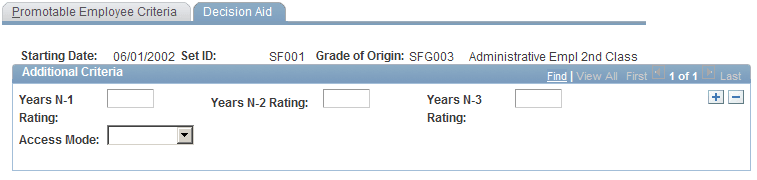
Enter data to refine the selection of promotable employees. Simulation criteria are optional.
The simulation criteria you enter on this page affects the simulation data displayed in the Review Promotable Employees component.
Note:
The system never stores the list of employees resulting from the simulation in the database.
| Field or Control | Description |
|---|---|
|
Years N-1 Rating, Years N-2 Rating, and Years N-3 Rating |
Enter the minimum rating you want the employee to have received in the previous year (n-1), two years before the current year (n-2), and three years before the current year (n-3). |
|
Access Mode |
If the civil servant entered the grade of origin by advancement, select Advancement. If the civil servant entered the grade of origin by competition, select Competition. |