Setting Up German Public Sector Reports
To set up German Public Sector reports, use the Cross Reference (GPS_WFS_MAP) and Meta Mapping (GPS_WFS_META_MAP) components.
This section discusses how to set up German Public Sector reports.
Pages Used to Set Up German Public Sector Reports
| Page Name | Definition Name | Usage |
|---|---|---|
|
GPS_WFS_MAP_META |
Set up dynamic configuration for EF10, EF11 and EF12 report fields. |
|
|
GPS_WFS_MAP_RATIO |
Specify source and target data mapping for the EF10 report field. |
|
|
GPS_WFS_MAP_DURATI |
Specify source and target data mapping for the EF11 report field. |
|
|
GPS_WFS_MAP_EMPTYP |
Specify source and target data mapping for the EF12 report field. |
|
|
GPS_WFS_MAP_SC |
Specify source and target data mapping for the EF13 report field. |
|
|
GPS_WFS_MAP_STP |
Specify source and target data mapping for the EF17 report field. |
|
|
GPS_WFS_MAP_EDU |
Specify source and target data mapping for the EF41U1 report field. |
|
|
GPS_WFS_MAP_AGR |
Specify source and target data mapping for the EF43 report field. |
|
|
Workforce Statistic - Report Maintenance Page or Family Allowance - Report Maintenance Page |
GPS_RPT_MGMT |
Specify report parameters (year and month, file number, group ID and run type) for running GPS reports. |
|
GPS_WFS_FILE_MGMT |
Select what to do with the report or error file, for example, view, upload, download, and so on. |
Entering Additional Information Needed for Reporting
This task includes entering information at the company level and employee level. This information will be pulled from the database and displayed in the Workforce Statistic report as report field values. Tasks are:
-
Specifying Default Information for Companies for German Public Sector
This task provides values for EF1, EF2 and EF3 report fields for the Workforce Statistic report, as well as the employer number that is needed for the Family Allowance report.
-
Specifying Municipality Information for German Public Sector Locations
This task provides value for the EF14 report field.
-
Workforce Statistic / Family Allowance Page
This task provides values for EF20, EF23, EF25 and EF26 report fields.
Make sure that these values are specified properly so that the report source data can all be rendered and displayed on the report file as expected.
Workforce Statistic - Meta Mapping Page
Use the Workforce Statistic - Meta Mapping page (GPS_WFS_MAP_META) to set up dynamic configuration for EF10, EF11 and EF12 report fields.
Navigation:
This example illustrates the fields and controls on the Workforce Statistic - Meta Mapping page.
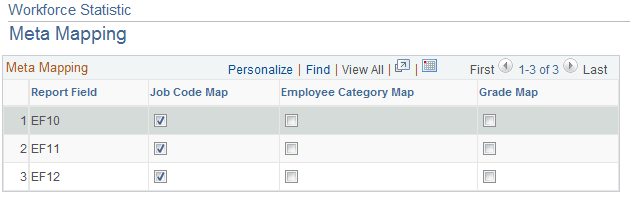
Use this page to configure the layout of the mapping pages for report fields (EF10, EF11 and EF12). The system delivers meta mapping for three report fields, all of which need dynamic configuration.
For each report field, select one or more sections to be displayed on their corresponding pages in the Cross Reference component.
For example, if Job Code Map and Grade Map are selected for the EF10 report field, the corresponding sections, Job Code Mapping and Grade Mapping, will be displayed on the EF10 Ratio page.
EF10 Ratio Page
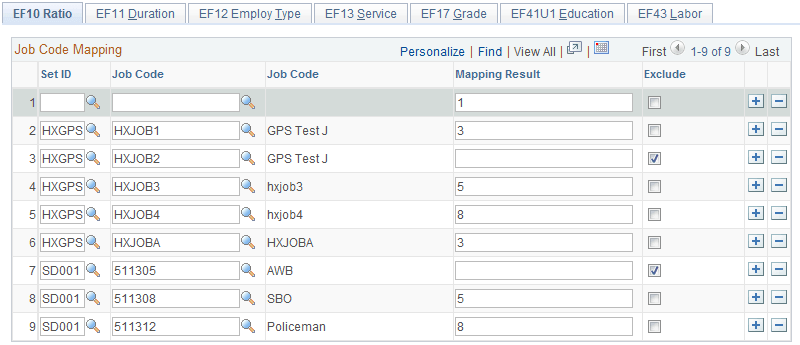
Use the EF10 Ratio page (GPS_WFS_MAP_RATIO) to specify source and target data mapping for the EF10 report field.
Navigation:
This example illustrates the fields and controls on the EF10 Ratio page for ratio of employment or service contract.
Note:
The sections shown on the EF10 Ratio, EF11 Duration and EF12 Employ Type pages are set up in the Meta Mapping page.
Let’s use the setup data of this screenshot as an example.
For employees who either have JC BBC as their job code AND 0001 and B10 as their salary plan and grade, or JC BBC as their job code AND 0019 and A13 as their salary plan and grade, 2 will be displayed as the EF10 report field value for these employees in the Workforce Statistic report. For those who do not meet any of the conditions, their corresponding report field will be empty.
| Field or Control | Description |
|---|---|
|
Mapping Result |
Enter the report field value to show in the Workforce Statistic report for employees who meet the condition specified in the fields on the left of the Mapping Result field. |
|
Exclude |
Select if you wish to exclude information of employees, who meet any of the conditions specified on this page, from the Workforce Statistic report. |
EF 11 Duration Page
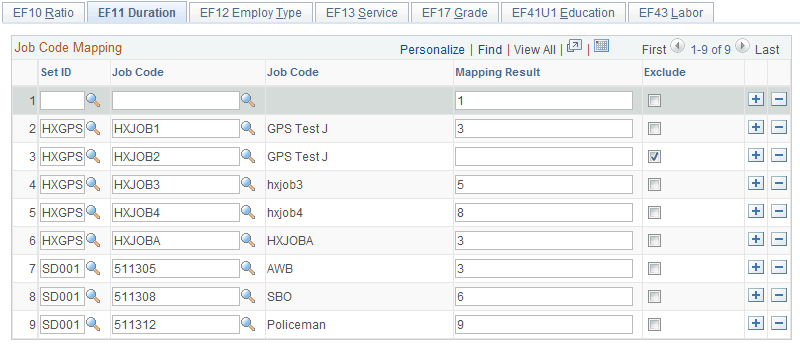
Use the EF 11 Duration page (GPS_WFS_MAP_DURATI) to specify source and target data mapping for the EF11 report field.
Navigation:
This example illustrates the fields and controls on the EF11 Duration page for duration of employment.
Note:
The sections shown on the EF10 Ratio, EF11 Duration and EF12 Employ Type pages are set up in the Meta Mapping page.
EF12 Employ Type Page
Use the EF12 Employ Type page (GPS_WFS_MAP_EMPTYP) to specify source and target data mapping for the EF12 report field.
Navigation:
This example illustrates the fields and controls on the EF12 Employ Type page for type of employment.

Note:
The sections shown on the EF10 Ratio, EF11 Duration and EF12 Employ Type pages are set up in the Meta Mapping page.
EF13 Service Page
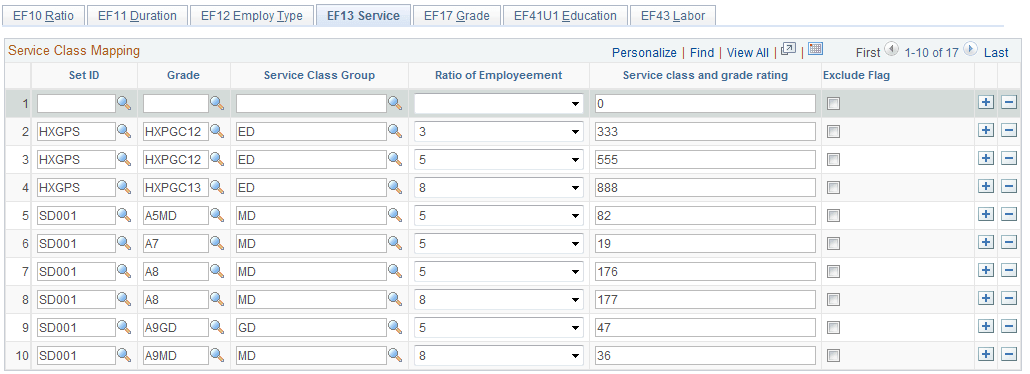
Use the EF13 Service page (GPS_WFS_MAP_SC) to specify source and target data mapping for the EF13 report field.
Navigation:
This example illustrates the fields and controls on the EF13 Service page for service class group and grade rating.
| Field or Control | Description |
|---|---|
|
Service class and grade rating |
Functions the same as the Mapping Result field. Employees meeting any of the conditions listed on this page will have the corresponding service class and grade rating value as their EF13 report field on the Workforce Statistic report. |
EF17 Grade Page
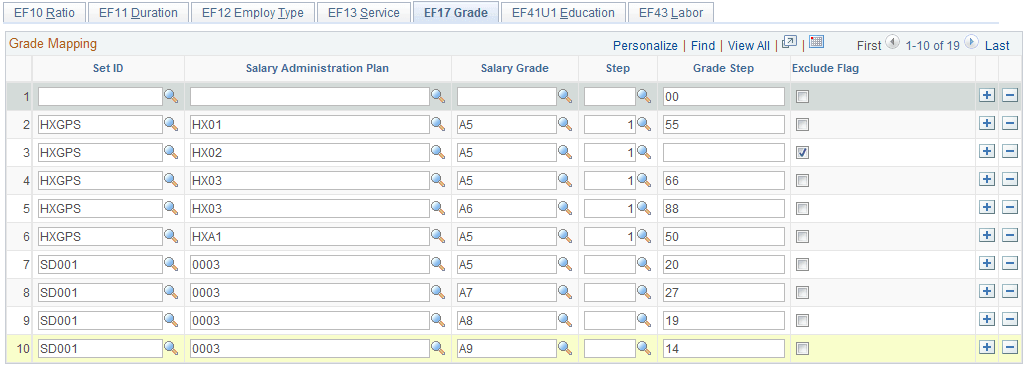
Use the EF17 Grade page (GPS_WFS_MAP_STP) to specify source and target data mapping for the EF17 report field.
Navigation:
This example illustrates the fields and controls on the EF17 Grade page for employee salary grade and step.
| Field or Control | Description |
|---|---|
|
Grade Step |
Functions the same as the Mapping Result field. Employees meeting any of the conditions listed on this page will have the corresponding grade step value as their EF17 report field on the Workforce Statistic report. |
EF41U1 Education Page
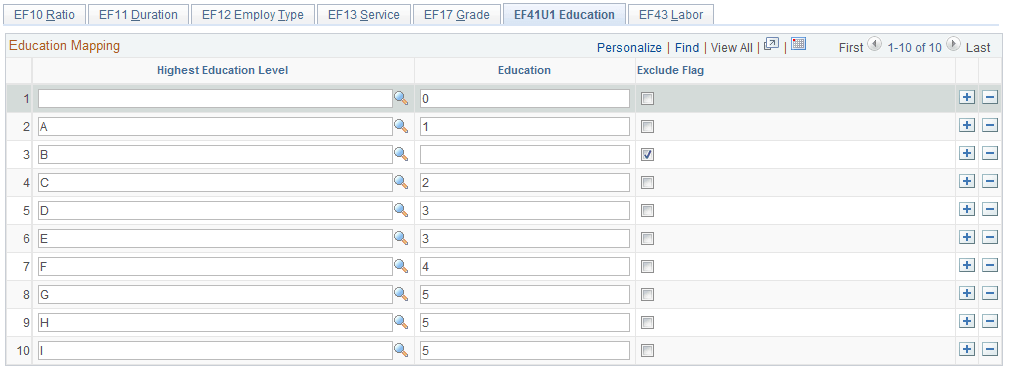
Use the EF41U1 Education page (GPS_WFS_MAP_EDU) to specify source and target data mapping for the EF41U1 report field.
Navigation:
This example illustrates the fields and controls on the EF41U1 Education page for highest education level.
| Field or Control | Description |
|---|---|
|
Education |
Functions the same as the Mapping Result field. Employees meeting any of the conditions listed on this page will have the corresponding education value as their EF41U1 report field on the Workforce Statistic report. |
EF43 Labor Page
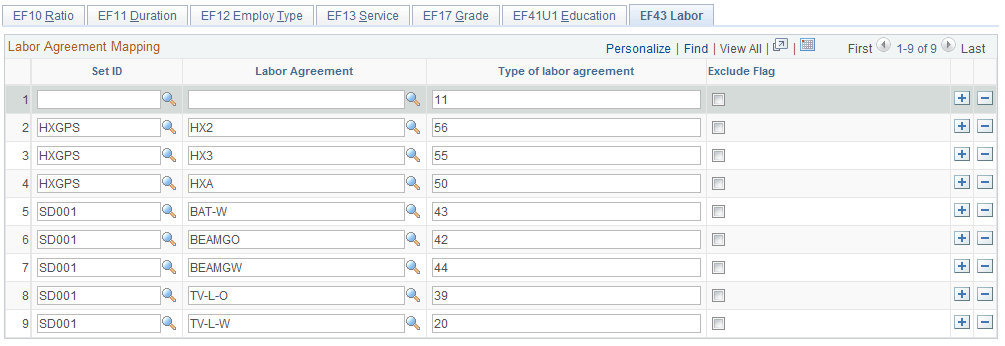
Use the EF43 Labor page (GPS_WFS_MAP_AGR) to specify source and target data mapping for the EF43 report field.
Navigation:
This example illustrates the fields and controls on the EF43 Labor page for labor agreement.
| Field or Control | Description |
|---|---|
|
Type of labor agreement |
Functions the same as the Mapping Result field. Employees meeting any of the conditions listed on this page will have the corresponding labor agreement type value as their EF43 report field on the Workforce Statistic report. |
Workforce Statistic - Report Maintenance Page or Family Allowance - Report Maintenance Page
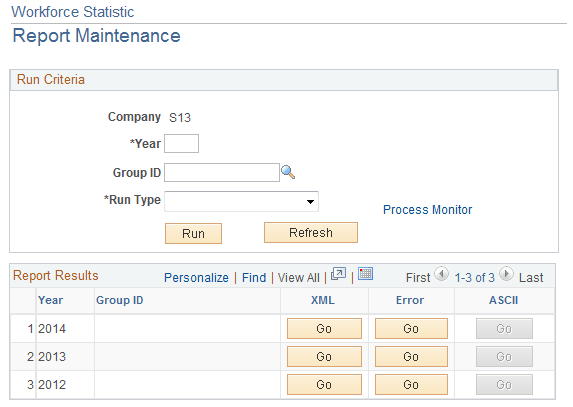
Use the Family Allowance - Report Maintenance page or Workforce Statistic - Report Maintenance page (GPS_RPT_MGMT) to specify report parameters (year and month, file number, group ID and run type) for running GPS reports.
Navigation:
This example illustrates the fields and controls on the Workforce Statistic - Report Maintenance page.
Run Criteria
Use this section to specify parameters to be used by the AE program (GPS_CAR_RPT for child allowance report or GPS_WFS_RPT for workforce statistic report) for running the selected report (child allowance or workforce statistics).
| Field or Control | Description |
|---|---|
|
Year / Month |
Enter the year and month for the report in numeric value. For example, 2012 02 for 2012 February. Month is a key field and is required. For the workforce statistic report, month is not applicable. |
|
Group ID |
Specify a group ID if applicable. |
|
File No (file number) |
(For child allowance report only) Enter a file number, for example, 1. This is a key field and is required. |
|
Run Type |
Select the report type (required field). Values are: File: Generate the report in XML format for the specified report type and company based on the corresponding report result (an interface). An interface must be run prior to selecting this option. Interface: Generate the report result, which is then stored in database. No file is created as a result an interface run. With this option, report administrators can view and make necessary changes to the report result, as well as addressing all the issues displayed in the error file before creating the actual xml report file. Interface & File. |
|
Run |
Click to trigger the AE process to run the report based on the specified run criteria. |
|
Refresh |
Click to clear all values entered in the Run Criteria section. |
|
Go |
Click to access the File Options page and select what to do with the XML report or error file. |
|
Details |
Click to access the Family Allowance – Report Maintenance page (GPS_CAR_RPT_LIST), where you click the Go button to view the report in XML or view the error file for the report. This button is available on the Family Allowance - Report Maintenance page only. |
File Options Page
Use the File Options page (GPS_WFS_FILE_MGMT) to select what to do with the report or error file, for example, view, upload, download, and so on.
Navigation:
Click the Go button on the Workforce Statistic - Report Maintenance or Family Allowance - Report Maintenance page.
This example illustrates the fields and controls on the File Options page.
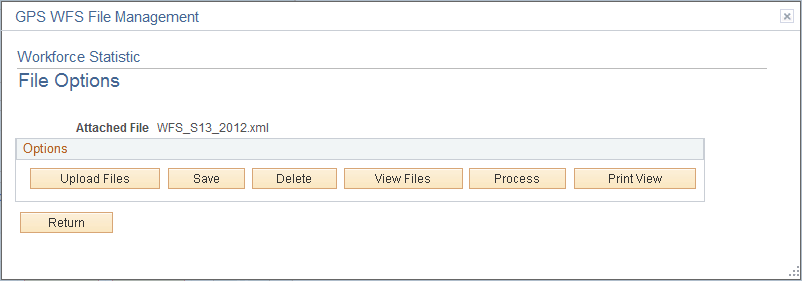
The report administrator can perform a number of actions on the currently selected report file or error file.
| Field or Control | Description |
|---|---|
|
Upload Files |
Click to upload report file (for example, updated) to the database. |
|
Save |
Click to download the listed report file locally. For example, download an ASCII file to a local system, and send it to the statistic office. |
|
Delete |
Click to remove the report file from the database. |
|
View Files |
Click to open the report file in its native format (XML, or TXT for ASCII report file). |
|
Process |
Click to launch the Generate ASCII AE program (GPS_WFS_FM) to create an ASCII text file based on the XML report file. |
|
Print View |
Click to launch the XML report file (in the specified format and language) in a new browser window. This option is not supported for ASCII report file. Supported formats include PDF, XLS and RTF (rich text format). |