Bringing Regulated Individuals into the Compliance Process
This topic provides overviews of the ways to bring individuals into the compliance process and PeopleSoft Integration Broker.
Pages Used to Bring Regulated Individuals into the Compliance Process
| Page Name | Definition Name | Usage |
|---|---|---|
|
PCMP_JOBCODE |
Set up a default compliance type for each regulated individual who is hired through PeopleSoft HR. |
|
|
PCMP_RI |
Add a regulated individual to the Professional Compliance process manually. |
Understanding the Ways to Bring Individuals into the Compliance Process
There are two ways to bring individuals into the compliance process:
-
Automatic entry during the Hire process.
Configure your system to bring individuals into the compliance process automatically by setting up a default compliance type for each job code on the Job Code Compliance page. Then, when you hire someone with that job code using the Workforce Administration, Personal Information, Add a person menu, the system inserts a row into the Manage Professional Compliance tables for each default compliance type. Once you complete the hire process, access the Regulated Individual page and set the regulatory authority for each default compliance.
-
Manual entry.
To manually bring an employee or worker into the Manage Professional Compliance process, select the Workforce Monitoring, Professional Compliance, Maintain Program menu and set both the professional compliance type and regulatory authority.
Note:
Both the manual and the automatic methods of entry are associated with workflow (notification) functionality to ensure that the next appropriate action is performed.
See Understanding Notifications in the Manage Professional Compliance Business Process.
Understanding PeopleSoft Integration Broker
To automatically enroll individuals in the compliance process, the system uses PeopleSoft Integration Broker. The Professional Compliance handler on the WORKFORCE_SYNC service operation selects all employee or worker job changes and performs the necessary inserts into Professional Compliance if the JOB.ACTION is HIR or ADD.
Related Topics
Setting Up Automatic and Manual Entry
To automatically add an individual during the hire process:
-
Set up a default compliance type for each individual by using the Job Code Compliance page.
-
Hire an individual by using the Job Data component in Workforce Administration.
-
After hiring the individual, use the RI page to set the regulatory authority for each default compliance type.
-
Assign the regulated individual to a compliance supervisor on the Assign Manager/Supervisor/RI page.
To manually enter an individual:
-
Enter the individual by using the RI page.
-
Set the individual's regulatory authority and compliance type on the RI page.
-
Assign the regulated individual to a compliance supervisor on the Assign Manager/Supervisor/RI page.
Related Topics
Job Code Compliance Page
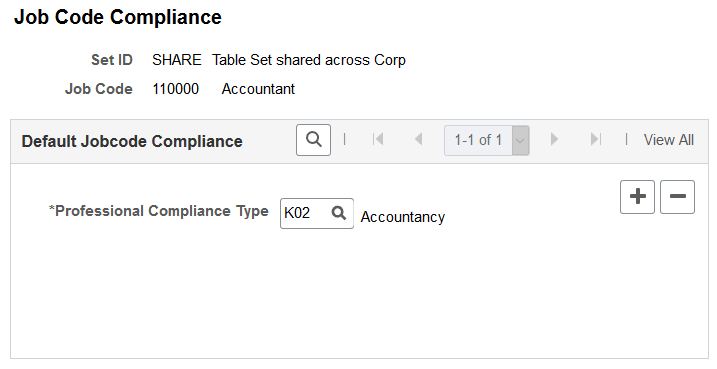
Use the Job Code Compliance page (PCMP_JOBCODE) to set up a default compliance type for each regulated individual who is hired through PeopleSoft HR.
Navigation:
This example illustrates the fields and controls on the Job Code Compliance page.
| Field or Control | Description |
|---|---|
|
Job Code |
Displays the job code that is associated with the default compliance type at the time of hire. |
|
Professional Compliance Type |
Select the professional compliance type that you want to automatically associate with the job code that appears at the top of the page. Define professional compliance types on the PC Type page. |
Related Topics
RI Page
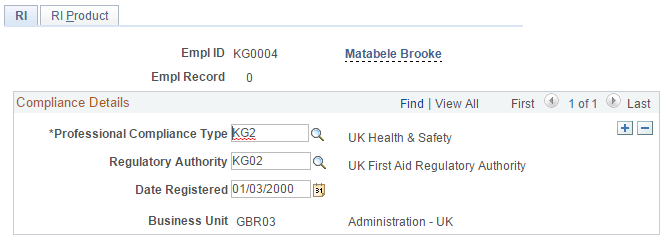
Use the RI (regulated individual) page (PCMP_RI) to add a regulated individual to the Professional Compliance process manually.
Navigation:
This example illustrates the fields and controls on the RI page.
| Field or Control | Description |
|---|---|
|
Professional Compliance Type |
Enter the professional compliance type for the individual whose identification appears at the top of the page. If you set up a default compliance type based on the individual's job code, the professional compliance type that appears in this field is the one that you defined as the default. |
|
Regulatory Authority |
Enter the regulatory authority that corresponds to the individual's professional compliance type. |
|
Date Registered |
Enter the date on which the individual was registered with the regulatory authority. |