Diversity By Applications Pivot Grid
Use the Diversity by Applications pivot grid (HRS_PG_DA_APPLN) to view diversity data by application.
Note:
If an applicant applies for multiple jobs within the specified date range, this chart counts each application separately. If an applicant has more than one application for a single job opening, only the most recent application is counted.
Navigation:
Access the Diversity Analytics pagelet on the Recruiting Home page. Click the Diversity Analytics menu, then select the Diversity by Applications menu item.
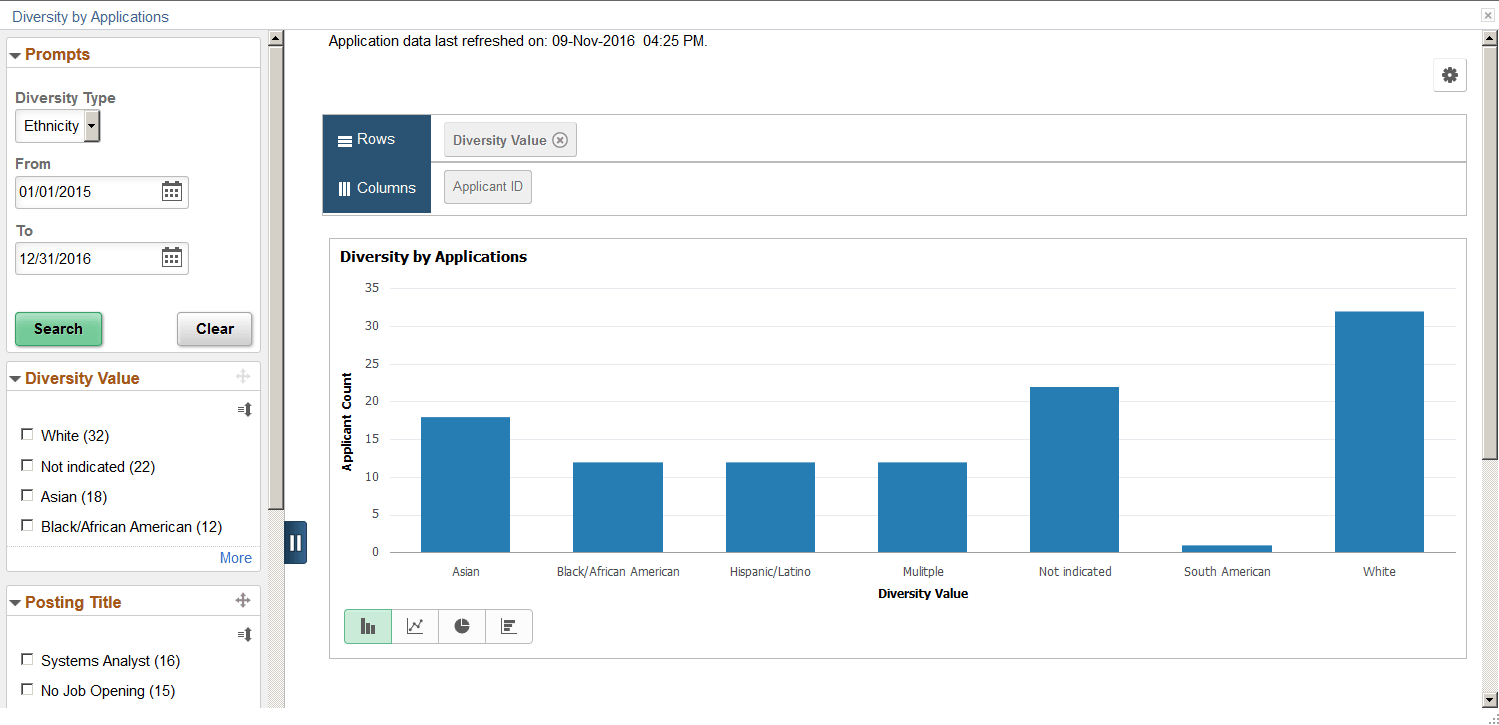
This example illustrates the Diversity by Applications pivot grid.
General Pivot Grid Functionality
Pivot grids are a feature of PeopleTools. For general information on setting up and using pivot grids, see PeopleTools: Pivot Grid. This topic does not discuss the generic pivot grid page controls such as the Rows and Columns controls or the Options icon in the top right corner.
Chart
When the page first opens, it displays a bar chart showing gender information for applications that were submitted in the last month. Use standard pivot grid controls to change the chart type, to drill down into the chart, or to view the underlying data in grid form.
Effective-Dated Diversity Information
Gender data and ethnicity data are not effective dated. The applications that are included in the chart are always associated with the applicant’s current gender and ethnicity data.
Disability and veteran information are effective dated. Each application is associated with the disability and veteran information that was effective as of the most recent disposition change.
For example, Marcus was not disabled on January 15 when he applied for two jobs, Job A and Job B. He passed screening for both jobs, resulting in a disposition change to Screen.
On January 30, while still in the Screen disposition for both jobs, Marcus became disabled, and his new disability information was entered into the system. In spite of this change, the Diversity by Applications chart still shows a Not Disabled value for both applications because Marcus was not disabled at the time of the most recent disposition change. This presentation reflects the fact that Marcus’s disability status is unrelated to his screening results.
In February, Marcus was asked to interview for Job A, and his disposition for that job changed to Interview. At this point, the chart shows a Disabled value for Job A because Marcus was disabled at the time of the most recent disposition change. However, the chart still shows a Not Disabled value for Job B because the Screen disposition has not changed.
In March, Marcus was hired for Job A, so his Job A disposition changed to Hired and his job B disposition changed to Rejected. He was still disabled at the time of these disposition changes, so at this point the chart shows that his disability value for both applications is now Disabled.
Prompts
| Field or Control | Description |
|---|---|
|
Diversity Type |
The default diversity type for the chart is Gender. Select Disability, Ethnicity, or Veterans to change the diversity type on the chart. |
|
From Date and To Date |
Enter the date range that you want to analyze. The pivot grid displays data for applications that were submitted within the specified date range. The default date range extends back one month from the current date. The date range you specify here controls which applications are included in the chart, but once an application is included, these dates are not used when looking up the disability or veteran status for the application. For example, if an application’s disposition changes after the specified To Date, the disposition date (and not the To Date) is used to look up the associated disability and veteran status. |
|
Search |
Click to refresh the chart based on the date range that you specify. |
Filters
To filter the diversity data, select the check boxes next to the values that you want to include. You can select multiple filters to define your data set.
The number next to each filter value is the count of how many applications have that value.
| Field or Control | Description |
|---|---|
|
Diversity Value |
This filter includes values that are specific to the diversity type shown in the chart. For example, if the chart displays gender data, filter values can include Female, Male, and Unknown. |
|
Posting Title |
Filtering by posting title is useful when you want to eventually drill down to a single job opening. Filtering by posting title reduces the number of values in the Job Opening ID filter to a more manageable list. Applications that do not include a job opening have a posting title of No Job Opening. |
|
Job Opening ID |
Use this filter to review the diversity data for specific job openings. Applications that do not include a job opening have a job opening ID of 0 (zero). |
|
Recruiter |
Enables you to filter based on the primary recruiter for the job opening. |
|
Hiring Manager |
Enables you to filter based on the primary hiring manager for the job opening. |
|
Jobcode |
Enables you to filter based on the primary job code for the job opening. |
|
Application Month |
Enables you to filter based on the month that the application was submitted. |
Reviewing Detailed Data
If you drill down into the chart, you can access a grid that displays the source data. The grid lists job applications, so individual applicants can appear more than once.
The grid that appears on-screen when you drill down into the chart shows a maximum of 100 rows. To view the complete data set, use the standard pivot grid export option by clicking the Options icon in the top right corner of the chart. The export is limited to data that meetings the criteria you specify in the Prompt fields, but all other filter criteria is ignored.