Applicant Diversity Overview Pivot Grid
Use the Applicant Diversity Overview pivot grid (HRS_PG_DIV_OV1) to view diversity data by applicant.
Note:
This chart counts each applicant once, regardless of how many applications have been submitted.
Navigation:
Access the Diversity Analytics pagelet on the Recruiting Home page. Click the Diversity Analytics menu, then select the Applicant Diversity Overview menu item.
This example illustrates the Applicant Diversity Overview pivot grid.
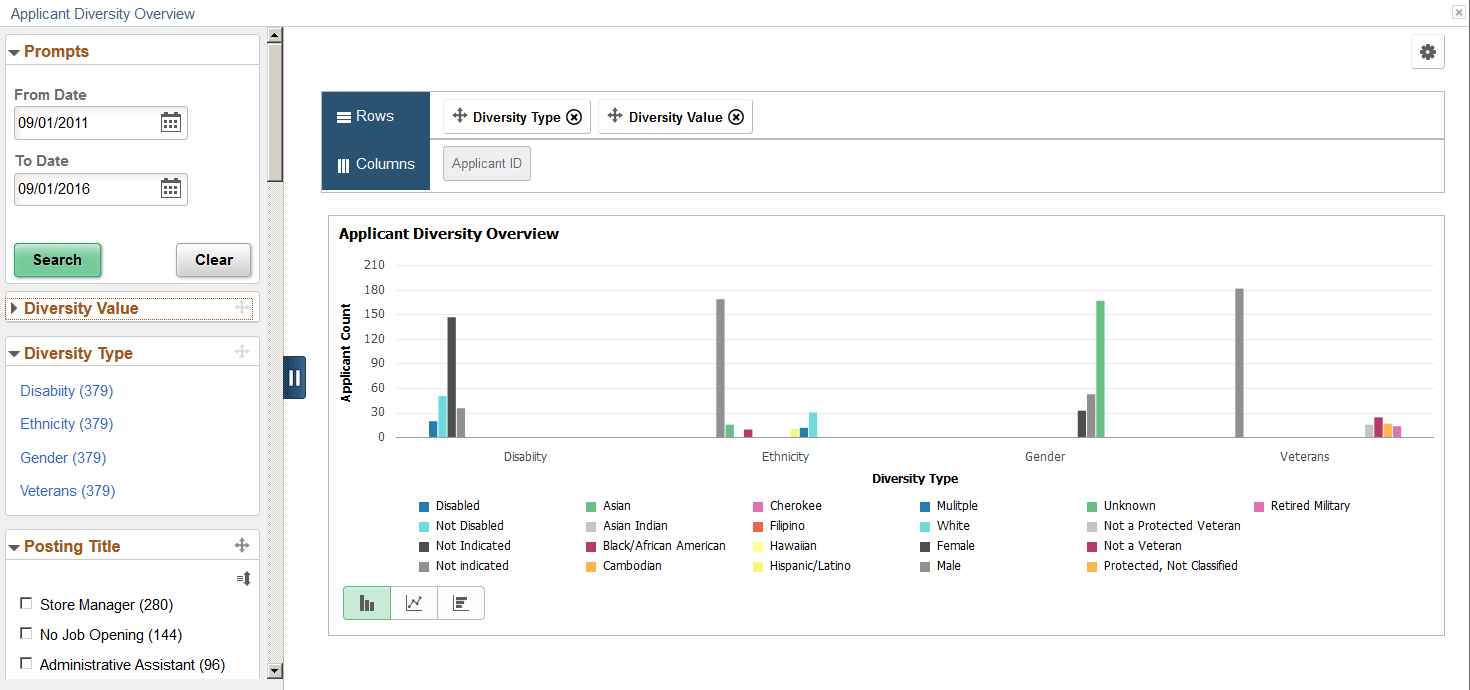
The Diversity Overview pivot grid includes a left frame with prompts and filters and a right frame with a chart.
General Pivot Grid Functionality
Pivot grids are a feature of PeopleTools. For general information on setting up and using pivot grids, see PeopleTools: Pivot Grid. This topic does not discuss the generic pivot grid page controls such as the Rows and Columns controls or the Options icon in the top right corner.
Chart
When the page first opens, it displays a bar chart with four types of diversity data: Disability, Ethnicity, Gender, and Veterans (veteran status). The bars for each diversity type are clustered together, creating the effect of four bar charts side-by-side.
When all four diversity types are displayed, mouseover text can help you match data bars to the labels in the legend. Hover over a bar to see the label, or hover over a label to highlight the associated bar.
Use standard pivot grid controls to change the chart to a line chart or a horizontal bar chart.
Prompts
| Field or Control | Description |
|---|---|
|
From Date and To Date |
Enter the date range that you want to analyze. The pivot grid displays data for applicants with applications that were submitted within the specified date range. The default date range extends back one month from the current date. The selected date range determines which applicants are included in the chart, but it is not used to look up effective-dated diversity data. Rather, the chart always displays the current data for an applicant. |
|
Search |
Click to refresh the chart based on the date range that you specify. |
Filters
For the first two filters, Diversity Value and Diversity Type, you apply the filter by clicking the link for a single value. For all other filters, there are check boxes next to the values, and you can select multiple values to include in your data set.
An explanation of the counts that appear next to each filter value appears after this list of filters.
| Field or Control | Description |
|---|---|
|
Diversity Value |
This filter includes specific values for all of the different types of diversity shown in the chart. Because this filter initially includes a mix of values that apply to gender, ethnicity, disability status, and veteran status, it is usually easiest to filter by diversity type before filtering by diversity value. |
|
Diversity Type |
These filter values represent the four types of data included in the chart: Disability, Ethnicity, Gender, and Veterans. Click a value to update the chart so that it shows only data related to the selected diversity type. |
|
Posting Title |
Filtering by posting title is useful when you want to eventually drill down to a single job opening. Filtering by posting title reduces the number of values in the Job Opening ID filter to a more manageable list. Applications that do not include a job opening have a posting title of No Job Opening. |
|
Job Opening ID |
Use this filter to review the diversity data for specific job openings. Applications that do not include a job opening have a job opening ID of 0 (zero). |
|
Applicant Status |
These filter values represent the applicant’s overall status, not the disposition of specific applications. Applicants that are included in this analytic always have a status of Active or Hired. |
|
Recruiter |
Enables you to filter based on the primary recruiter for the job opening. |
|
Hiring Manager |
Enables you to filter based on the primary hiring manager for the job opening. |
|
Jobcode |
Enables you to filter based on the primary job code for the job opening. |
|
Job Family |
Enables you to filter based on the job family for the job opening. |
|
Recruiting Location |
Enables you to filter based on the primary recruiting location for the job opening. |
|
Business Unit |
Enables you to filter based on the business unit of the job opening. |
|
Department |
Enables you to filter based on the department of the job opening. |
Understanding the Counts That Appear Next To Filter Options
In the Applicant Diversity Overview chart, the counts that appear next to the filter options do not necessarily correspond to the number of applicants who have a particular attribute. This peculiarity is related to the fact that the underlying table stores data by job application rather than applicant. This architecture enables you to review diversity data based on job-related criteria—for example, you can look at applicant diversity for specific departments or recruiting locations.
To understand how the filter counts work, consider the example of Maya Hill, who submitted three applications. The analytics table therefore has three rows of data for Maya. Maya’s diversity information is included in the chart as long as any of her three applications meet your filtering criteria.
In the bar chart on the right frame of the page, each diversity type counts Maya just once, regardless of how many applications she submitted. That is, Maya is counted as one female, not three, even though she has three applications, as shown in the following illustration.
This example illustrates the Applicant Diversity Overview pivot grid for a data set that includes one applicant with three applications. The chart shows one applicant for each diversity type.
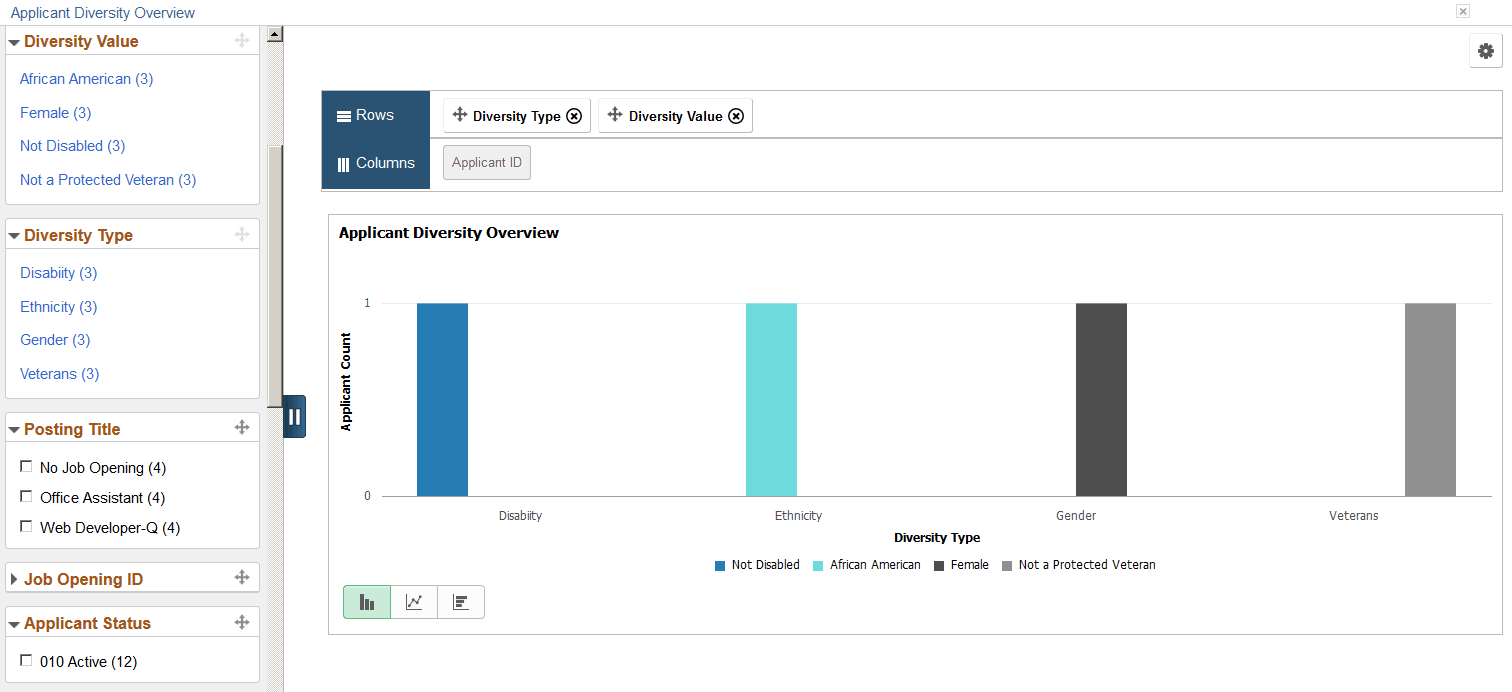
Although the chart counts Maya once per diversity type, the counts that appear in parentheses next to filter values count each of Maya’s applications and each of Maya’s diversity types. The following table summarizes how this works. The Example column refers to Maya’s three applications as shown in the previous illustration.
| Filter | Associated Count | Example |
|---|---|---|
|
Diversity Value |
Counts applications. |
Maya submitted three applications, so even though the bar chart shows that there is one female, the Female filter shows a count of 3. |
|
Diversity Type |
Counts applications. All diversity types have the same count because every application is considered for each diversity type. |
All four diversity types show a count of 3 because Maya submitted three applications. |
|
All other filters |
When all four diversity types appear in the chart, the count for these filters is four times the number of applications that meet the criteria. This is because each application is counted once for each diversity type. If you filter the chart to show only one diversity type, then the counts for these other filters match the number of applications. |
Each of Maya’s three job applications are represented four times in the chart: once for disability, once for ethnicity, once for gender, and once for veteran status. So a filter value that includes one of Maya’s application applications shows a count of 4. The Applicant Status filter, however, has a higher count. Maya’s application status, Active, does not vary by application, so the Active filter includes all three applications. Because each application is counted four times (for the four diversity types), Maya’s count for this filter is 12. |
Reviewing Detailed Data
If you drill down into the chart, you can access a grid that displays the source data. The grid lists job applications, so individual applicants can appear more than once.
The grid that appears on-screen when you drill down into the chart shows a maximum of 100 rows. To view the complete data set, use the standard pivot grid export option by clicking the Options icon in the top right corner of the chart. The export is limited to data that falls within the date range you specify in the Prompt fields, but all other filter criteria is ignored.