Enterprise Components Configuration
Use pages in the Enterprise Components, Integration Definitions menu to complete this configuration.
This table describes the specifics for configuring enterprise components for the TCD interface:
| Page | Configuration Specifics |
|---|---|
|
Batch Publish Rules |
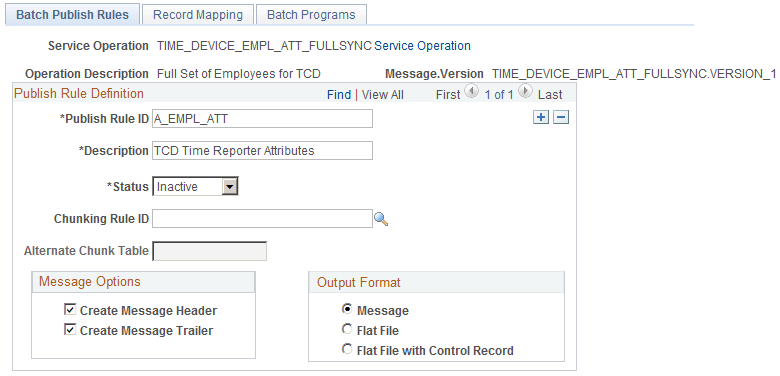
Note: If you are using a delivered process, only set those settings that make that process active. The TL_OUTTCD Application engine process uses Batch Publish Rules to publish the messages to TCD Servers. Activate the rules that you will use for TCD Interface. TL_OUTTCD Application engine also triggers service operations to be published. |
|
File Inbound |
Activate inbound file rule if you are using flat file integration. Make sure to set the Inbound File to the appropriate location and set Status to Active. |
|
Inbound File (Publish) |
Make sure the Request ID is defined. In the Process Frequency group box, select Once if you are running the process with run control ID only one time or select Always if you are using same run control ID repeatedly. |
Access the Batch Publish Rules page.
This example illustrates the fields and controls on the Batch Publish Rules search page. You can find definitions for the fields and controls later on this page.
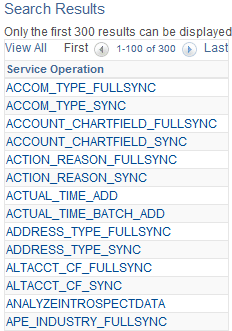
The list that appears are the messages that you can select to configure the messages to be published.
This example illustrates the fields and controls on the Batch Publish Rules page. You can find definitions for the fields and controls later on this page.
Note:
If you are using a delivered process, only set those settings that make that process active.
Access this page from The TL_OUTTCD Application engine process uses Batch Publish Rules to publish the messages to TCD Servers. Activate the rules, which you will use for TCD Interface. TL_OUTTCD Application engine also triggers Messages to be published.
Inbound File Rules
Access the File Inbound page.
This example illustrates the fields and controls on the File Inbound page. You can find definitions for the fields and controls later on this page.
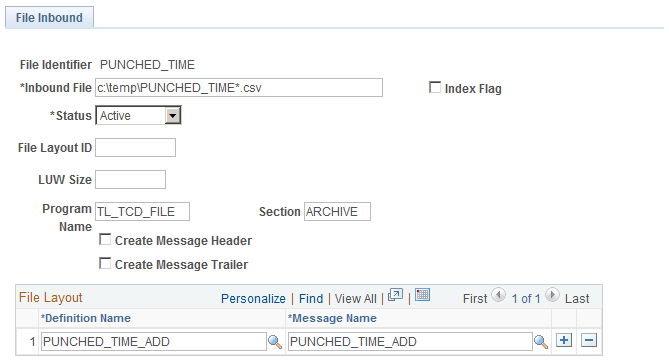
Access this page from Activate inbound file rule if you are using flat file integration. Make sure to set the Inbound File to the appropriate location and set Status to Active.
Inbound File Publish
Access the Inbound File (publish) page.
This example illustrates the fields and controls on the Inbound File (publish) page. You can find definitions for the fields and controls later on this page.
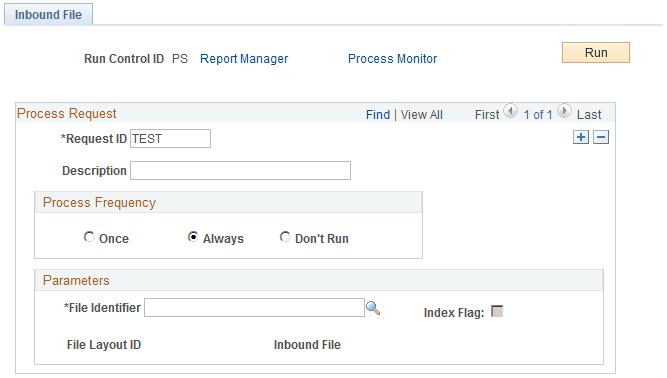
Access this page from Make sure the Request ID is defined. And in the Process Frequency group box, select either Once (if you are running the process with Run Control ID only one time, or select Always if you are using same Run Control ID repeatedly.)
PeopleSoft Enterprise Components