Manage Geo Fence Locations Page
The Manage Geo Fence Locations page lets you set geo fence overrides for specific workgroups. These overrides take priority over installation settings.
Navigation:
This example illustrates the Manage Geo Fence Overrides page.
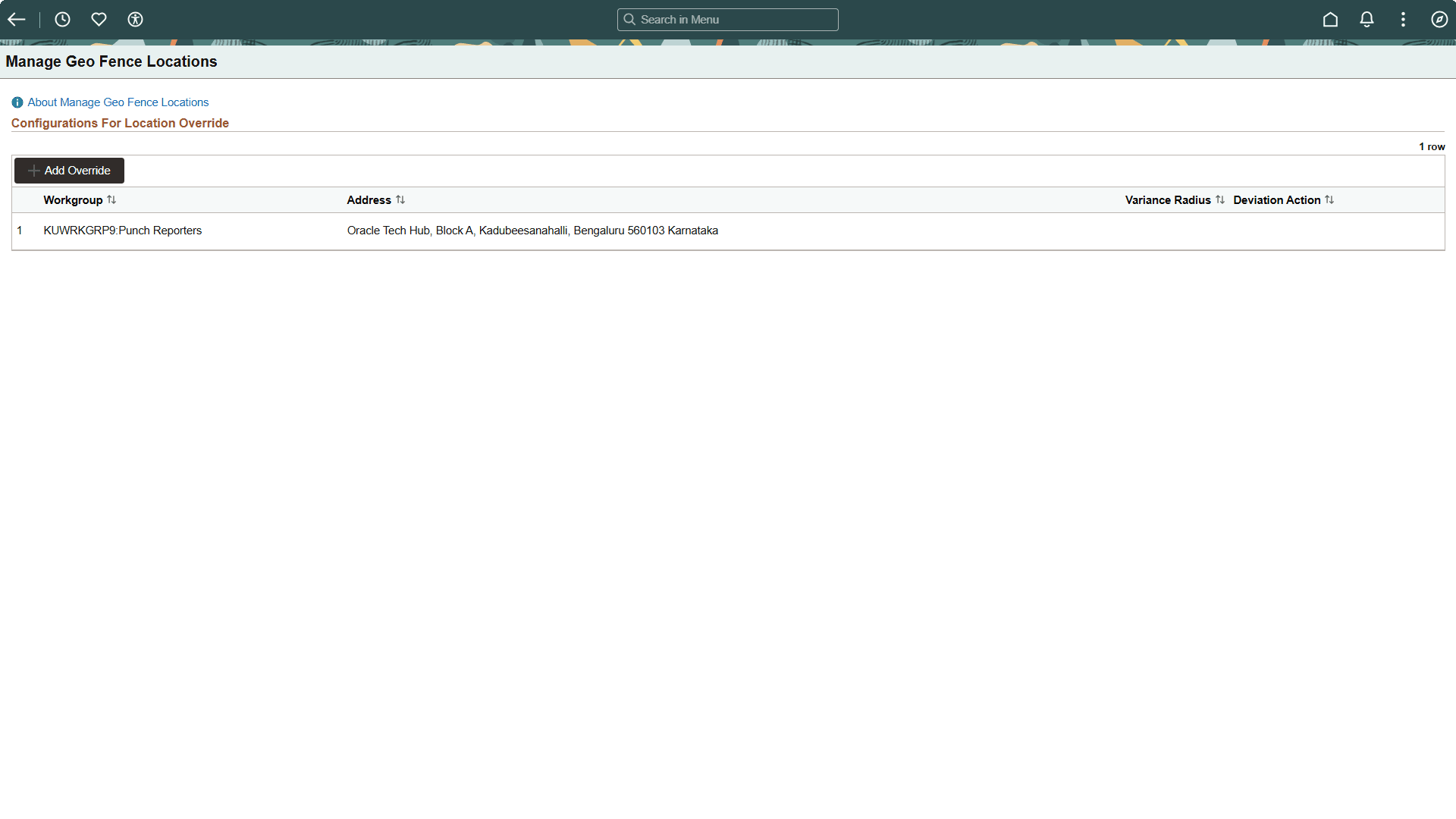
To add location overrides, click the Add Override button. This displays the Override Details modal.
Override Details Modal
You can define a geo fence location override for a workgroup by specifying an address or directly entering latitude and longitude coordinates. Overrides allow different workgroups to have customized geo fencing policies according to business needs.
Note:
Workgroup overrides take precedence over the global installation settings.
Override Details Modal
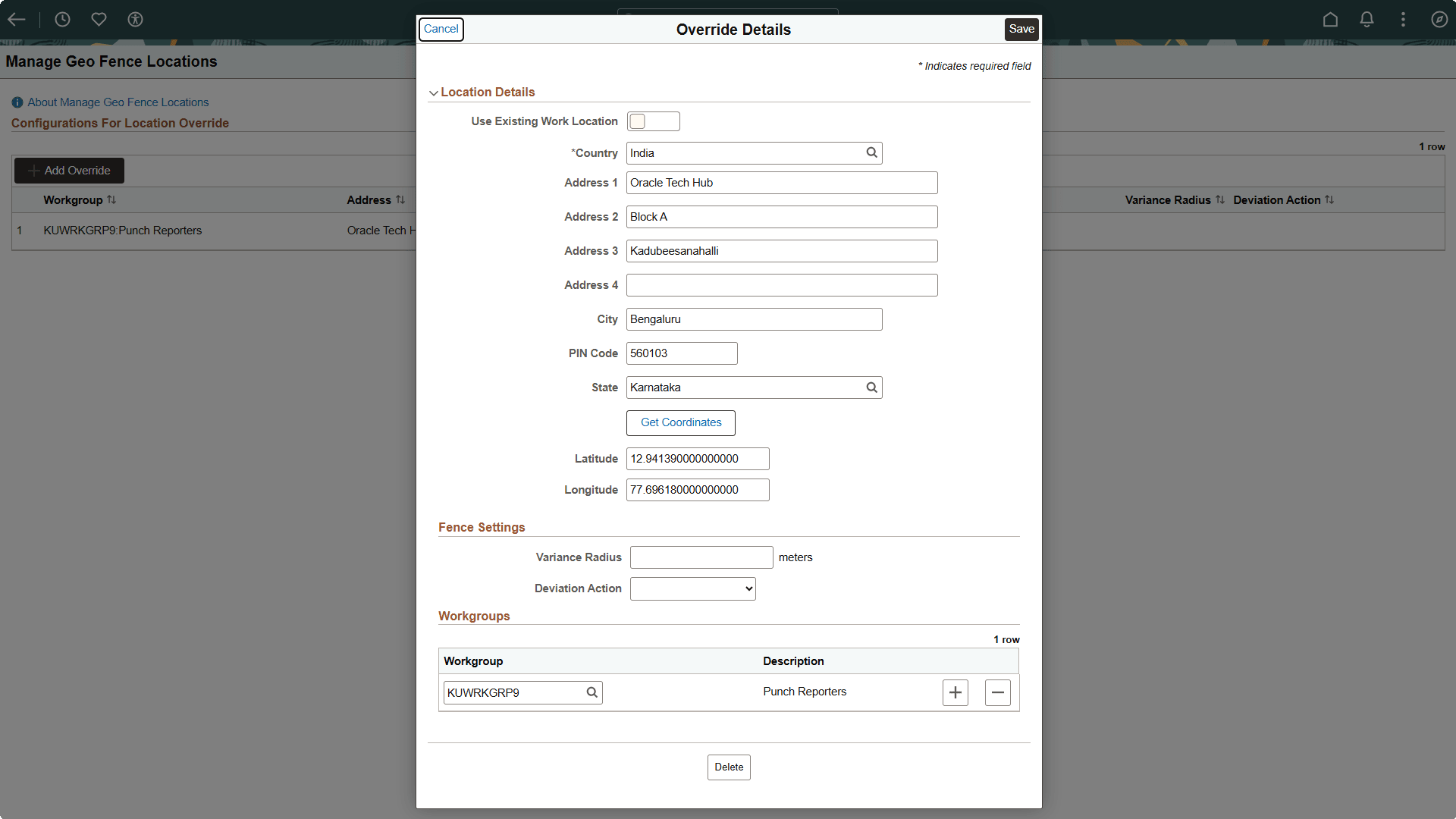
| Field or Control | Description |
|---|---|
|
Use Existing Work Location |
Selecting this option lets you choose a predefined location instead of manually entering location details. |
|
Address fields |
The fields are displayed as per the HR Address Setup. For details on address fields, see Enterprise Components: Specifying Address Formats. |
|
Get Coordinates |
Click the Get Coordinates button to get latitude and longitude. Alternatively, you can manually enter the location coordinates. Note: Coordinates are required. |
|
Latitude |
|
|
Longitude |
|
|
Variance Radius |
Enter the number of meters the employee can be from the work location. Leave blank to require employees to be exactly at the specified location. |
|
Deviation Action |
Specify the deviation action whether to allow the time reporter to proceed with the punch (generating an exception) or to refuse the punch. |
|
Workgroup |
Select one or more Workgroups to which these overrides must be applied. |
To establish an override, you must specify at least one of the following for the workgroup: a location (address or coordinates), a deviation action, or a variance radius. Any override defined for a workgroup takes precedence over the general installation settings and remote worker configurations. This ensures the selected workgroup adheres to the custom geo fencing rules you have specified.
Note:
For any fields left blank, the system uses the installation-level settings.