Mass Time - Select Time Reporting Method Page
Use the Mass Time - Select Time Reporting Method page (TL_MASS_TIME_SELF) (TL_MASS_SELF_SAVE) to specify the range of dates and the method for reporting time.
Navigation:
Click Next on the Mass Time - Select Time Reporters page.
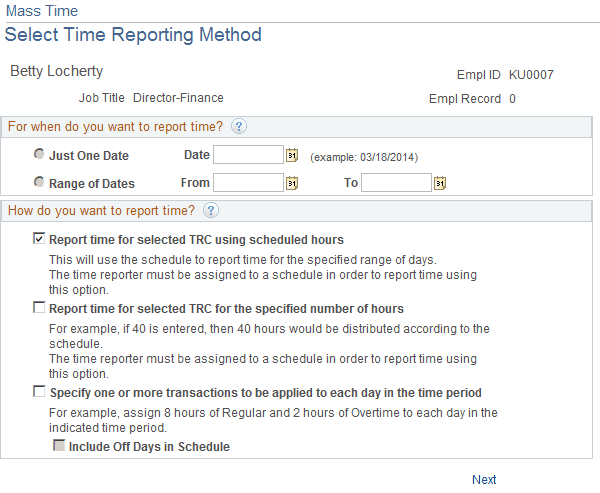
This example illustrates the fields and controls on the Mass Time - Select Time Reporting Method page. You can find definitions for the fields and controls later on this page.
| Field or Control | Description |
|---|---|
|
Just One Date |
To report time for just one day, enter a date in this field. |
|
Range of Dates |
To report time for a range of dates, enter beginning and end dates in these fields. |
You can report time in one of three ways using the Mass Time Reporting feature:
-
Report time for selected TRC using scheduled hours.
Use this option to report time according to your schedule. If you (or your employees, if you are a manager) are assigned to a schedule, you can report time according to that schedule for a specified day or for a range of dates. Once you specify the date or date range, the system generates reported time by looking at your schedule for the dates that you specified. For example, to report taking vacation for two weeks, specify a date range for those two weeks and indicate a time reporting code to be applied. The system looks at how your schedule is built for that particular date range and generates reported time for the same number of hours for those dates. You must be assigned to a schedule for reported time to be generated using this option.
-
Report time for selected TRC for the specified number of hours.
Use this option if you want to specify a lump sum amount, for example, 40 hours, and have it distributed according to your or your employee's schedule over the date or date range specified. For example, suppose that you specify a date range of two weeks, indicate a time reporting code of REG, and enter 80 hours to be distributed. The system looks at your schedule and distributes 80 hours of REG over the two weeks according to how your schedule is set up.
Note:
You must be assigned to a schedule to use this feature. Also, the system doesn't distribute the total number of hours evenly over the time period. If your schedule dictates that you normally work only 70 hours in a two-week period and you enter 80 hours to be distributed, then the extra 10 hours is lumped into the last day of the date range specified. The reason for this is that you are requesting that a lump sum of time be distributed according to your schedule. If the number of hours you report is short or over that which is indicated in the schedule, those hours are applied to the last day.
-
Specify one or more transactions to be applied to each day in the time period.
Use this option to report time and specify multiple transactions for the system to apply to the specified date or date range. For example, suppose there is one week for which you need to report six hours of regular time and two hours of paid time off for each day, instead of reporting your usual eight hours of regular time. Rather than having to enter these two transactions for each day, you can enter it only once by specifying six hours of REG and two hours of PTO. The system applies the six hours of REG and two hours of PTO to each of the days that you specified in your date range, excluding your regular days off. You need to be assigned to a schedule to report time using this option.
If you select this Mass Time reporting option, then the Include Off Days in Schedule check box appears below this selection. This check box affect how reported time is generate in these ways:
-
If you have an assigned schedule and this check box is cleared, then reported time is created only for workdays and not scheduled days off.
-
If you have an assigned schedule and you select this check box , then reported time is created time for all days in the schedule.
-
If you do not have an assigned schedule, reported time is created for all days in the date range you enter regardless of the setting of the Include Off Day check box, `based on the data you enter on the Reporting Details grid on the Mass Time – Report Time page.
-
Click the Next button to continue on to the Mass Time - Report Time page.