Mass Time - Report Time Page
Use the Mass Time - Report Time page (TL_MASS_TIME_SELF) (TL_MASS_SELF_SAVE) to specify the range of dates and the method for reporting time.
Navigation:
Click Next on the Mass Time - Select Time Reporting Method page.
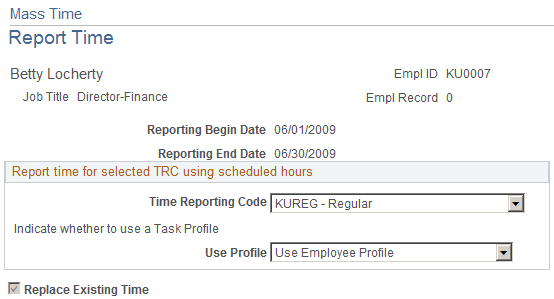
This example illustrates the fields and controls on the Mass Time - Report Time page. You can find definitions for the fields and controls later on this page.
| Field or Control | Description |
|---|---|
|
Time Reporting Code |
Enter a time reporting code (TRC) in this field to specify which method to use for processing the time worked. Every active TRC that is valid for the employee appears here, unless it is specified as a "Rules Only" TRC. If it is a rules only TRC, then it will only be used in processing rules and will not show up on the time reporting pages. Select a TRC that is attached to the TRC program assigned to the employee for whom you are reporting time. If you're reporting a lump sum of time to be distributed according to your schedule, enter the total number of hours that you want distributed in the Specify how much you want to report box. Note: On the previous page, if the Use the scheduled hours for the day(s) specified or the Use the total number of hours entered and distribute them according to the schedule option was selected, and a TRC is being used, if the selected employee has a punch schedule, then a TRC will be inserted with the punch scheduled time. If the user decides to report a TRC with punch time, then the new rule Template 135 should be reviewed, in order to determine if all punch time rows with a TRC should be paid or paid with a different TRC. If a TRC is not specified in this field, and a TRC exists on the employee's schedule, the system uses Scheduled TRC. If there are any other Time Reporting elements on the schedule, these will be used to populate reported time as well. |
|
Use Profile |
Select one of the values to define how you want task information applied to reported time. The values for the Use Profile field are: Use Employee Profile. Select this value to use this profile as the default task profile on the Maintain Time Reporter Data page for reported time. Use Scheduled Tasks. Select this value to display any task and time reporting information on the employee's schedule to populate reported time. Use Taskgroup Default Profile. Select this value to use the default task profile on the employee's taskgroup listed on the Maintain Time Reporter Data page. |
|
Submit |
Click to submit the time that you reported for processing. The validation process runs, and the system generates exceptions if errors exist. The Submit process updates the employee's status codes and creates reported time. If you selected the Automatic Rules Run option on the Time and Labor Installation page, the Time Administration process runs and creates payable time. |
When the Specify one or more transactions to be applied to each day in the time period option is selected on the Mass Time - Select Time Reporting Method page.
| Field or Control | Description |
|---|---|
|
Taskgroup |
(Optional) If this field is left blank, when time is submitted it appears by default from the employee's assigned Taskgroup, which is indicated on their Time and Labor Employee Data record, or the Taskgroup assigned to the group for which you are reporting. If a Taskgroup other than the default is reported, this is considered Taskgroup borrowing. When the time is submitted, it uses the task reporting elements associated with the borrowed Taskgroup. The selection of a Taskgroup determines which fields appear on the Task Reporting Elements tab. |
|
Time Reporting Elements, Task Reporting Elements (tab) |
If applicable, enter information on the Time Reporting Elements or Task Reporting Elements tabs. Time reporting elements are based on your Time Reporting Template information and the Task Reporting Elements are based on the Taskgroup that is being reported. |
|
TRC |
Specify all the transactions that the system is to report for each of the days in the specified date range. Select a TRC in the Specify which Time Reporting Code (TRC) you want to use field on the Mass Time Reporting page to indicate which method the system should use for processing the time worked. Every active TRC that is set up in the system appears here. Select a TRC that is attached to the TRC program assigned to the employee for whom you are reporting time. If you select a TRC that is not valid for an employee, the system generates an exception when the time is submitted. |
|
Quantity |
Enter the number of hours. Note: This field appears if the second option (use the total number of hours entered) or the third option (specify multiple time transactions) on the Select Time Reporting Method page is selected. A value is required in the Quantity field in order to complete the transaction. |
|
Country, Currency Code, State, Locality, Comp Rate Code, Billable Indicator, Override Rate |
Enter values in these fields if applicable. |
|
Replace Existing Time |
This check box is selected by default and cannot be edited if you select the first option for Mass Time reporting. When this check box is selected, only existing time generated through Rapid Time or Mass Time (time that has a reported time source (RT_SOURCE) equal to SCH) is deleted. Time generated through the Timesheet page is not deleted (time with a reported time source equal to SYS). Time entered through Mass Time is added to any time that was entered through the Timesheet pages. If you do not select this check box, the system adds the time in this entry to previous data. For example, suppose that you reported eight hours of TRC REG for an employee on March 1, 2000. Then you enter two hours of TRC REG for the same employee on the same date. If you selected this check box, the system records two hours of TRC REG for that day. If you did not select this check box, the system will add two hours of TRC REG to the existing eight hours for a total of ten hours for this date. |