Timesheet Page
Use the Timesheet page (TL_MSS_TIMESHEET) (TL_RPTD_PCH) (TL_RPTD_ELP) to report time and task details for a day, week, or time period for either punch or elapsed time reporters.
Navigation:
This example illustrates the fields and controls on the Timesheet page. You can find definitions for the fields and controls later on this page.
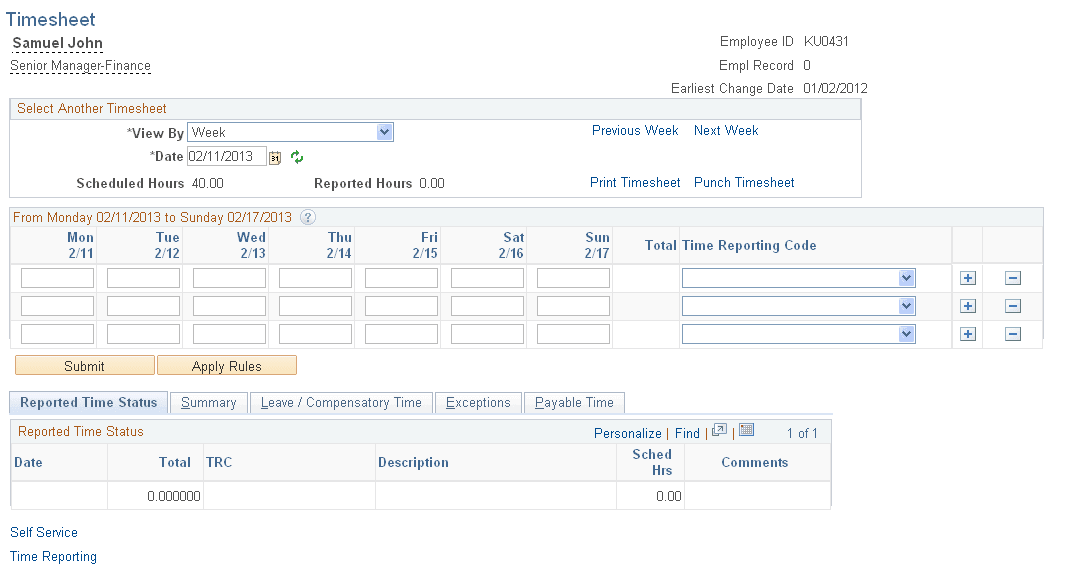
The Days, Total, TRC and Type fields are based on the related time reporting template. The remaining fields are based on the task reporting template.
| Field or Control | Description |
|---|---|
|
<Job Title> |
Placing your mouse over the Employee’s Job Title displays a pop-up window containing job information specified on the Self Service Header Info page. |
|
View By |
The defaults for the View By field are set on the User Preferences page. This field may be display only, depending upon the settings for the time reporting template. Values are Day, Week, or Time Period. |
|
Date, Refresh |
If you change the Date field, click the Refresh button to update the page. |
|
Previous Day, Previous Week, Previous Time Period, Next Day, Next Week, Next Time Period |
Use the requisite link to view the previous or next time reporting period. If you use one of these links, additional text appears to let the user know that reported time is being entered for a prior or future period. |
|
Print Timesheet |
Select this link to print the Timesheet to a PDF file, in order to create a physical timesheet for signatures. |
|
Punch Timesheet or Elapsed Timesheet |
Select to switch the timesheet to either an elapsed time or a punch timesheet. This option may not be available, based on the configuration specified on the Time and Labor Installation page. |
|
Show All Punch Columns |
Select this option to show all of the Punch Time columns on this spreadsheet. This option is only available on Punch Timesheets. The Time Reporting Template page determines which Punch Columns are shown on the Punch Timesheet and whether the Show All Punch Columns button is available. |
|
Reported Hours |
This field is updated when the Save for Later or Submit buttons are clicked. |
|
Scheduled Hours |
The value is displayed when you access the Timesheet page. |
|
Total |
This field is updated when the Save for Later or Submit buttons are clicked. This field displays the total hours per row. |
|
Time Reporting Code |
If applicable enter a Time Reporting Code. |
|
Type |
This field is updated when the Save for Later or Submit buttons are clicked. It shows the TRC's related Type — Amount, Hours, or Units. |
|
Taskgroup |
If applicable, enter a related taskgroup. |
|
Billable |
Select this field if the hours entered are billable. |
|
Task Profile ID |
If applicable, enter a related task profile ID. |
|
Apply Rules |
Click this button to save your data and launch the Apply Online Rules process, which immediately applies the online rules for the time reporter to the time entered on this page. If absence event data is entered in the Absence Event grid, the Apply Online Rules process generates absence payable time with the status Estimated (E) or Needs Approval (NA).. If any exceptions are generated, the Manage Exceptions page is displayed automatically after the process completes. If no exceptions occur and payable time is created, the View Payable Time Detail page appears with the rows of estimated time that were created from the online rules. The Apply Online Rules process does not generate payable time estimates when the reported time has the status Needs Approval (NA). Note: This button is displayed only if the Run Online Rules feature is activated on the Time and Labor Installation page. See: Setting Up System Defaults and Loading Dates |
|
Reported Time Status |
The fields displayed are Date, Status, Total, Time Reporting Code and Comments. Click the icon in the Comments column to add a comment for a row. Note: This grid applies only to elapsed Timesheets (not punch). |
|
Absence |
Click this tab to display the Absence Events grid and Absence Balance grid and add absence information. Depending on the setup of Absence Management, you may be enabled to report, save, submit, and approve or deny (managers only) absence events within the range of the Timesheet dates. Balance information can include sick or vacation balances, and your absence entitlement balance if the time reporter is active in the Absence Management system. Note: This tab is displayed only if the Time and Labor system is integrated with Global Payroll or Absence Management. See PeopleSoft Absence Management: Understanding the Absence Request Transactions. |
|
Summary |
Click this tab to show the Total Reported Hours values to obtain a summary of reported hours. |
|
Leave / Compensatory Time |
Select this tab to view leave and compensatory time balances as of the date specified for the timesheet. This balance may be positive or negative, depending on how the plan is set up and what has been reported. Select the View Detail icon to access the Compensatory Time page |
|
Attendance |
Select this tab to view a list of attendance violations for this employee. |
|
Save for Later |
Use this button to partially enter a timesheet and to complete at a later date. Enter information on the page each day and submit at the end of the reporting period. When using this button a message window may appear, asking whether the user would like to validate the time entered. |
|
Submit |
Use this button to submit the Timesheet. |
|
Clear |
Click this button to remove entries from the gird that have not been saved or submitted. This button only appears on Punch timesheets. |
|
Request Absence |
Click this link to access the Request Absence page. That page has a link to return to the Timesheet page. See PeopleSoft Absence Management: Understanding the Absence Request Transactions. |
Note:
TRCs that are set up with the Absence Flag check box selected on the Time Reporting Codes - Definition page are not displayed on the online time reporting pages (Timesheet, WebClock, and Mass Time). Consequently, you cannot report time using an Absence TRC on these pages. TRCs that have the Rules Only TRC check box selected on the Time Reporting Codes - Definition page are not displayed on any of the time reporting or scheduling pages, except the Adjust Paid Time page.