Using the Fluid Team Time Dashboard for Managers
The Team Time dashboard provides a contextual fluid interface that enables managers to manage employee time, review exceptions, approve reported time and absence requests along with additional calls to action for absence and time and labor transactions, all from a single fluid interface.
This dashboard is built using the delivered PeopleTools Contextual Dashboard framework. The contextual header displayed at the top of the page is configured using HR Fluid header functionality, and the person selector (traverser) is configurable using the HR Traverser feature.
- PeopleTools: Using the Contextual Header Framework
- Understanding HR Fluid Header Configuration
- Configuring the HR Traverser
This dashboard is supported on PeopleTools 8.62 and later releases.
Understanding Contextual Behavior
The Team Time dashboard is context-driven.
- Actions
- Time
- Absence
All data displayed in the sections across tiles is based on the employee selected in the person selector. When accessing the dashboard for the first time, you must select an employee. The selected employee becomes the active context.
Once an employee is selected:
- The employee context is retained across transactions when navigating between tiles.
- All tiles except (View Requests and Absence balance) under Absence section display live data for the selected employee.
- Changing the employee refreshes all tile data dynamically.
- Actions
- Time
- Absence
All tiles on this dashboard honor peopletools security. The live data within a tile is displayed only when the signed-in user has security access to the underlying transactions for the employee in context. In the screenshot shown below the employee context is Dan Atwood.
Navigation:
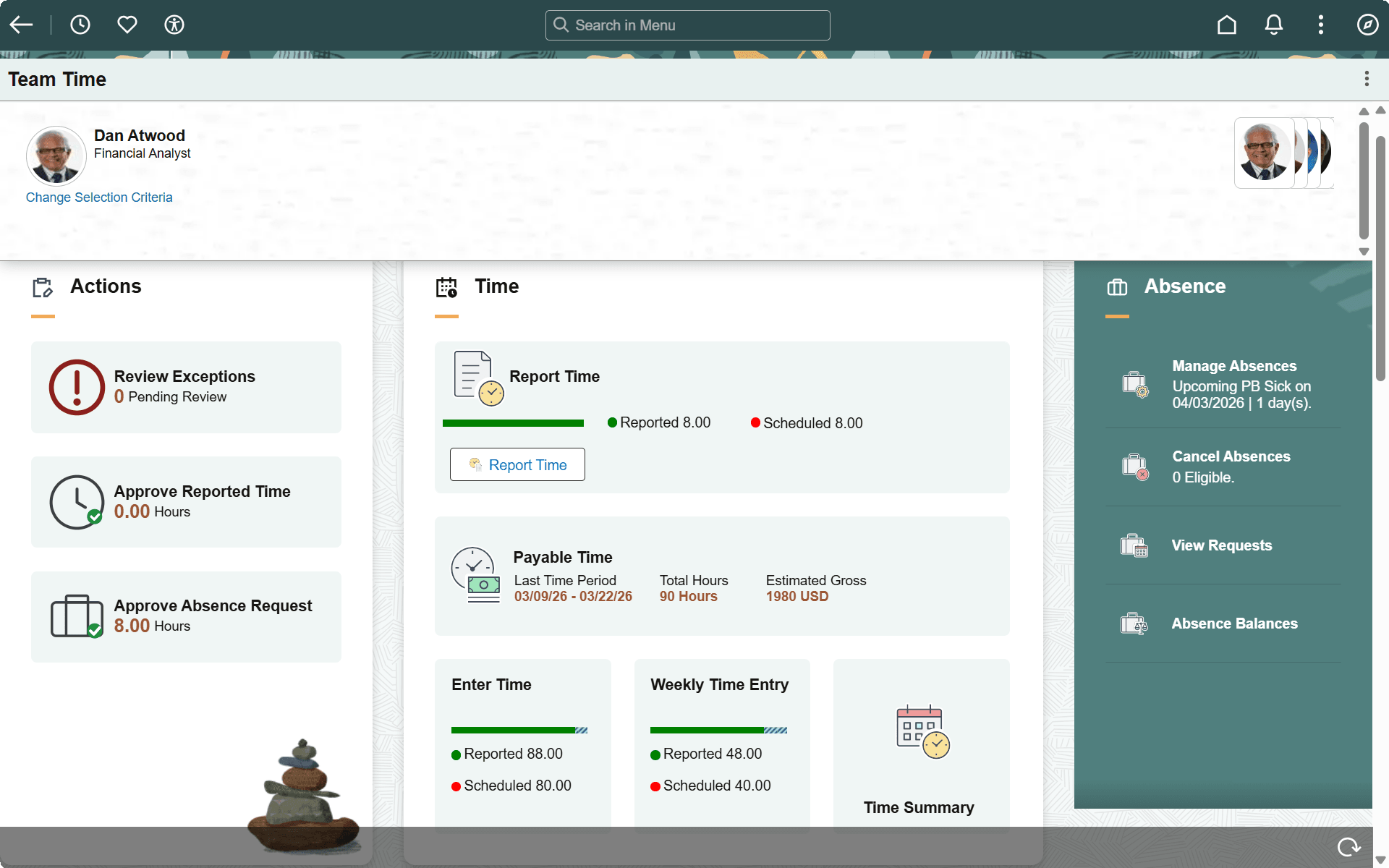
Understanding Person Selector (Employee Context)
- When you access the dashboard for the first time, you must select an employee.
- The selected employee becomes the active context for all dashboard transactions.
- The system preserves this context while navigating between tiles.
- All tiles display data specific to the selected employee.
- When the selected employee changes, the system refreshes all tiles dynamically.
Note:
When both Time and Labor and Absence Management are installed, the person selector is derived from Time and Labor security. This employee context is passed to absence transactions. If security access is not aligned, the system may prompt you to select an employee using the Absence selector for absence transactions. On clicking Select Another employee in individual components, the person selector is derived based on the component.Note:
If the same security configuration is used across Time and Labor and Absence Management, consider using the Team Time Direct dashboard. See the corresponding documentation for details. For Team Time Directs dashboard, the person selector is derived from the direct reports configuration done for the header component.Security Considerations
- The tiles are displayed for the logged in user only when they have access to the transaction.
- Live data within a tile is displayed only when the signed-in user has access to the underlying transactions for the employee in context.
- If the user does not have access:
- Live data is not displayed.
- The system prompts the user to select a different employee.