Viewing the Time and Labour Dashboard pagelets
The analytics and approval pagelets return data based on the Manager Search Options with Time and Labor Group Security or HR Security. The fields which are available on the standard Manager Search page appears on the Dashboard Selection Criteria pagelet, along with any values that have been assigned to those fields.
The Dashboard Selection Criteria pagelet is a standard Manager Self Service (MSS) search criteria page. The initial values come from the MSS page and are displayed on the search pagelet. The values can be changed on this pagelet and are used to refresh the other pagelets on the dashboard. The search pagelet does not allow the MSS values to be saved. The search pagelet drives the employee search criteria for all of the analytics and all of the approvals pagelets except Absence Requests. Absence Request uses the tools Inter-Window Communications (IWC) feature to publish the search field values to the other pagelets, which will then refresh the data using the new search criteria.
This example illustrates the fields and controls on the Reported Time Approval pagelet. You can find definitions for the fields and controls later on this page.

The Selection Criteria pagelet is the publishing pagelet. On selecting the Search button, the subscribing pagelets which include approval and analytics pagelets are refreshed according to the search values.
The following are the list of approval pagelets:
-
Reported Time
-
Payable Time
-
Overtime Requests
-
Absence Requests
Approval pagelet for Reported Time
This pagelet displays all the reported time approval requests that requires approval actions by a manager. It groups the requests on summary level and by the Employee, TRC Category, and TRC Type. The manager can drill down all the details on each employee by selecting the employee name or by selecting the View Details link at the bottom of the pagelet.
This example illustrates the fields and controls on the Reported Time Approval pagelet. You can find definitions for the fields and controls later on this page.
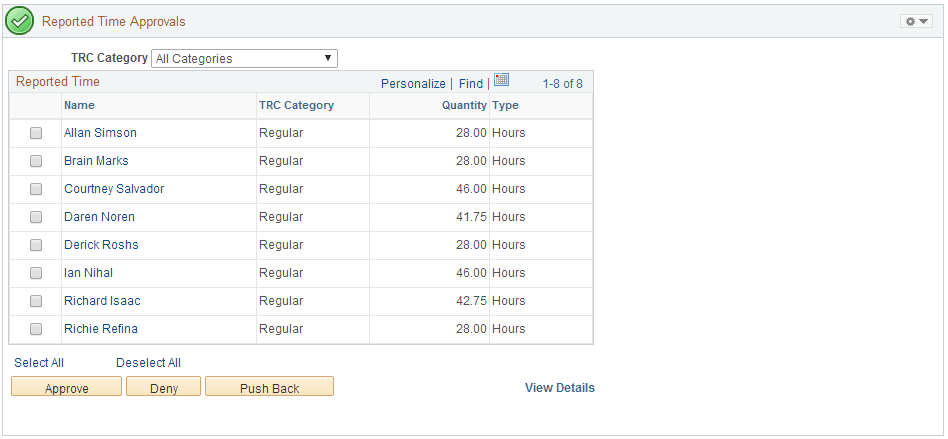
| Field or Control | Description |
|---|---|
|
Name |
Name hyperlink opens a modal window with the details under the employee for the category. |
|
Select All / Deselect All |
To select or deselect all the rows on the grid for approval actions – Approve, Deny, and Push Back. |
|
View Details |
Opens a modal window which shows all the details for the entire employee on the home page. |
Approval pagelet for Payable Time
This pagelet displays all pending payable time approval requests categorized by TRC Category for a Manager. The values are inherited from the Manager Search Options settings from the Dashboard Selection Criteria pagelet. Manager has an option to select an employee or a group of employee or all employees to take necessary Approval Action from the View Details page.
This example illustrates the fields and controls on the Payable Time Approval pagelet. You can find definitions for the fields and controls later on this page.
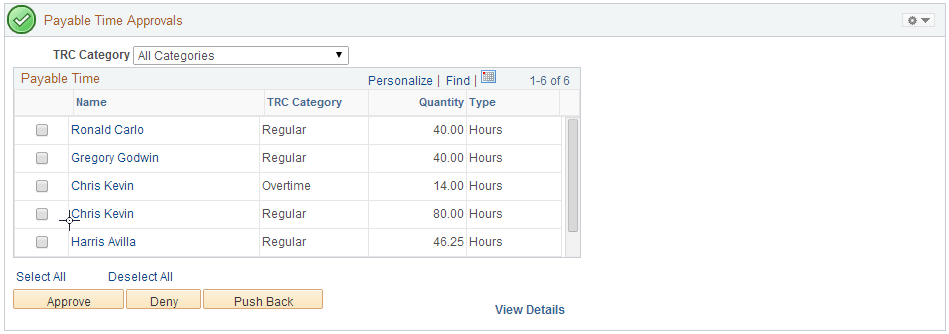
| Field or Control | Description |
|---|---|
|
Name |
Name hyperlink opens a modal window with the details under the employee for the category. |
|
Select All / Deselect All |
To select or deselect all the rows on the grid for approval actions – Approve, Deny, and Push Back. |
|
View Details |
Opens a modal window which shows all the details for the entire employee on the home page. |
Approval pagelet for Overtime Requests
This pagelet displays all the overtime approval requests for all the employees who reports to a Manager.
This example illustrates the fields and controls on the Overtime Approval pagelet. You can find definitions for the fields and controls later on this page.
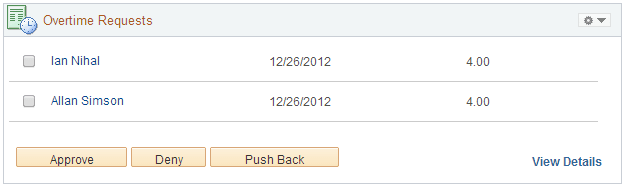
| Field or Control | Description |
|---|---|
|
View Details |
Opens a modal window which shows all the details for the entire employee on the home page. |
Approval pagelet for Absence Requests
This approval pagelet supports Absence AWE transactions that originate from either Employee Self Service or Manager Self Service.
This example illustrates the fields and controls on the Absence Request Approval pagelet. You can find definitions for the fields and controls later on this page.
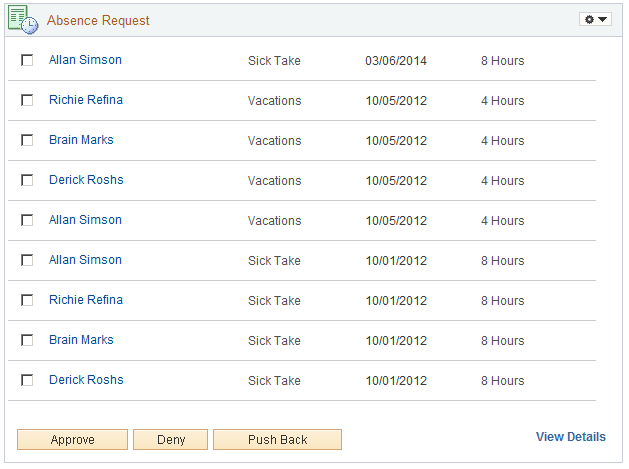
The name of the employee in the pagelet is a hyperlink that will take the user to the Absence detail page. This page allows the user to see the details of the individual employee. When an absence is transacted in the pagelet, the user receives a confirmation message.
| Field or Control | Description |
|---|---|
|
View Details |
Opens a modal window which shows all the details for the entire employee on the home page. |
Analytics pagelets
The following are the analytics pagelets:
-
Schedule Deviation
-
Payable Time
Schedule Deviation Analytics
This analytic is designed to answer business questions about the relationship of scheduled time, reported time and approved time.
-
How are my reported/approved hours compared to scheduled hours?
-
Which employees are not following their schedule?
-
Which employees have exceeded their scheduled hours?
-
Are there employees whose reported hours seem incomplete?
-
What are the departments that show greater schedule deviation?
-
What job codes have higher schedule deviation?
This example illustrates the fields and controls on the Schedule Deviation analytics pagelet. You can find definitions for the fields and controls later on this page.
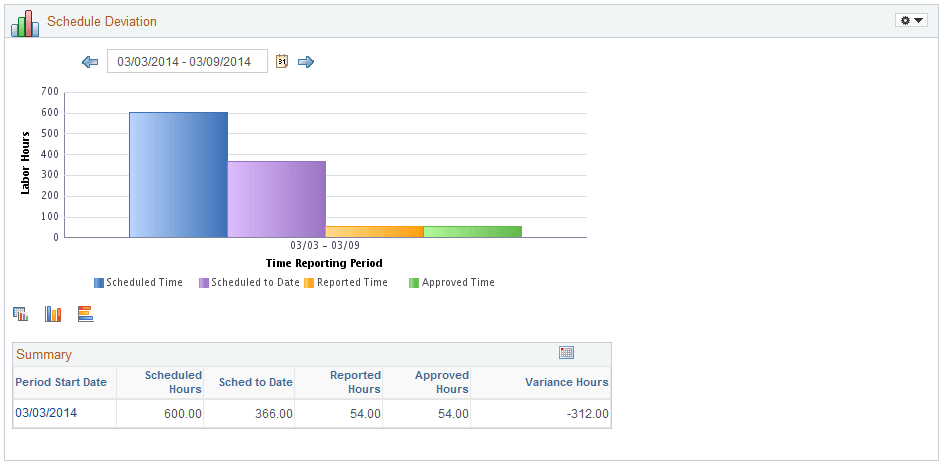
The data gathered are:
-
Schedule Time
-
Schedule to Date
-
Reported Time
and
-
Approved Time.
Analytics for Payable Time
The purpose of this analytic is to answer the following questions:
-
How many hours have been calculated based on the business rules?
-
How many hours of overtime have been calculated?
-
Which employees have incurred overtime and how much?
-
What other types of hours have the rules calculated?
-
What are my estimated costs based on the business rules?
This example illustrates the fields and controls on the Payable Time analytics pagelet. You can find definitions for the fields and controls later on this page.
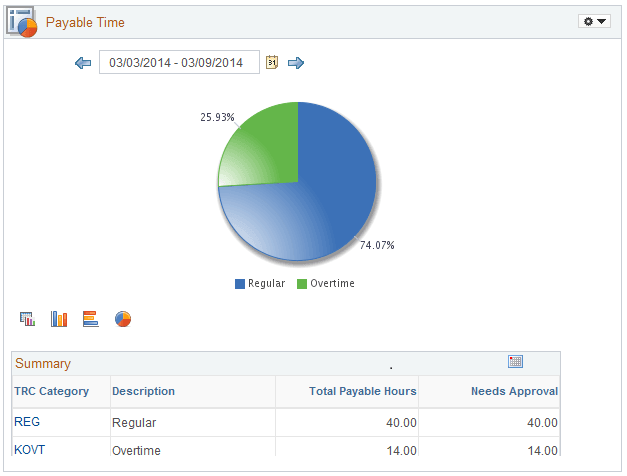
This analytic is based on the Payable Time Table. It pulls all TRC’s with a TRC type of hours. The default type of chart is a pie chart.