1.12.2 Installing the PeopleSoft ePay Payslips Functionality
To install PeopleSoft ePay Payslips for PeopleSoft Global Payroll:
-
Confirm the jar installation by verifying that the following two jar files are installed in your <PS_APP_HOME>\class directory:
Note:
For a UNIX platform, the class files are in the <PS_APP_HOME>\appserv\classes directory.
-
itext-1.4.7.jar
-
com.peoplesoft.hmcr.exceptions.jar
-
-
Update URL IDs in the PeopleSoft system to point to the FTP site.
The URL ID is pointing to a virtual directory on the FTP site. You can create this virtual directory “PAYSLIPS” in the FTP root, however the PeopleSoft ePay process creates this folder if it did not previously exist. You can choose to create a directory by any name or structure (you are not limited to using “PAYSLIPS”). If you create a different directory, you must ensure that you reference this directory in the URL ID.
-
Select PeopleTools, Utilities, Administration, Maintain URLs.
-
Select the following URL Identifier:
GP_SS_PSLP_FTP
-
Update this URL with the FTP payslip URL, including the user ID used to log on to the FTP session, password, and computer name; for example:
ftp://<FTPUSER>:<FTPPASSWORD>@<COMPUTERNAME>/PAYSLIPS/
-
-
Check the URL setting in Self Service Payslip Options, as follows:
-
Select Set Up HCM, Product Related, ePay, Self Service Payslip Options.
-
Search for the Global Payroll Country for which you are installing PeopleSoft ePay Payslips. Ensure that the URL setting is the URL Identifier from the prior step.
Important:
You may create your own URL ID and update this URL, instead of using GP_SS_PSLP_FTP. If you create your own URL ID you must update the Self Service Payslip Options to point to your new URL ID.
See PeopleSoft HCM: ePay, "Setting Up View Payslips."
-
-
Check the PeopleSoft Installation Table Settings, as follows:
-
Enter Installation Table in the keyword input field of the Global Search bar. As you type, the suggestions are updated to reflect the search term or terms you have entered.
-
Select Installation Table from the search suggestions.
Note:
To navigate to the page using the Navbar button, select Set Up HCM, Install, Installation Table.
-
Select the ePay check box on the main Installation Table tab (Products).
-
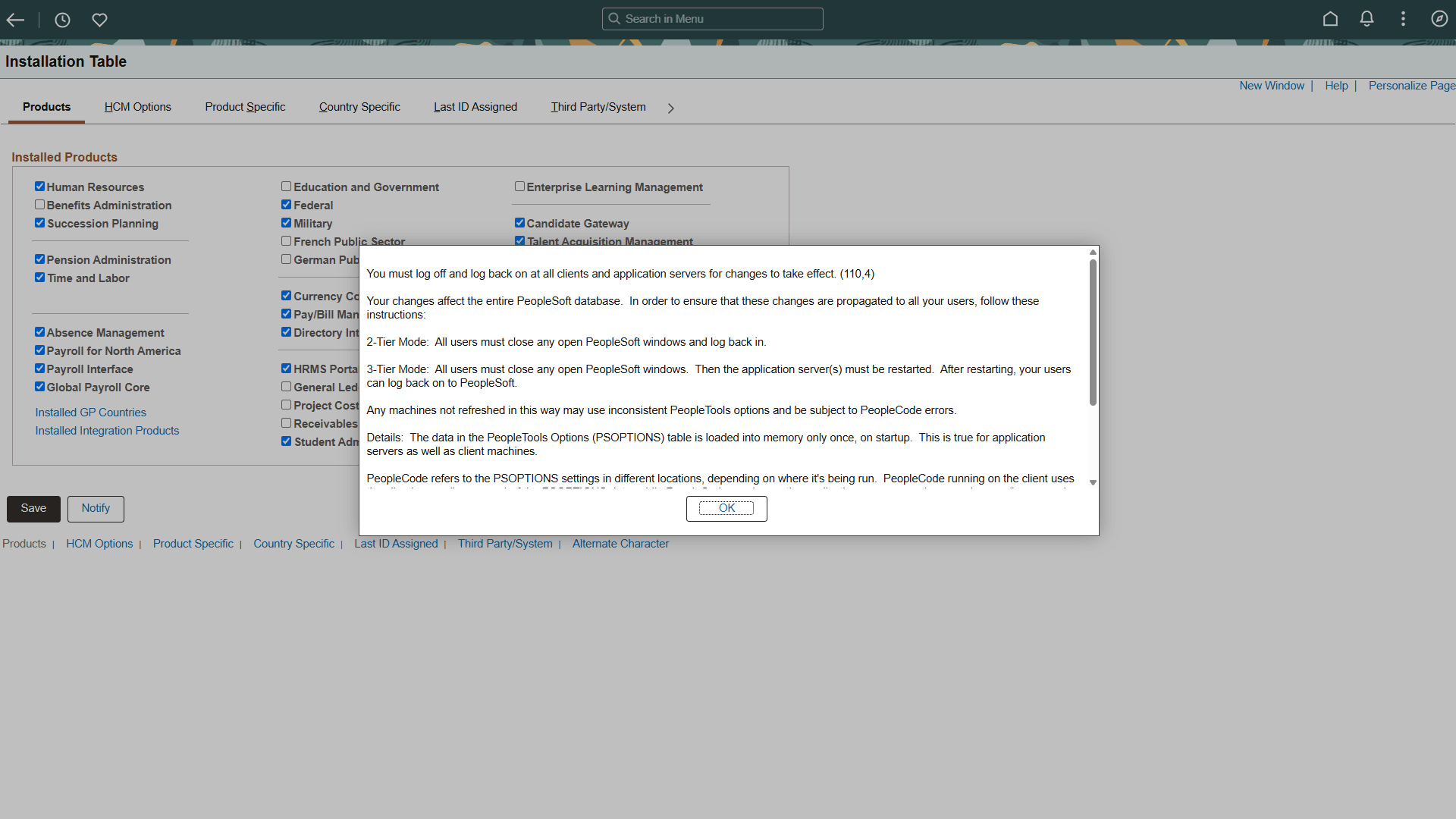
If any changes are necessary to the Installation Table, this informational message appears “You must log off and log back on at all clients and application servers for changes to take effect,” as shown in the following example:
Figure 1-9 Informational Message
-
-
Log off all clients, shut down and restart all application servers, and then log back on to PeopleSoft HCM for your change to take effect.