1.3 Installing PeopleSoft HCM for Federal Government
This section details the system data setup process that you should use when installing PeopleSoft HCM for the U.S. Federal Government to ensure proper installation of Federal functionality.
Note:
Run these steps against both the SYS and DMO databases.
To install Federal functionality in a PeopleSoft HCM database:
-
Enter Data Federalization in the keyword input field of the Global Search bar. As you type, the suggestions are updated to reflect the search term or terms you have entered.
-
Select Data Federalization from the search suggestions.
Note:
To navigate to the page using the Navbar button, select Set Up HCM, Product Related, Workforce Administration, Workforce Data USF, Data Federalization.
-
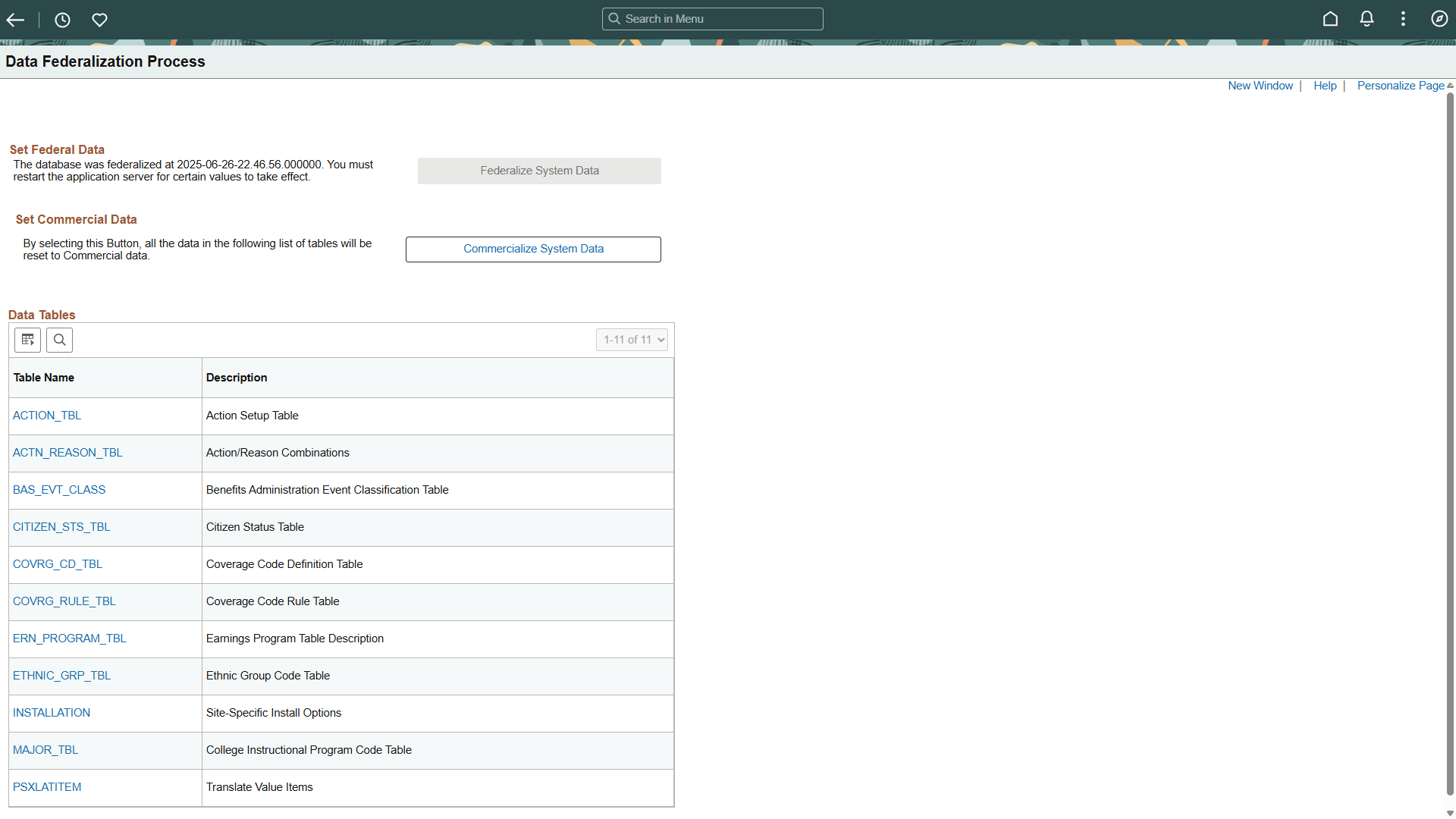
Click the Federalize System Data button, to load the contents of the core tables that contain the Federal Data.
When you run the Federalization process, you introduce changes to the Installation Table. The following example shows the informational message that appears “The database was federalized at 2025-06-26-22.46.56.000000. You must restart the application server for certain values to take effect.”
Figure 1-4 Data Federalization Process Page
-
Log off all clients, shut down all application servers, and delete application server cache.
-
Restart all application servers, and then log back on to PeopleSoft HCM for your changes to take effect.
-
Select Set Up HCM, Install, Installation Table, and then select the HCM Options tab to access the HCM Options page.
Ensure that the Federal values and settings are set as follows:
-
On the HCM Options tab, verify that the Position Management Option radio button is set to Full.
-
In the Compensation Rate Codes group box, verify that the Multi-Step Grade check box is selected.
-
-
Select the Product Specific tab to access the Product Specific page.
-
On the Product Specific page, verify that the Default Pay Basis is set to Per Annum.