2.14.2 Configuring the Integration Broker Gateway and Target Nodes
To configure the Integration Broker gateway and Target Nodes:
-
Select PeopleTools, Integration Broker, Integration Network, Configuration Status.
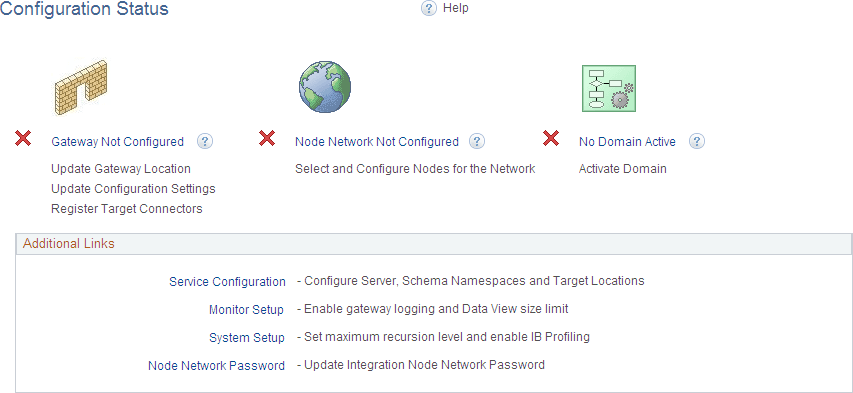
The Configuration Status page appears.
Note:
You may see some error messages when navigating to the Configuration Status for the first time. After dismissing the error messages, the IB gateway may appear as configured. However, you still need to perform the following steps to ensure that the configuration is done properly.
Figure 2-1 Configuration Status page showing that the Integration Network is not configured
-
Click the Gateway Not Configured link.
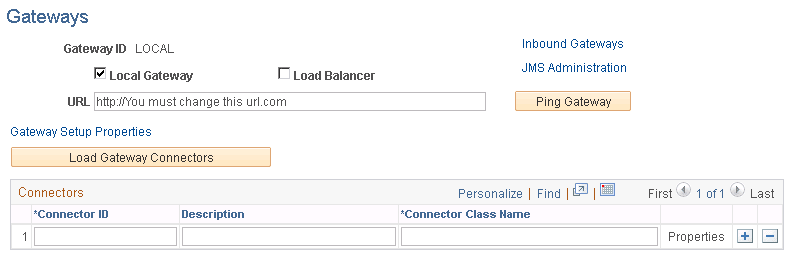
The Gateways page appears, as shown in this example.
See PeopleTools: Feed Publishing Framework, "Configuring the Integration Broker Gateway and Target Nodes."
Figure 2-2 Integration Gateway page
-
Configure the integration gateway:
-
Enter the machine name and complete URL to the PeopleSoftListeningConnector in the Gateway URL field. Ensure that the gateway URL is configured to http://<webserver>:<port>/PSIGW/PeopleSoftListeningConnector.
-
Click Ping Gateway.
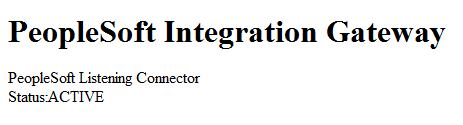
The PeopleSoft Integration Gateway page appears.
Figure 2-3 PeopleSoft Integration Gateway page
-
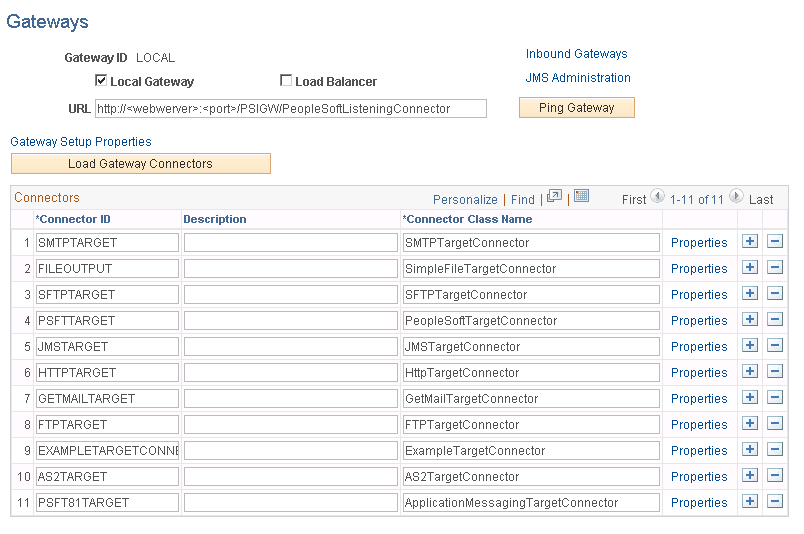
Click the Load Gateway Connectors button to load the gateway connectors, as shown in this example, and click OK.
Figure 2-4 Gateways page with connectors loaded
-
Click Save to save your changes.
-
-
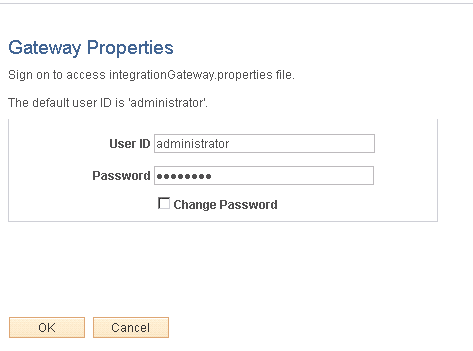
Click the Gateway Setup Properties link and log in, as shown in this example:
Figure 2-5 Gateway Properties page
The PeopleSoft Node Configuration page appears.
See PeopleTools: PeopleSoft Integration Broker Administration, "Administering Integration Gateways."
-
Enter values for your environment.
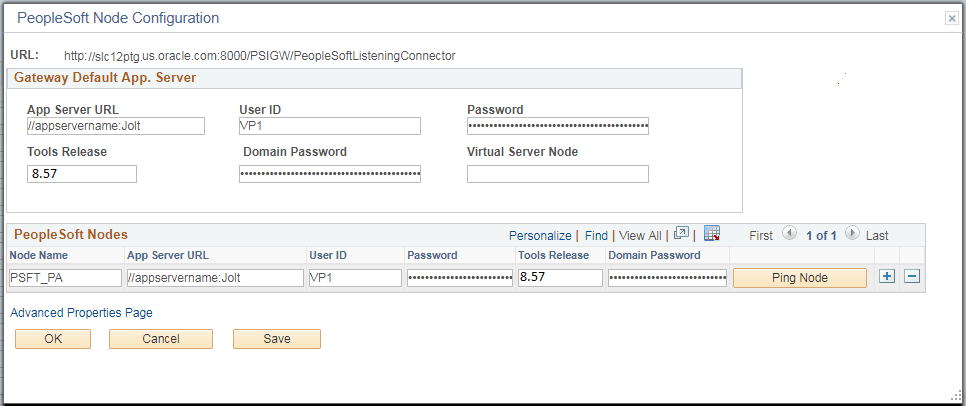
Enter values for a default target node in the Gateway Default App Server group box and the local target node in the PeopleSoft Nodes group box, as shown in this example:
Figure 2-6 PeopleSoft Node Configuration page with one node
-
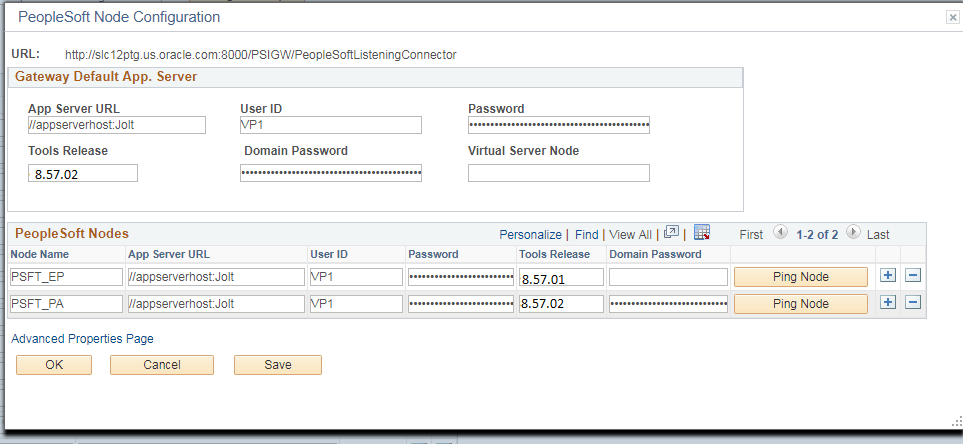
For a shared gateway, also enter remote target nodes (the default local node on the remote system) in the PeopleSoft Nodes group box.
The following example shows a shared gateway configuration with nodes PSFT_PA and PSFT_HR:
Figure 2-7 PeopleSoft Node Configuration page with two nodes
-
Click Save.
-
Click the Ping Node button for each node.
The status should return as success.
Note:
If you receive an Integration Broker authentication error, the default local node requires that the authentication option be set to password or certificate.
See PeopleTools: Feed Publishing Framework, "Common Problems."
-
On the Ping Node Results page, click the Return button.
-
-
On the PeopleSoft Node Configuration page, select the Advanced Properties Page link.
The Gateway Properties page appears.
See PeopleTools: PeopleSoft Integration Broker Administration, "Using the integrationGateway.properties File."
-
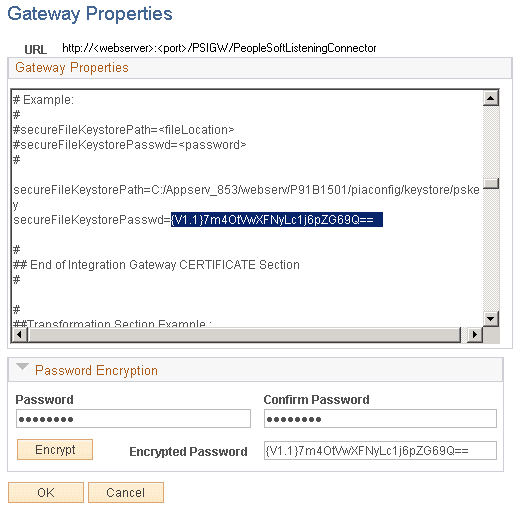
Enter the full path to the keystore file and enter the encrypted keystore password.
Note:
Ensure that the encrypted keystore password is the password that is used to access the pskey file through the pskeymanager.
To encrypt the password, expand the Password Encryption panel and enter the keystore password in the Password and Confirm Password fields. Click the Encrypt button. Copy the encrypted password generated in the Encrypted Password field into the Gateway Properties, for “secureFileKeystorePasswd=”, as highlighted in the following example.
Figure 2-8 Gateway Properties page (setting the keystore location and encrypted password)
-
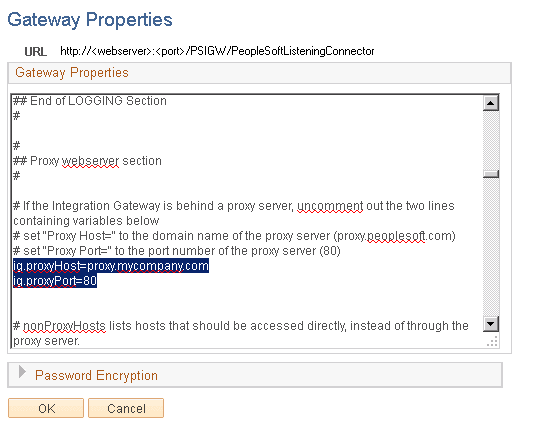
Enter the proxy information if the Web Server needs to go through a proxy server to connect to the internet.
In this example, the proxy information is highlighted:
ig.proxyHost=proxy.mycompany.com
ig.proxyPort=80
Figure 2-9 Gateway Properties page to enter proxy information
-
Click OK.
-
-
On the PeopleSoft Node Configuration page, click Save again.
-
Click OK.
-
On the Gateways page, select the Return to Configuration Status link.
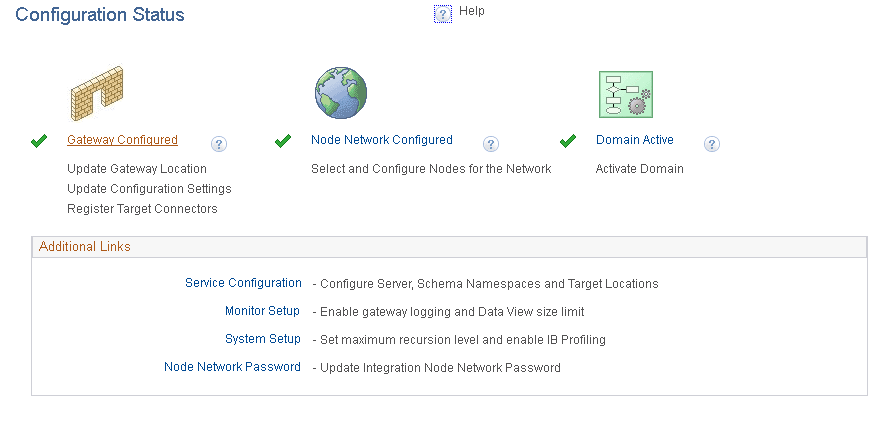
The information on the Configuration Status page should indicate that the gateway is now configured.
-
Click the Node Network Not Configured link.
The Node Network page appears.
-
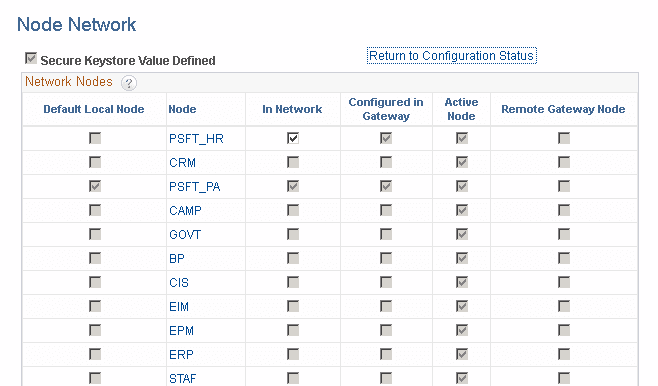
Select the In Network check box in the Network Nodes grid for all the nodes configured in the gateway.
Figure 2-10 Node Network Grid
-
Click Save.
-
Select the Return to Configuration Status link to return to the Configuration Status page.
The information on the Configuration Status page should indicate that the node network is now configured.
-
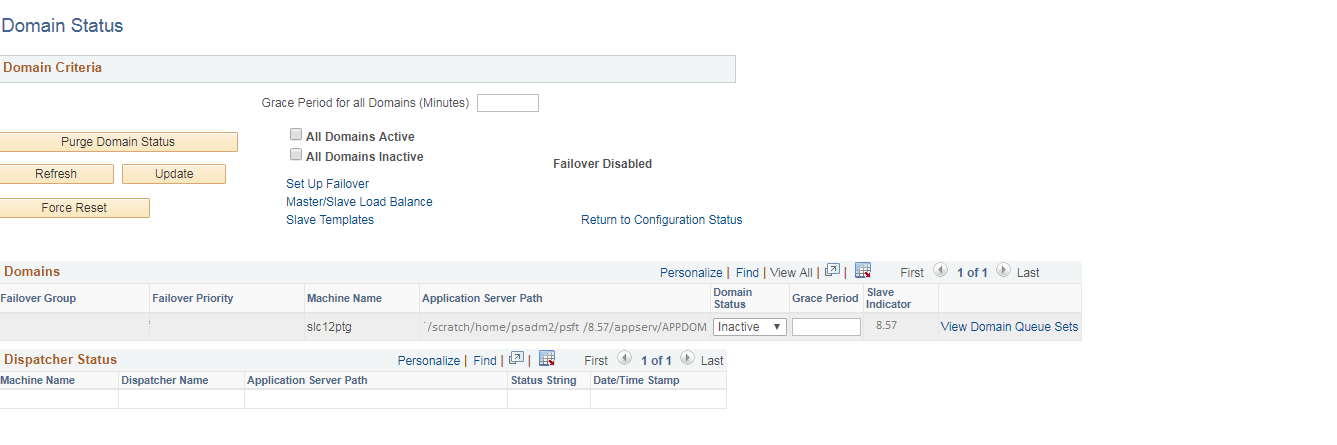
Select the No Domain Active link.
The Domain Status page appears, as shown in this example:
Figure 2-11 Domain Status page with no active domains
-
In the Domains group box, set the status for this machine to Active.
-
Also in the Domains group box, set the status for any pub/sub domains to Active to support scheduled feeds.
Note:
The pub/sub domain must be enabled first in the application server configuration through psadmin.
-
Click the Update button to update the domain status.
-
-
Return to the Configuration Status page (click Configuration Status in the locator links at the top of the page).
The status should show that active domain is configured, as shown in this example.
Figure 2-12 Configuration Status page showing a completed configuration