2.15.6 Configuring Navigator Search Group Using ACM Template
In PeopleSoft Interaction Hub, you can combine navigator searches from multiple content providers into a single Navigator global search group. This can be achieved through Remote Search Group Configuration plug-in available in Automated Configuration Manager.
This plug-in can be found under the ACM Template named CLUSTER_TEMPLATE.
See PeopleTools: Administration Tools, “Automated Configuration Management,” for running a template.
When you run the Remote Search Groups plug-in, the plug-in does the following:
-
Imports the search group from the source.
-
Adds the search group to the search context.
-
Merges the groups in the search instance (SES/ES).
Before you can run the ACM Template:
-
You must verify that the roles are assigned to the user. To verify:
-
Select PeopleTools, Security, User Profiles, User Profiles.
-
On the User Profiles page, select the Roles tab.
-
Verify that the ACM Administrator role is assigned to the user.
-
-
Deploy and index search definition for Navigator, PTPORTALREGISTRY from all the applications.
To execute CLUSTER_TEMPLATE:
-
Select PeopleTools, Automated Config Manager, ACM Templates, Define ACM Templates.
-
On the Template Definition search page, search by the template name CLUSTER_TEMPLATE.
-
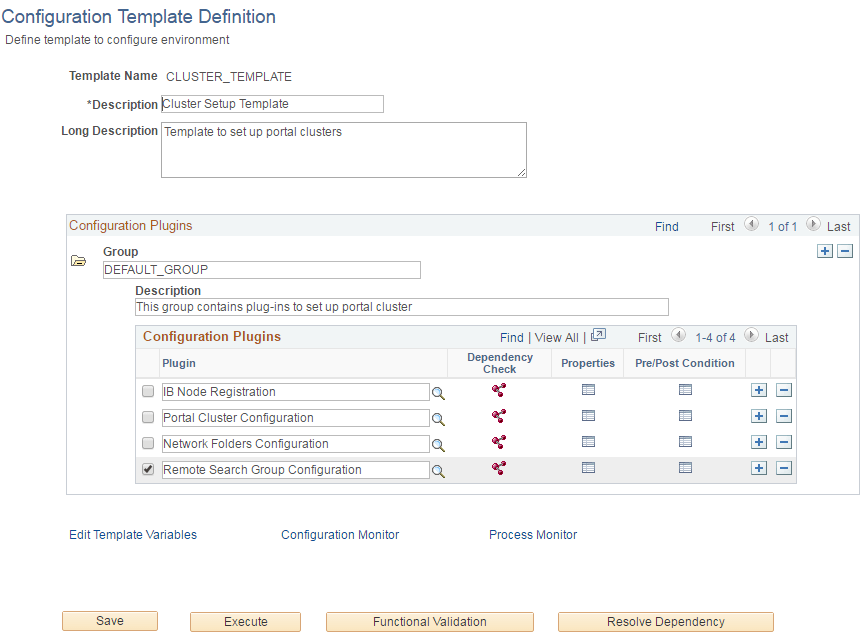
Select Remote Search Group Configuration Plugin, as shown in the following example:
Figure 2-23 Selecting Remote Search Group Configuration Plugin
-
Navigate to the Properties page by clicking on the Properties icon for this plug-in. On the Properties page, set the nodes names from which the navigator search group needs to be imported, as shown in the following table:
Properties Default Value Description env.search_network.operation
REGISTER
REGISTER– to import search groups.
UNREGISTER– to remove search groups.
env.search_network_dest_node_names
NODE1
Comma separated list of nodes from which search groups needs to be imported from.
env.search_network.NODE1
Comma separated list of nodes from which search groups need to be imported to the NODE1 node.
-
Click OK to set the values and return to the Configuration Template Definition page.
-
Save the template and click on Execute.
-
On successful execution, navigator search groups from all the nodes will be combined in the source node.
See PeopleTools: Search Technology, “Working with PeopleSoft Search,” Working with Global Search.
See PeopleTools: Search Technology, “Administering PeopleSoft Search Framework,” Working With Search Instances, for information to share a search instance among multiple PeopleSoft applications.