Using the Accessibility Button in Fluid
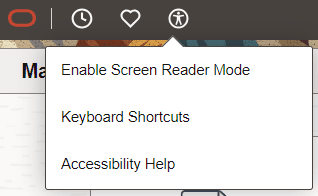
The Accessibility button is available in the quick access bar on the fluid banner. Using the Accessibility button, you can enable screen reader mode, view keyboard shortcuts, and access additional Accessibility Help information configured within the application.
The Accessibility button is only available when the quick access bar is displayed on fluid pages and the component buffer is available. This feature is not available on activity guide-based components.
Note:
On small form factor devices, the Accessibility button is available only on the homepage in the quick access bar.
This example illustrates the Accessibility button in the fluid banner, and the menu items available under the Accessibility Button.
Enabling Screen Reader Mode
A screen reader is an assistive technology that renders text and image content as speech. A screen reader reads the content on the screen and is primarily used by people with vision impairments and learning disabilities. Examples of screen readers include JAWS, NVDA, VoiceOver, and ChromeVox.
If you already have a screen reader software installed on your device, select the Accessibility button and then select the Enable Screen Reader Mode menu item to enable screen reader mode.
If you are prompted to retain this setting for subsequent sessions, select:
-
Yes if you want to enable screen reader mode for the current session and any subsequent sessions.
-
No if you want to enable screen reader mode temporarily for the current session only.
See Enabling Screen Reader Mode.
Note:
The Enable Screen Reader Mode menu item does not appear in the Accessibility button drop-down menu when screen reader mode is already enabled.
Viewing Keyboard Shortcuts
You can use keyboard shortcuts and keyboard navigation alternatives instead of using a mouse so you can work more efficiently. These keyboard shortcuts help you navigate the page or perform certain actions on the page using only the keyboard. Keyboard-only navigation features are available to all users and do not require users to enable screen reader mode.
Select the Accessibility button and then select the Keyboard Shortcuts menu item to view a list of keyboard shortcuts.
Viewing Additional Accessibility Help information
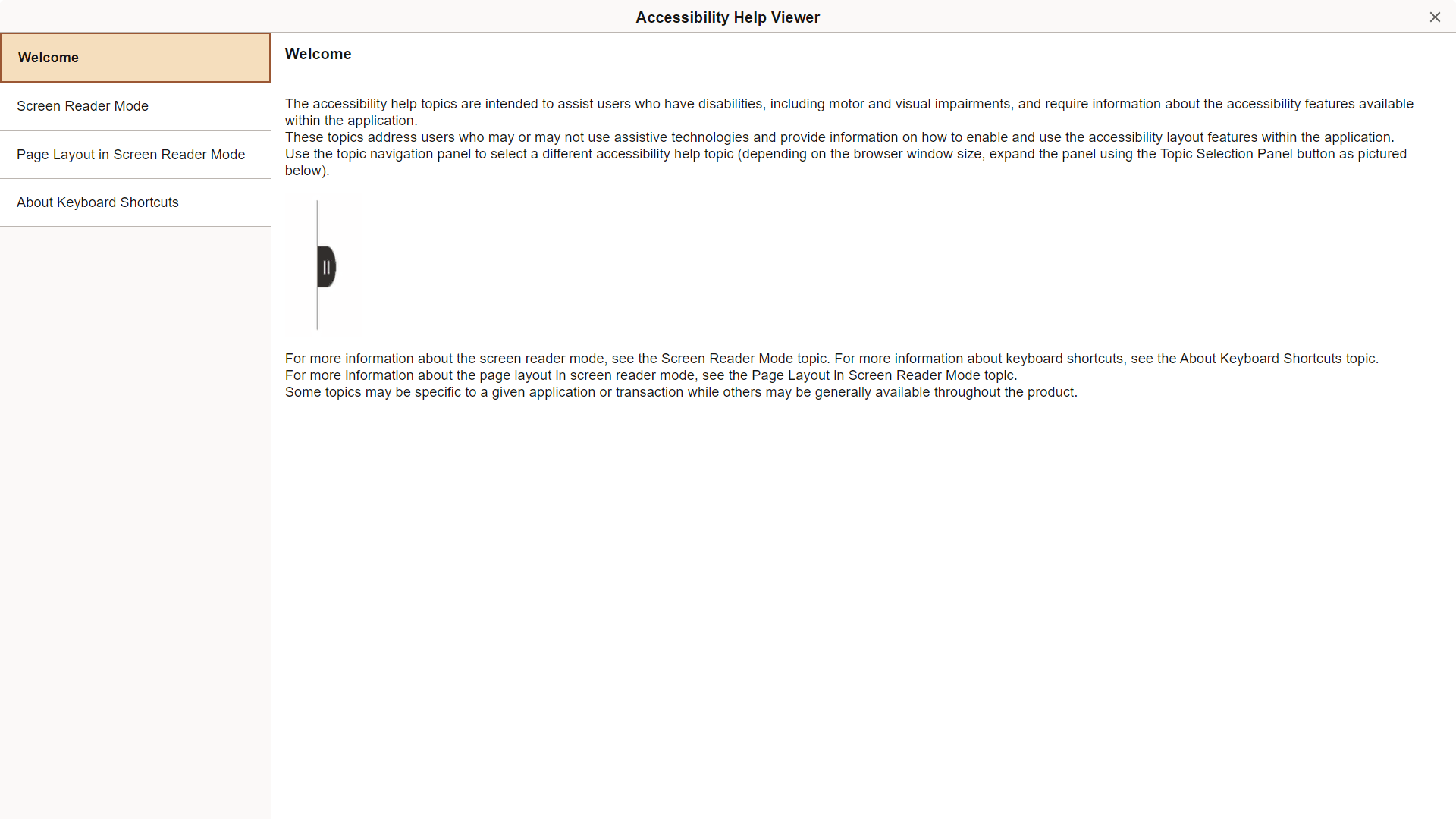
Select the Accessibility button and then select the Accessibility Help menu item to view the Accessibility Help Viewer page which displays additional Accessibility Help information configured within the application. The content under the Accessibility Help Viewer page is configured by an administrator using the Define Accessibility Help page. See Using the Define Accessibility Help Page.
In the Accessibility Help Viewer page, the available topics are displayed in the Topic Selection Panel on the left side of the page. When you select the topic label, the content in the topic is displayed on the right side of the page.
This example illustrates the Accessibility Help Viewer page.