Creating Analytic Instances
Use the Create Analytic Instance page (PTACECRTINST) to create an analytic instance that you can then load and view within the Analytic Model Viewer to inspect and debug your analytic model.
Navigation:
This example illustrates the fields and controls on the Create Analytic Instance page. Definitions for the fields and controls appear following the example.
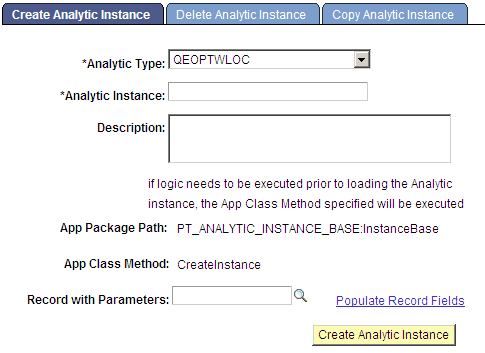
| Field or Control | Description |
|---|---|
|
Analytic Type |
Select an analytic type from the drop-down list. See Purpose of Analytic Type Definitions, Optimization Framework: Creating Analytic Type Definitions. |
|
Analytic Instance |
Enter a name for the analytic instance. Analytic instance names should consist of alphanumeric characters, can be up to 20 characters long, and cannot include spaces. |
|
App Package Path and App Class Method |
The App Package Path field displays the full name of an application class (application package name, subpackage names if applicable, and class name) that's used to execute logic before loading the analytic instance. The App Class Method field displays the name of the method in the displayed class that's called at creation time to populate the new analytic instance with data. You establish the application package class and method to use when you define the analytic type. See PeopleCode Language Reference: CreateAnalyticInstance function. |
|
Record with Parameters |
Look up and select parameters to be passed to the application class method. Click the lookup button to display a list of records. Selecting any record generates a standalone record. |
|
Populate Record Fields |
Displays a secondary page that lets you populate the fields of the standalone record; the values of these fields will serve as parameters passed into the App Class Method. |
|
Create Analytic Instance |
Create the analytic instance. After the analytic instance has been successfully created, you receive a notification to that effect. |