Adding From and Through Logic to a Search Page
Refer to the following example when applying from and through logic to a search page:
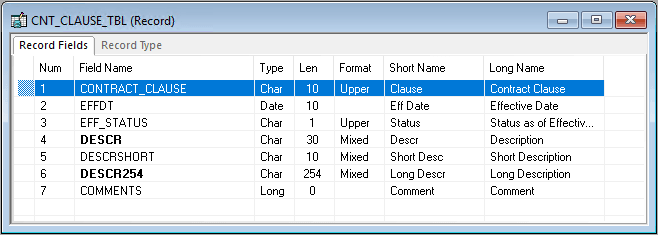
This example illustrates the fields in the CNT_CLAUSE_TBL record, an example search record.
To apply the from and through logic to a search page:
-
Determine which component you want to change.
You must modify the search record for a particular page, so you must first identify the appropriate component.
-
Determine on which field to use the from and through search logic.
Open the component in PeopleSoft Application Designer and examine the search record that is associated with the component. In the CNT_CLAUSE_TBL record, the search record is CNT_CLAUSE_TBL, and the field to which you want to apply the from and through search logic is CONTRACT_CLAUSE.
-
Create a new view that contains the same fields as the original search record.
To use the from and through search logic, the search record must be a view. If the search record is already based on a view, you can modify the existing view instead of creating a new view.
-
Select the From Search Field property for the field.
In the new view, select the from search field and apply the following record field properties: Key, Search Key, and From Search Field (List Box Item is optional).
-
Create a new field with exactly the same attributes as the from field.
For example, if CONTRACT_CLAUSE represents the field from which you want to search, then create a field called CONTRACT_CLAUSE_TO representing the field through which you want to search.
-
Insert the new field directly below the original field.
-
Select the Through Search Field property for the field.
Select the new through search field and apply the following record field properties: Key, Search Key, and Through Search Field only.
-
Update the SQL view text.
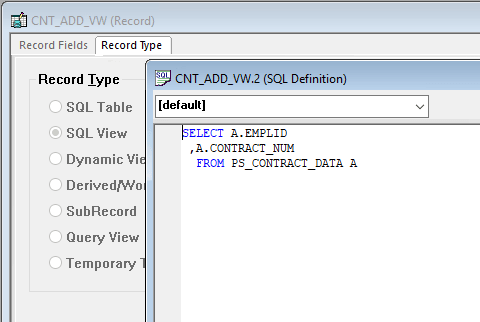
Update the SQL view Select statement in the new view to reflect the new column. That is, the view text should select the same field twice in a row (as shown in the example that follows this procedure) because the same field is used for the from logic and the through logic.
-
Save and build the new view.
-
Update the component properties.
You must update the search record so that the component uses the new view.
-
Test the new search page.
The search page should now include the new through field so that the user can specify a range of values for the field. Because you want to search on both fields, you must use an advanced search.
The results in the list box should reflect a range of values between the from and through fields that are specified. The results are inclusive: they include the minimum and maximum values that the user specified.
Example of Updating the SQL View Select Statement
After you define a search field as a Through Search Field, you need to update the SQL view text, as shown in this example:
This example illustrates the fields and controls on the Example of updating the SQL view Select statement.