Setting Record Field Edit Properties
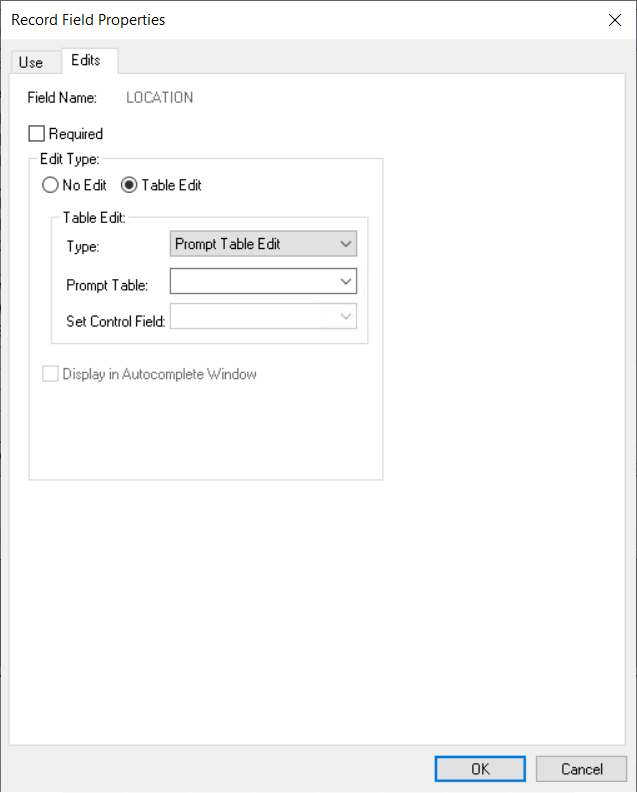
The Edits tab enables you to specify whether the system is to perform special edits or validations on a record field. You also name the record definition for the prompt table that stores the valid values, as shown in this example:
This example illustrates the fields and controls on the Example of the Record Field Properties dialog box: Edits tab. You can find definitions for the fields and controls later on this page.
| Field or Control | Description |
|---|---|
|
Required |
Select if you do not want users to skip a field or leave it blank. Users are unable to save their work until they complete all of the required fields on a page. Note: The system only checks required fields when the page field is changed or the record buffer is changed. |
Edit Type
| Field or Control | Description |
|---|---|
|
No Edit |
Select if you do not want to edit the contents of this field against a table. This value is the default; it makes the options in the Table Edit group box unavailable. |
|
Table Edit |
Select to edit the contents of the field against the values that are maintained in the specified table. When you select Table Edit, the Type field becomes available in the Table Edit group box. |
|
Display in Autocomplete Window |
Select to make this field appear in the autocomplete list. This property is enabled for date, Datetime, time, character, number, and signed number fields if the following conditions are met:
|
Table Edit
| Field or Control | Description |
|---|---|
|
Type |
Select from the drop-down list box: Prompt Table with No Edit: Provides users with a list of suggested values but does not edit the contents of the field against the prompt table. Users can enter any value. Selecting this option makes the Prompt Table field available. Prompt Table Edit: Edits the contents of the field against the values that are maintained in the specified prompt table. Selecting this option activates the Prompt Table field. When you enter a prompt table name and exit the field by pressing the tab key, the Set Control Field is activated. Translate Table Edit: Edits the contents of the field against the translate table. The translate table stores values for fields that must be validated but do not need individual tables of their own. If you select this option, the Prompt Table and Set Control Field fields become unavailable. Yes/No Table Edit: Makes the values for this field Y (yes) and N (no) only. If you select this option, Prompt Table and Set Control Field fields become unavailable. For this 1/0 table edit, 1=True and 0=False. Note: The list of available table edit types is dependent on the field type. If you add a field (other than with the paste action) to a record and the field name is already defined in the database with previously defined translate values, then the system automatically selects Table Edit and selects Translate Table Edit as the table type. For both Translate Table Edit and Yes/No Table Edit, you should follow PeopleSoft design standards, select Required, and specify a default value for the field in the Record Field Properties dialog box. |
|
Prompt Table |
Enter the name of the record definition that you want to use as the prompt table for this field. If you want the prompt table to vary depending on the context of the field, indicate a field in the derived or work record (DERIVED) that contains the name of the prompt table at runtime. Then, in this field enter %FieldName. The % is required, and indicates that you are referencing a derived or work record definition named DERIVED. FieldName is the name of the field in the DERIVED record definition. |
|
Set Control Field |
Select a set control field that overrides the set control field of the record definition specified in the prompt table. If you do not specify a name in this field, the default is the set control field of the record definition specified in the prompt table. |
|
Reasonable Date |
Select if you want the system to test the field value to determine whether it is within 30 days of the current date. If the date is out of range, a warning message appears when the user exits the field. |