Adding Pages to Components
This section discusses how to:
-
Use the Insert menu to add a page.
-
Drag a page into the component.
Note:
The system does not allow you to move or delete all pages from a component definition. The component must contain at least one page definition.
Using the Insert Menu to Add a Page
To use the Insert menu to add a page:
-
Open a new or existing component in the workspace and make the definition active.
-
Select
-
To narrow your search, enter selection criteria, such as name, description, or project.
-
Click Insert.
A list of available pages matching your search criteria appears.
-
Select the page that you want to add to the component.
-
Click Insert.
The page that you selected appears in the component in the workspace.
-
When you are finished adding pages to your component, click Close.
-
Save your component.
Component names can be up to 18 characters in length.
Dragging a Page Into a Component
To drag a page into a component:
-
Open the project and component.
-
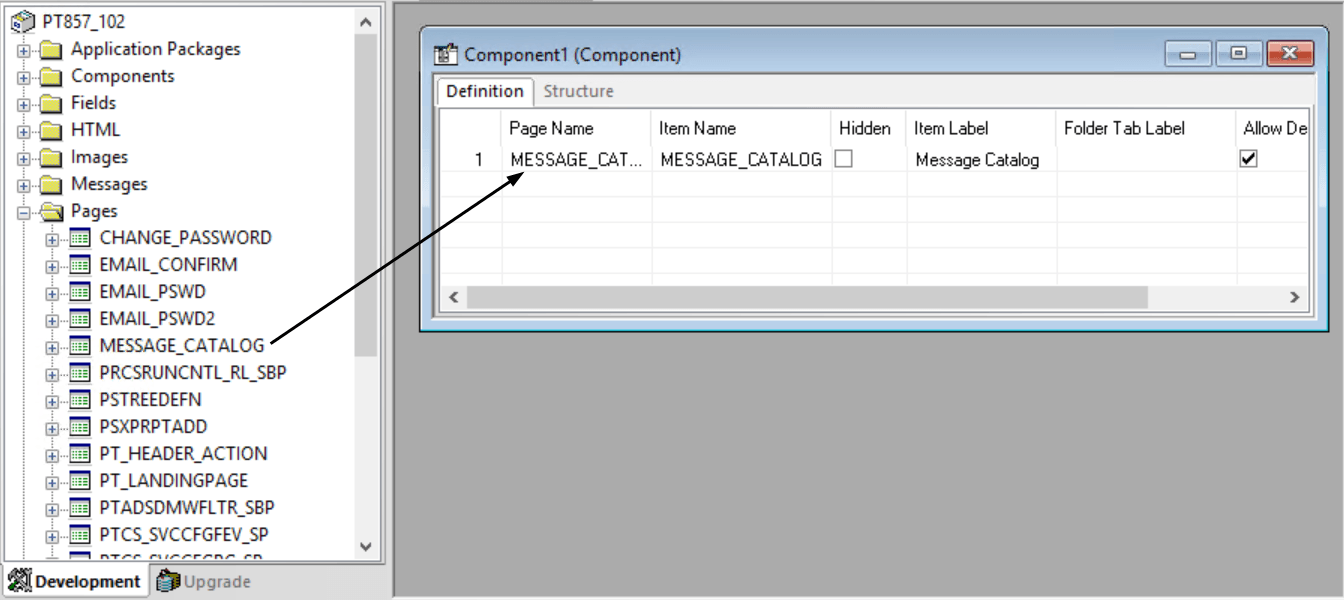
Drag pages from the project workspace to the component.
This is an example of dragging a page into a component definition:
This example illustrates the fields and controls on the Dragging from the project workspace to a component. You can find definitions for the fields and controls later on this page.