Changing HTML Area Labels
Assign a distinct label to your HTML area to distinguish it from other HTML area controls on the Order tab of the page definition.
Note:
Unlike other page controls, the label for an HTML area is displayed on the Order tab only and is not displayed at runtime when the page is rendered in the browser.
This example illustrates the Label tab of the HTML Area Properties dialog box.
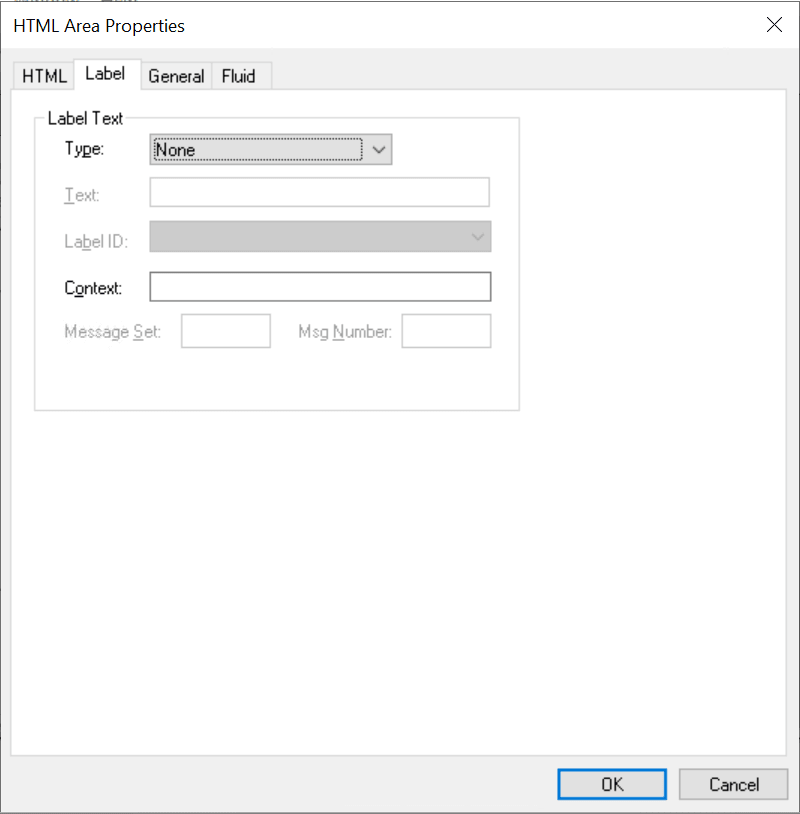
| Field or Control | Description |
|---|---|
|
Type |
Select the label type:
|
|
Text |
Enter the text to display on the Order tab. |
|
Label ID |
Select from the drop-down list box the label you want to use for the HTML area. The available choices are based on the Label ID column and the Long Name column for the selected field definition. The default setting for this option is Use Default Label. This default is determined by the label you select as the default for the field definition. |
|
Context |
Displays text to assist the translation team determine the context of the field label to be translated. The context is determined by the field name and label ID combination. If no contextual information exists in the database, then no text appears in this field. |
|
Message Set/Msg Number |
Enter the message set number and message number to specify the label text. |
To change an HTML area label:
-
Access the HTML Area Properties dialog box.
-
Select the Label tab.
-
Enter a brief text description of the HTML area.
This label does not display at runtime; however, it appears on the Order tab of the page definition.