Configuring the Application Designer User Interface
PeopleSoft Application Designer is highly configurable, enabling you to tailor the tool to your needs or preferences.
Splitter Bars
A splitter bar is a thin vertical or horizontal bar that separates windows inside a parent window. Using the splitter bar enables you to resize two windows at the same time. Splitter bars are used between the project workspace, definition workspace, and output window. This example shows splitter bars:
This example illustrates the fields and controls on the Example of Splitter bars used to resize a workspace. You can find definitions for the fields and controls later on this page.
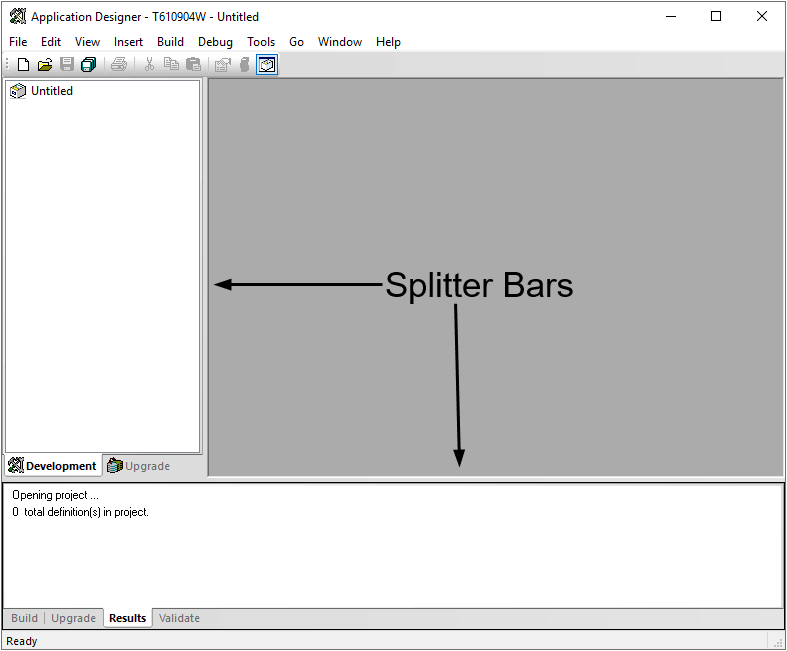
Drag the splitter bar to change the size of the project workspace, definition workspace, or output window.
Dockable Windows and Toolbars
You can freely move PeopleSoft Application Designer windows and toolbars to either anchor (dock) to parts of the main application window or float freely anywhere that you want them to appear. When you dock a toolbar or window, you anchor it to the top, sides, or bottom of the main window.
To move or dock a PeopleSoft Application Designer window or toolbar, drag the window title bar or the appropriate toolbar to a new location. If you move the window or toolbar near the top, bottom, or sides of the main window, the window or toolbar snaps into place, meaning that it is docked. However, if you press and hold Ctrl and then drag the window or toolbar, you can prevent it from automatically docking when it is near the edge of the window.
Note:
Use caution when running the PeopleCode Debugger with undocked windows.
View Menu
The View menu enables you to display or hide different PeopleSoft Application Designer elements, such as the project workspace, output window, and toolbar.