Defining Secondary Pages
Access the Page Properties dialog box for the page definition.
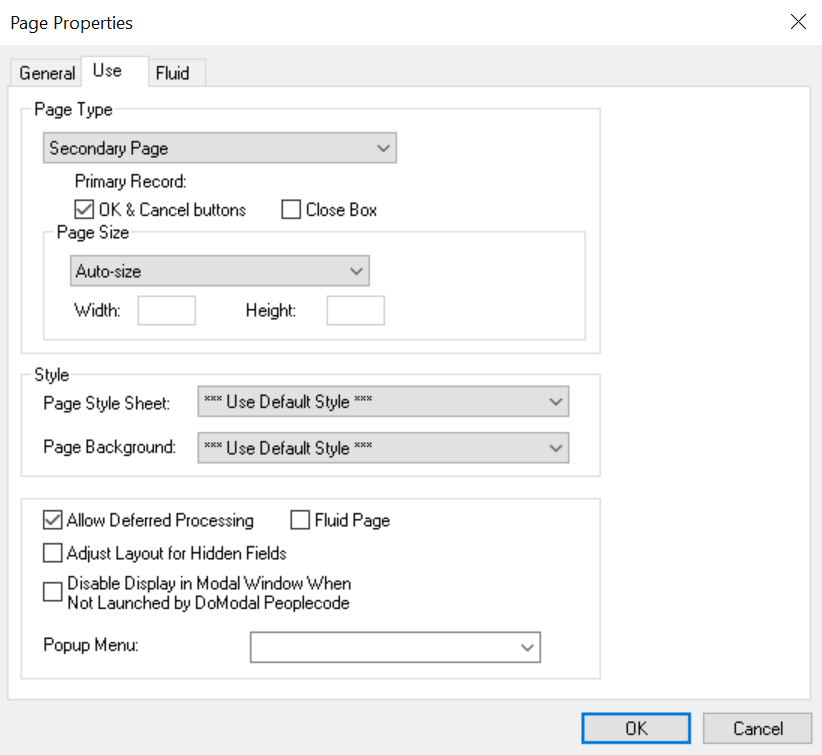
This example illustrates the fields and controls on the Page Properties dialog box: Secondary page type. You can find definitions for the fields and controls later on this page.
To define secondary pages:
-
Select and select Page from the New Definition dialog box.
-
Right-click the page and select Page Properties to open the Page Properties dialog box.
-
Select the Use tab.
-
Select Secondary Page from the Page Type drop-down list box.
-
Deselect the OK & Cancel buttons and the Close Box check boxes if you plan to develop alternative buttons that dismiss the page. To use the standard buttons, accept the default values.
-
Select the page size:
Field or Control Description Auto-Size
Select to have PeopleSoft Application Designer size the page to accommodate the page controls that are defined therein. The right and bottom edges of the page move left and up, respectively, to eliminate any vacant space at the right side and bottom of the page. The top and left edges of the page are stationary, leaving any vacant space at the right side and bottom of the page.
Custom Size
Select to manually size the secondary page by dragging the edges or by entering the width and height in pixels.
-
Select the page style sheet to associate with the secondary page.
To override the application default style sheet, select a different style sheet from the drop-down list box. The style sheet that you select is available only for the controls on the secondary page.
-
Select the page background.
You can control the background of the page and any controls that do not have a style sheet associated with them by specifying a style in the page background.
-
(Optional) Deselect Allow Deferred Processing if you want processing to occur each time the user presses the Tab key to advance through the page controls.
-
(Optional) Select Adjust Layout for Hidden Fields if you want the page borders to adjust automatically to accommodate fields that are hidden.
Note:
For the page to adjust automatically, the hidden fields must be surrounded by open space or have other hidden fields to the right or left.
-
(Optional) Select Disable Display in Modal Window When Not Launched by DoModal Peoplecode if you want the page to appear within the browser frame comparable to the standard application pages. If you select this option, you must use one of the DoModal* PeopleCode functions if you want the secondary page to appear as a modal page. Leave this check box deselected if you want the secondary page definition itself (not PeopleCode) to control the appearance.
Important:
Do not select the Disable Display in Modal Window When Not Launched by DoModal Peoplecode check box for fluid secondary pages. Fluid secondary pages must always be displayed in a modal window.
Note:
This option is disabled when the page type is set to Popup page.
-
Click the OK button.
The page definition size automatically adjusts if you set the page size to Auto-Size.
-
Add other page controls as is appropriate for the relationship of the data on the secondary page to the primary page.
To ensure that no data values are lost in the secondary page if it is opened from a grid on the primary page using either the DoModalPopup or DoModal PeopleCode functions, you have two options:
-
Make sure the first field referenced in the secondary page is from the context record of the row passed to the DoModal* PeopleCode function.
-
Add the secondary page control to your grid on the primary page.
However, if the secondary page is opened by specifying Secondary Page in the Destination field on the Type tab, data loss is not an issue because this methodology also requires that the secondary page control be added to the grid on the primary page.
-