Understanding Modal Secondary Pages
Modal secondary pages do not appear in a browser window. Modal secondary pages appear in front of a browser window, capturing focus and disabling the primary page until you dismiss the secondary page.
You can move modal secondary pages by dragging the page title bar. Moving the page is useful when you want to view information on the primary page while working with the secondary page. The appearance of the cursor changes to indicate that you can move the page.
Use these guidelines to determine whether to specify secondary pages as modal. Specify a secondary page as modal when:
-
The content of the secondary page is relevant to the context of the primary page.
For example, you need to be able to see both the secondary page and primary page simultaneously.
-
The content of the secondary page is such that the user can complete the transaction quickly and easily.
By default, secondary pages appear as modal pages. You can change the default behavior at the definition level by deselecting the Disable Display in Modal Window When Not Launched by DoModal Peoplecode check box that appears on the Use tab on the Page Properties dialog box of the secondary page. You also control secondary page modality by using any of the DoModal* PeopleCode functions.
Important:
Do not select the Disable Display in Modal Window When Not Launched by DoModal Peoplecode check box for fluid secondary pages. Fluid secondary pages must always be displayed in a modal window.
Example: Modal Secondary Page
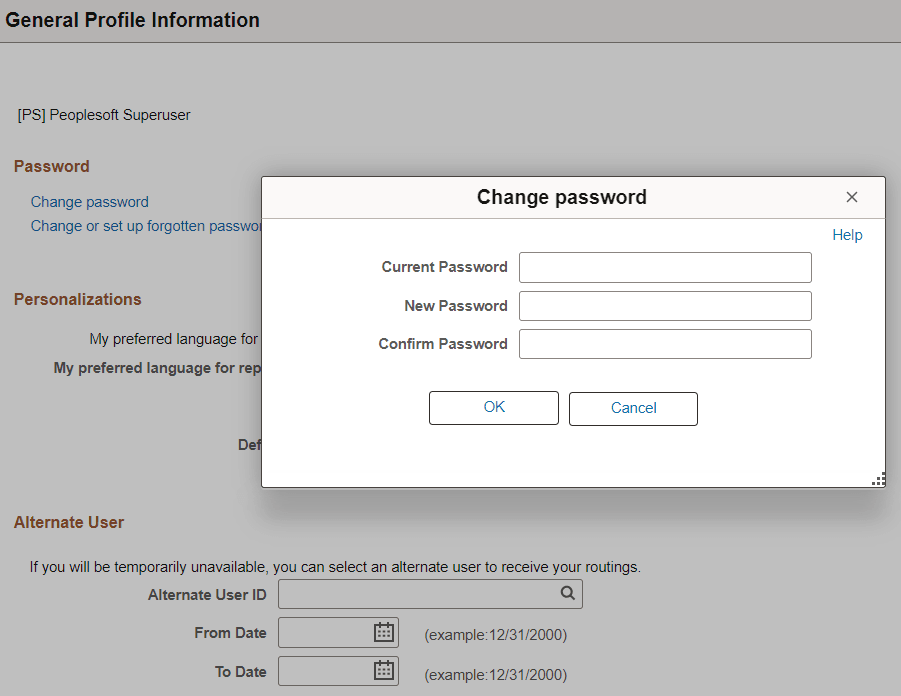
In this example, the user clicks the Change password link to access the Change password secondary page in a modal window. The Change password page is displayed over the General Profile Information page, which is the primary page.
This example illustrates the Change password modal secondary page.
Modeless Windows
In addition to modal secondary windows, you can create modeless secondary windows. A modeless window is different from a modal window launched by any of the DoModal* functions in that its state is separate from that of the parent, launching component. When a modeless window is launched from a classic component using the TransferModeless function, the modeless window does not mask the parent window, which allows the user to update the modeless and parent window from the same browser session at the same time.
However, when a modeless window is launched from a fluid component using either the ViewContentURLModeless or ViewURLModeless functions, the parent window is masked and cannot be accessed until the modeless window is dismissed. In this respect and from the user’s perspective, a modeless window launched from a fluid component operates similar to a modal window; but programmatically, its state is separate from that of the parent, launching component.
Similar to modal, secondary windows opened by any of the DoModal* functions, the modeless window does not include the browser title bar, browser menus, and the browser tool bars, status bar, and tool icons associated with most browser windows.
Note:
While the title bar of a modeless window includes an X (or cancel) button, it cannot include any custom buttons.
Important:
Only one active child modeless window can be open at one time. Therefore, after opening a modeless child window from the parent, you cannot open a second modeless child window from that modeless window. However, you can open a modal window from that modeless window.