Enabling Message Catalog Entries as Pop-up Pages
You can enable Message Catalog entries as pop-up pages. In addition, you can embed links to context-sensitive online help within these message catalog entries.
This section discusses how to:
-
Enable message catalog pop-up pages.
-
Embed links to context-sensitive online help in pop-up pages.
Note:
To create actual embedded help, see Configuring Embedded Help for Scroll Areas, Grids, and Group Boxes
Message Catalog Entries as Pop-up Pages
To enable a message catalog entry as a pop-up page:
-
Double-click the field that accesses the pop-up page.
-
Select the Use tab.
-
Select the Display-Only check box.
Note:
You must select Display-Only.
-
Select the Message Catalog Popup option.
-
Enter the Message Set and Message Number of the message whose Message Text and Explain strings appear in the Message Catalog pop-up page.
-
Click the OK button.
Note:
You can also set the Message Catalog entry for mouse over pop-up pages by using PeopleCode.
See PeopleCode API Reference: MouseOverMsgNum property: Field class, PeopleCode API Reference: MouseOverMsgSet property: Field class.
Embedding Links to Context-Sensitive Help in Pop-up Pages
You can add variables to a message to embed links to context-sensitive online help.
Note:
You must correctly configure and implement PeopleSoft online help.
To add variables to messages to embed links to context-sensitive help:
-
Access the Message Catalog (PeopleTools, Utilities, Administration, Message Catalog to access the Message Catalog).
-
Select an existing message or create a new message.
-
Enter an explanation and place the variable in the Explanation field.
The table in the next section describes the variables and their usage.
Note:
The text in the Message Text field appears as the pop-up page header. The text in the Explanation field appears in the pop-up page body.
-
Enable the pop-up page on the desired edit box control.
Embedded Help Variables
This table describes the variables that you can add to the embedded help content in the Message Catalog. Use these variables to generate links on the embedded help pop-up page that enable the user to access additional online help.
Note:
Your PeopleSoft online help option must be configured for any Help link to function properly.
| Variable | URL | Label |
|---|---|---|
|
This variable uses the current page name as the %CONTEXT_ID% to build the Help URL so that the embedded link takes the user to the Help content associated with the current page. |
Because no message is referenced, the label of the help link appears as PeopleBooks Help. |
The argument |
This variable uses the current page name as the %CONTEXT_ID% to build the PeopleBooks Help URL so that the embedded link takes the user to the PeopleBooks content associated with the current page. |
Because a message is referenced, the label of the help link appears as the value that is stored in the Message Text field for the referenced message. If you reference an invalid message, the label appears as PeopleBooks Help. |
The argument |
This variable uses the CTXT_PG_NM argument as the %CONTEXT_ID% to build the PeopleBooks Help URL so that the embedded link takes the user to the PeopleBooks content associated with the page referenced by the argument. |
Because no message is referenced, the label of the help link appears as PeopleBooks Help. |
The argument The argument |
This variable uses the CTXT_PG_NM argument as the %CONTEXT_ID% to build the PeopleBooks Help URL so that the embedded link takes the user to the PeopleBooks content associated with the page referenced by the argument. |
Because a message is referenced, the label of the help link appears as the value that is stored in the Message Text field for the referenced message. If you reference an invalid message, the label appears as PeopleBooks Help. |
The URL_IDENTIFIER is any URL_ID that is stored in the URL Maintenance component. See System and Server Administration: URL Maintenance. The argument |
This variable uses the URL_IDENTIFIER argument to build the help URL so that the embedded link takes the user to the site associated with the URL_ID. |
Because a message is referenced, the label of the help link appears as the value that is stored in the Message Text field for the referenced message. If you reference an invalid message, the system uses the URL_IDENTIFIER argument as the label. |
The argument |
This variable uses the hard-coded URL so that the embedded link takes the user to the specified site. |
Because a message is referenced, the label of the help link appears as the value that is stored in the Message Text field for the referenced message. If you reference an invalid message, the system uses the URL as the label. |
Example
In this example, the %PBCTXT variable
uses QRY_ADMIN as a CONTEXT_ID that references the Query Administration
page in PeopleBooks:
This example illustrates the fields and controls on the Message Catalog page with context-sensitive variable embedded in text. You can find definitions for the fields and controls later on this page.
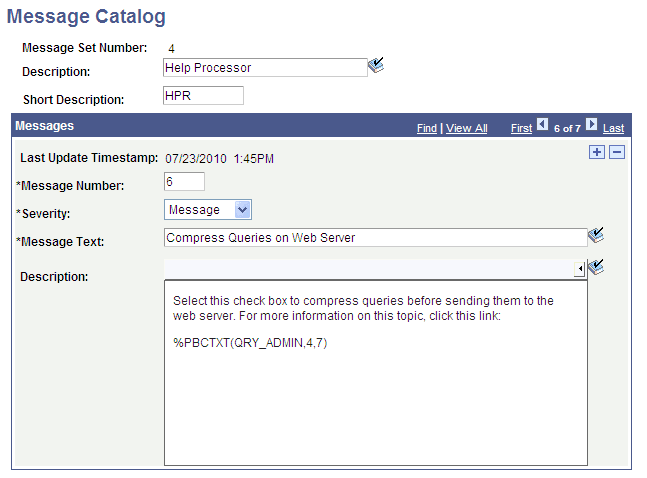
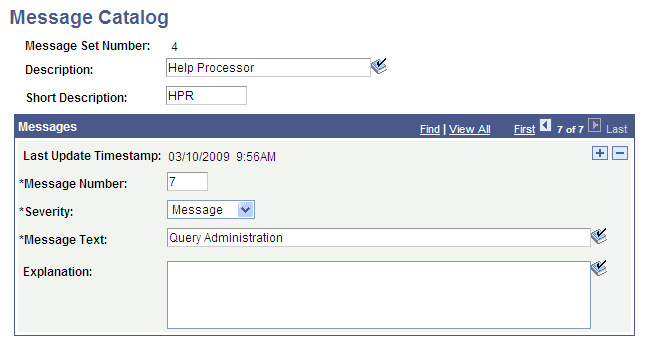
In the Description field, the 4, 7 parameters refer to Message Catalog entry (4,7), which contains the label to use for the generated link.
This example illustrates the fields and controls on the Message Catalog page showing Query Administration label in the Message Text field. You can find definitions for the fields and controls later on this page.
On the Web Profile Configuration page at runtime, mouse over the selected control to see the generated pop-up page:
This example illustrates the fields and controls on the Web Profile - General page showing the message catalog pop-up page. You can find definitions for the fields and controls later on this page.
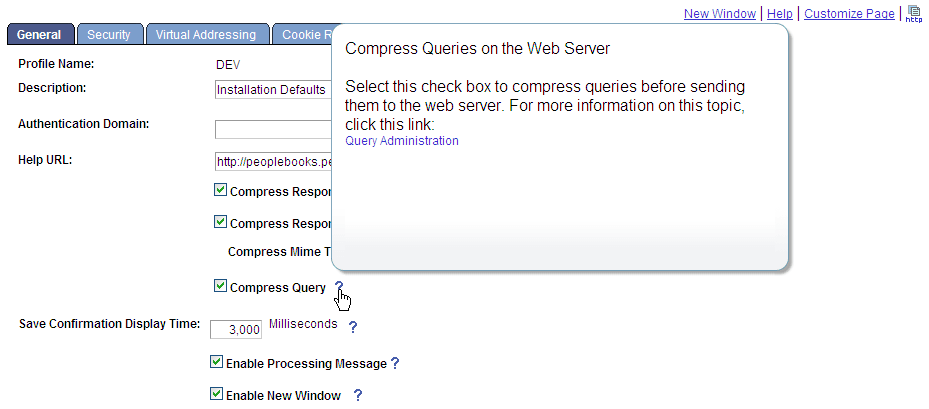
Notice that the pop-up text comes from Message Catalog entry (4,6) and the link label, Query Administration, defined by the %PBCTXT(QRY_ADMIN, 4, 7) function comes from Message Catalog entry 4,7. Click the Query Administration link, and the system accesses the PeopleBooks entry for the QRY_ADMIN CONTEXT_ID using that Help URL entry to ascertain the PeopleBooks location on the web server.
Note:
You define the location of your online PeopleBooks by entering a URL in the Help URL field that is located on the Web Profile - General page (PeopleTools, Web Profile, Web Profile Configuration).
See Portal Technology: Configuring General Portal Properties.