Previewing Classic Pages
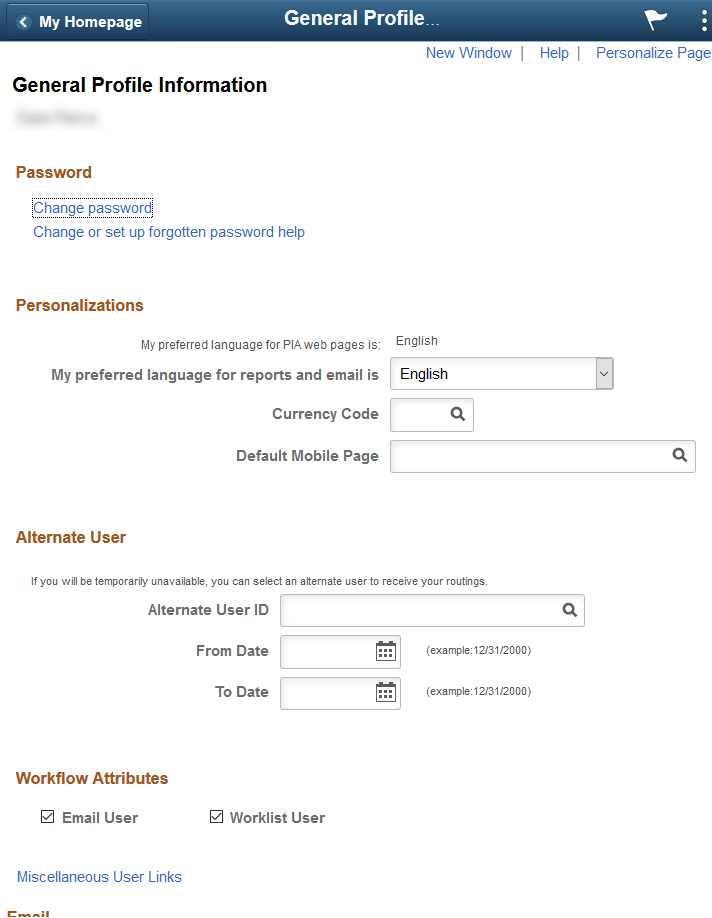
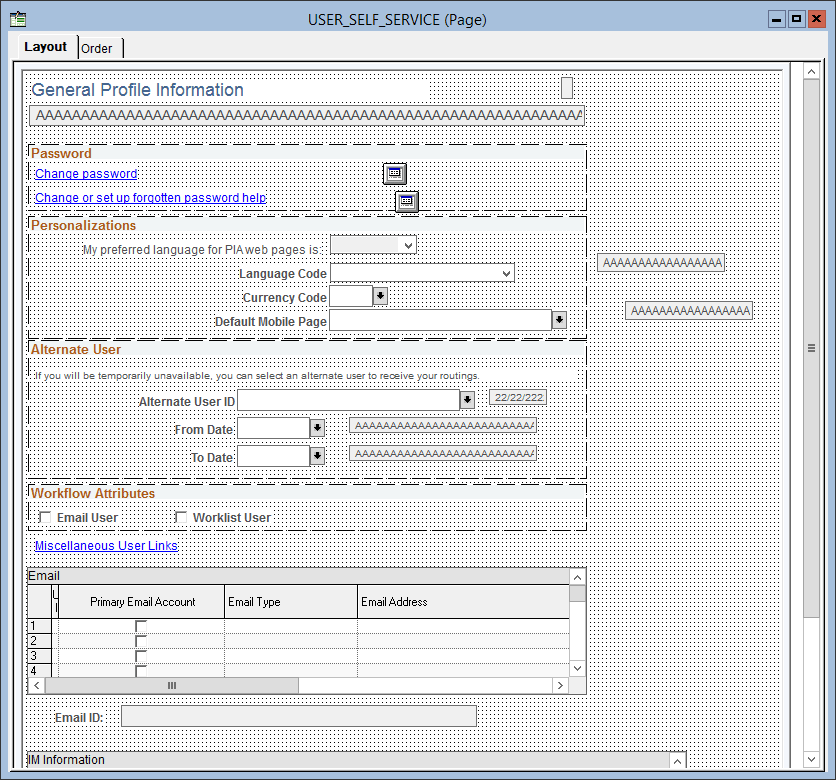
The following examples demonstrate the rendering of a classic page preview using the PeopleTools-delivered My System Profile (USER_SELF_SERVICE) page.
The following example shows the USER_SELF_SERVICE page definition in Application Designer.
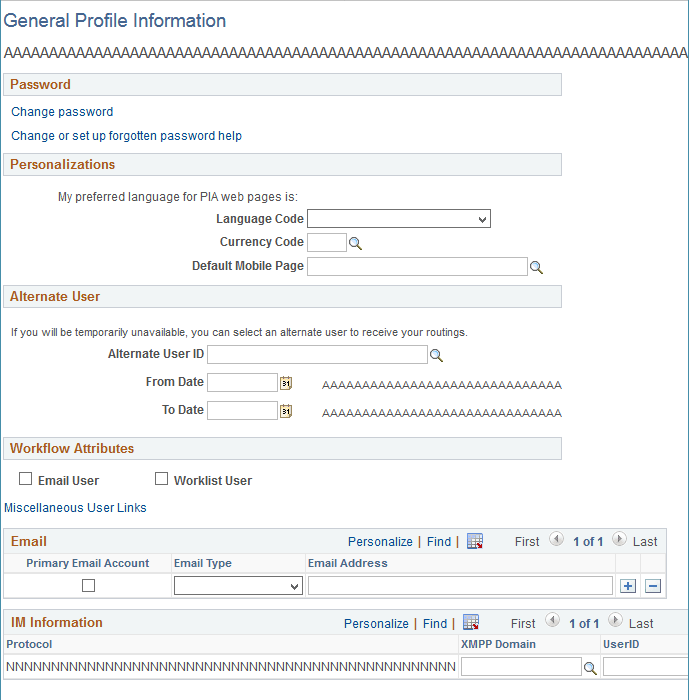
The following example shows the My System Profile page as previewed from Application Designer:
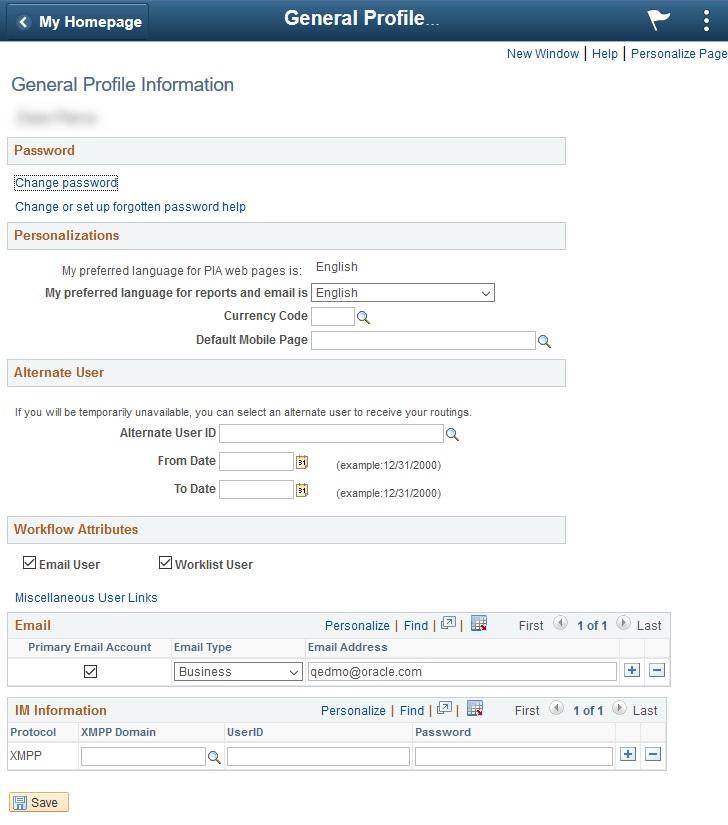
The following example shows the My System Profile page as rendered at run time:
Previewing a Page as Classic Plus
When working with classic pages, you can preview a page as classic plus regardless of component settings and regardless whether any reworking has been completed to make the page more suitable for classic plus. In fact, you can use this feature to assess what rework might be required. For guidance on what may need to be reworked, see Reworking Components for Classic Plus Display.
To preview a classic page as classic plus:
-
Select Layout, View in Browser, View as Classic Plus.
Once this option has been selected, a check mark will appear next to View as Classic Plus in the menu indicating that classic plus styling will be applied to each classic page during page preview. This setting remains in effect only for the duration of the Application Designer session or until it has been deselected.
-
Select Layout, View in Browser and select a browser to preview a classic page as classic plus.
The following examples demonstrate the classic plus rendering of the PeopleTools-delivered My System Profile page.
The following example shows the My System Profile page when previewed as classic plus from Application Designer:
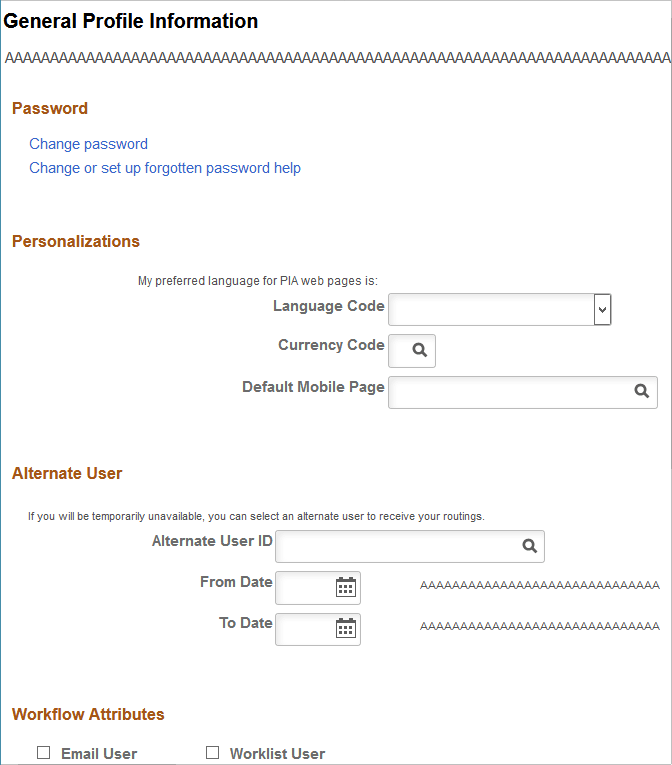
The following example shows the My System Profile page when rendered as classic plus at run time: