Previewing Fluid Pages
The following examples demonstrate the rendering of a fluid page preview using the PeopleTools-delivered Change Password (CHANGE_PASSWORD) page.
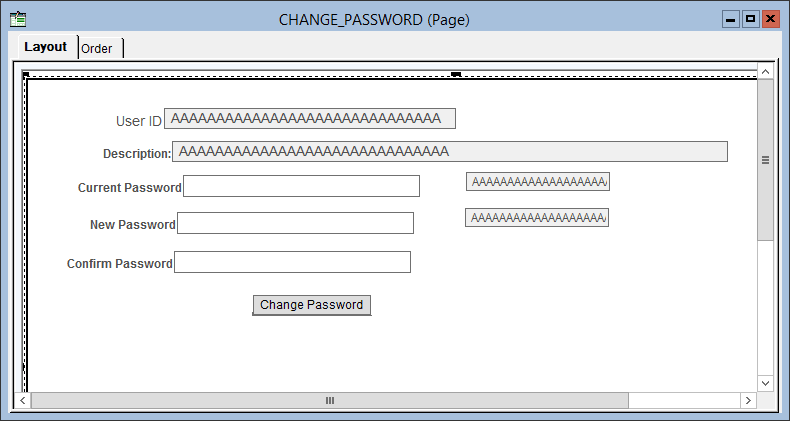
The following example shows the CHANGE_PASSWORD page definition in Application Designer:
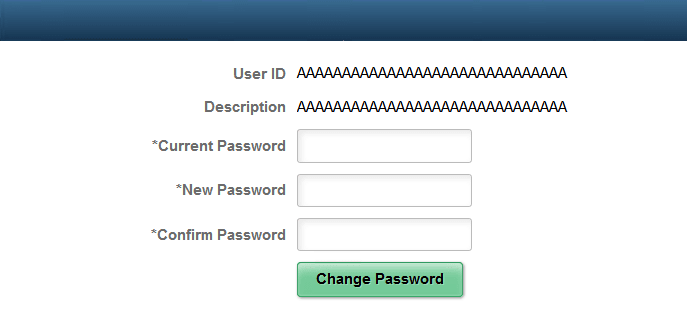
The following example shows the Change Password page when rendered using the page preview feature in Application Designer:
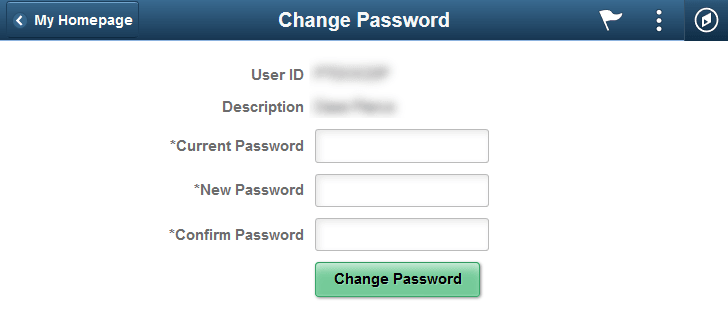
The following example shows the Change Password page when rendered at run time:
Note that the following styles and settings are honored when previewing fluid pages:
-
Styles and settings on the Fluid tab of the Page Properties dialog box. Form factor overrides for the extra large form factor are honored; overrides for all other form factors are ignored.
-
Styles and settings on the Fluid tab of any page field properties dialog box. Form factor overrides for the extra large form factor are honored; overrides for all other form factors are ignored.
-
In addition, any browser-specific styles are applied.
Because page-specific style sheets are added via PeopleCode, these style sheets are not automatically included during page preview like they would be in the a runtime rendering. Therefore, use the Apply Additional Style Sheets menu item to apply page-specific style sheets in page preview. See "Applying Additional Style Sheets" in this topic for more information.
Viewing Related Content Drop Zones
You might also want to preview the location of the group boxes configured as related content drop zones in relation to other page controls when previewing a fluid page.
Note:
However, because embedded related content and dynamic subpages are configured outside of Application Designer and rely on data that is only available at runtime, the content within these drop zones cannot be displayed as part of fluid page preview.
To view drop zone group boxes during fluid page preview:
-
Select Layout, View in Browser, View Related Content Drop Zones.
Once this option has been selected, a check mark will appear next to View Related Content Drop Zones in the menu indicating that drop zone group boxes will be displayed during fluid page preview. This setting remains in effect only for the duration of the Application Designer session or until it has been deselected.
-
Select Layout, View in Browser and select a browser to preview a fluid page displaying drop zone group boxes.
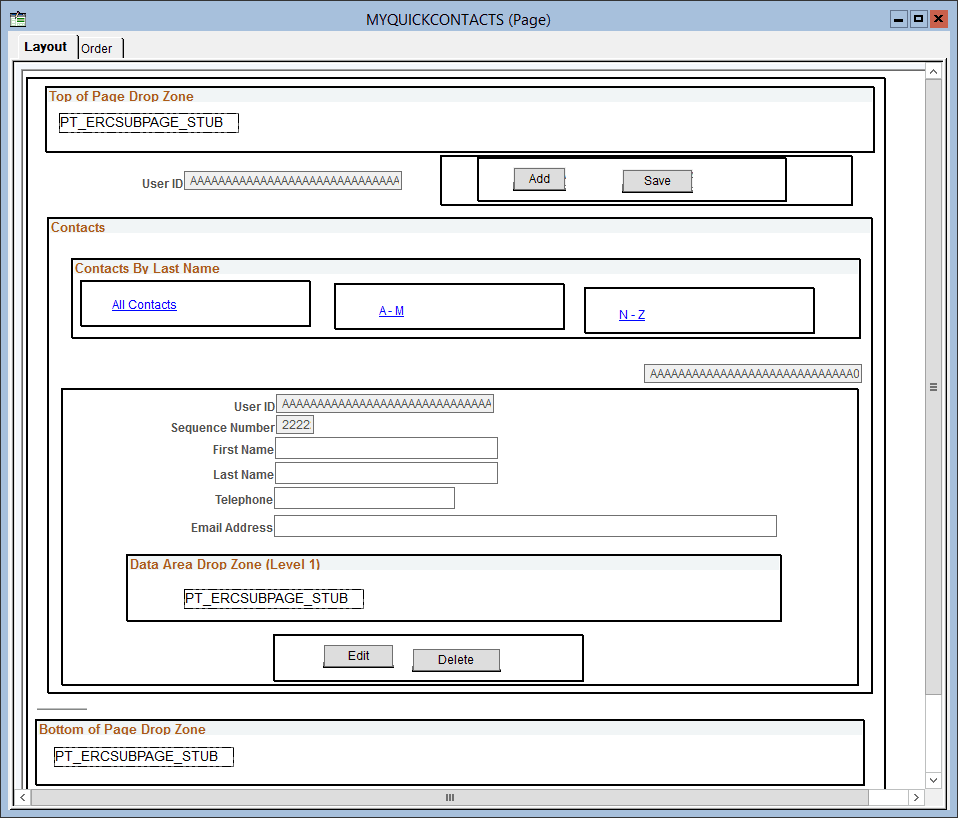
The following is an example only, which shows three drop zone group boxes on the MYQUICKCONTACTS page definition in Application Designer:
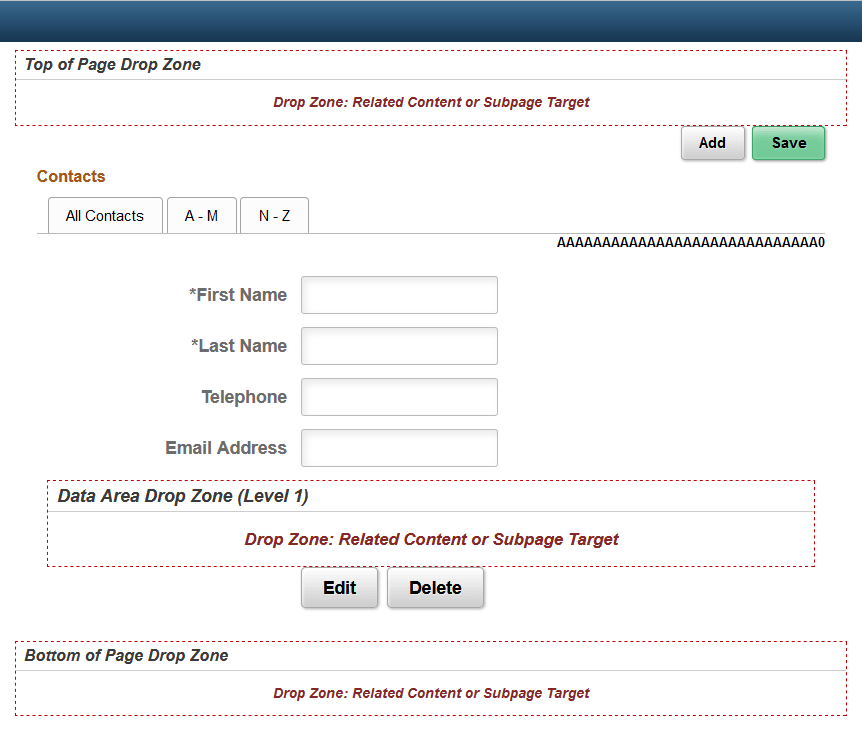
The following example shows related content drop zones on the MYQUICKCONTACTS page when rendered using the page preview feature in Application Designer:
Note:
Page preview includes the labels for the related content drop zones for configuration purposes only. These labels are available to the administrators who are configuring embedded related content or dynamic subpages. At run time, these labels are not displayed. In addition, if no label is defined on the group box, the label displayed in fluid page preview will differ from what is shown in the example here and what is available to administrators who are configuring embedded related content or dynamic subpages.
Applying Additional Style Sheets
While page preview does apply the standard system style sheet, since custom style sheets are applied via PeopleCode, they are not available during page preview.
Therefore, to apply custom free form style sheets, you need to create a text file on the local file system that lists the custom style sheets, one per line. Specify the Application Designer definition name for each custom free form style sheet. You can also include comments in this file preceded by the # symbol only. The following example illustrates the contents of a text file that identifies two custom free form style sheets:
# Custom style sheets for fluid page preview:
MY_STYLESHEET_1
STYLESHEET_25
To apply custom free form style sheets during fluid page preview:
-
Create a text file listing the style sheets on the local file system.
-
In Application Designer, select Layout, View in Browser, Apply Additional Style Sheets.
-
In the Apply Additional Style Sheets dialog box, browse to and select the text file.
-
Select the Apply Style Sheets check box.
-
Click OK.
Once the Apply Style Sheets check box has been selected, a check mark will appear next to Apply Additional Style Sheets in the menu indicating that custom style sheets will be applied to each fluid page that is previewed. This setting even remains in effect between Application Designer sessions. To preview fluid pages without applying custom style sheets, deselect the Apply Style Sheets check box.
-
Select Layout, View in Browser and select a browser to preview a fluid page with the specified style sheets applied.