Renaming Definitions
You can rename existing definitions in a database at any time.
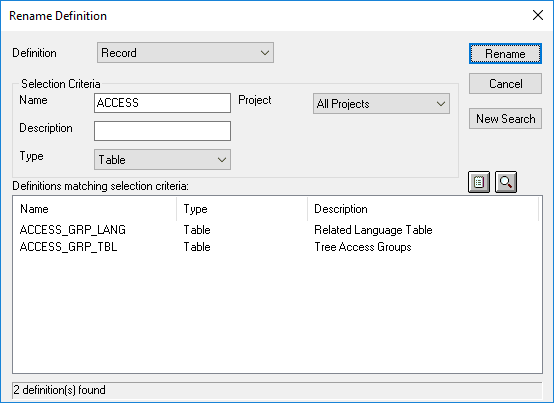
This example illustrates the fields and controls on the Rename Definition dialog box.
To rename a definition in the database:
-
Select
The Rename Definition dialog box looks like the Open Definition dialog box, and you select definitions in the same way.
-
Specify the definition type and any selection criteria that are useful in locating the definition that you want to rename.
The Rename Definition dialog box does not have a Select button. So, after entering either a partial name or description of the definition, press Enter to retrieve a list of definitions matching your selection criteria.
-
Select the definition that you want to rename.
-
Click the Rename button in the dialog box and double-click the selected definition, or right-click to select Rename from the pop-up menu.
The selected definition name in the Rename Definition dialog box is in edit mode.
-
Change the selected definition name and press Enter.
When you press Enter, PeopleSoft Application Designer prompts you first, to close any open definitions before you can save the new name, and then to confirm the rename before you can save a change.
-
Click OK to complete the renaming of the selected definition.