Setting the LLM Client Plugin File
The General tab in the Options dialog box enables you to specify the LLM client plugin file for a configured LLM client.
From the Application Designer menu, select and then select the General tab. Specify the LLM Client settings in the PeopleCode Assist Settings section in the Options dialog box: General tab.
The following example illustrates the fields and controls for the PeopleCode Assist Settings available in the Options dialog box: General tab. You can find definitions for the fields and controls later on this page.
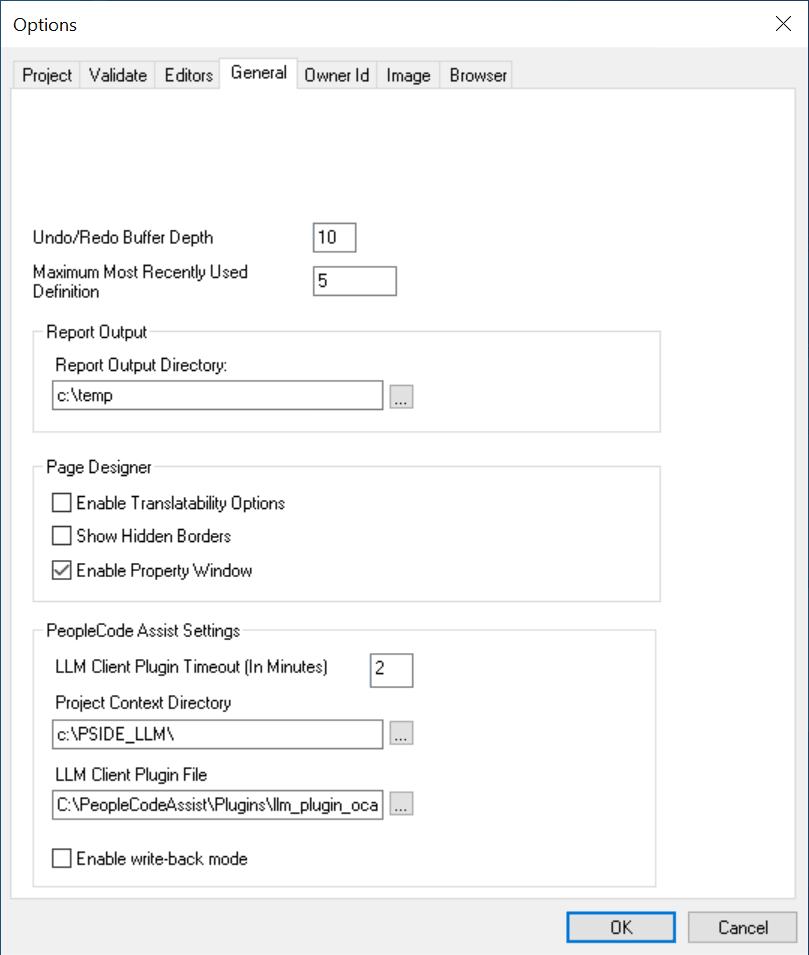
Fields or controls and descriptions for the PeopleCode Assist Settings available in the Options dialog box: General tab.
| Field or Control | Description |
|---|---|
|
LLM Client Plugin Timeout (In Minutes) |
Enter a timeout value (in minutes) for generating responses. If the LLM requires more time to generate a response, the response may not appear in Application Designer because of the timeout setting. In such cases, increase the timeout value. |
|
Project Context Directory |
Specify the directory where the project context files will be stored. If the specified directory does not exist, Application Designer automatically creates it. |
|
LLM Client Plugin File |
Select the LLM client plugin file for a configured AI Agent. |
|
Enable write-back mode |
Select this check box to allow the user to save LLM-generated and modified PeopleCode to the PeopleSoft database. This option is unchecked by default. See Using the Write-back Mode in Application Designer AI Assist |