Using Application Designer AI Assist
You can access Application Designer AI Assist from the AI Assist window within the Application Designer workspace.
Note:
You can use Application Designer AI Assist only when a project is open in Application Designer. If you try to interact with the LLM agent without opening a project, AI Assist prompts you to open a project before continuing.Use the Ask AI> prompt in the AI Assist window to interact with the LLM client configured for Application Designer. After the query is sent to the LLM, the response is streamed and displayed below the query in the same AI Assist window.
The following example illustrates the AI Assist window in the Application Designer workspace. You can find definitions for the fields and controls later on this page.
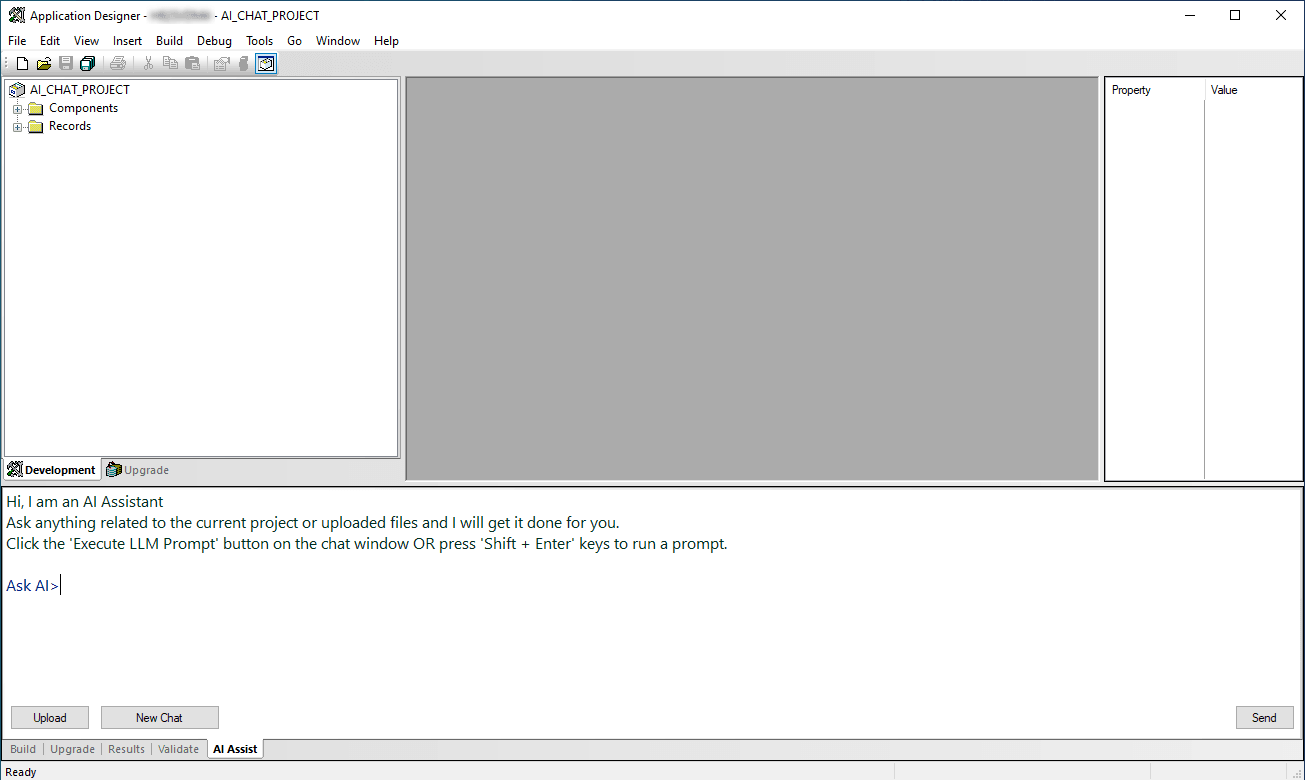
Fields or controls and descriptions for the Application Designer AI Assist window .
| Field or Control | Description |
|---|---|
|
Ask AI> |
Enter a query for the LLM in the prompt. |
|
Upload |
Select to upload files to the chat session. The files uploaded to the chat session are passed as additional context to the LLM. |
|
New Chat |
Select to start a new chat session. Oracle recommends creating a new chat session for each new task. Within a chat session, previous prompts and responses are included as additional context, enabling the LLM to maintain continuity and provide more relevant responses throughout the conversation. |
|
Send |
Select to execute your query. You can also execute the query using the keyboard shortcut Shift + Enter. |
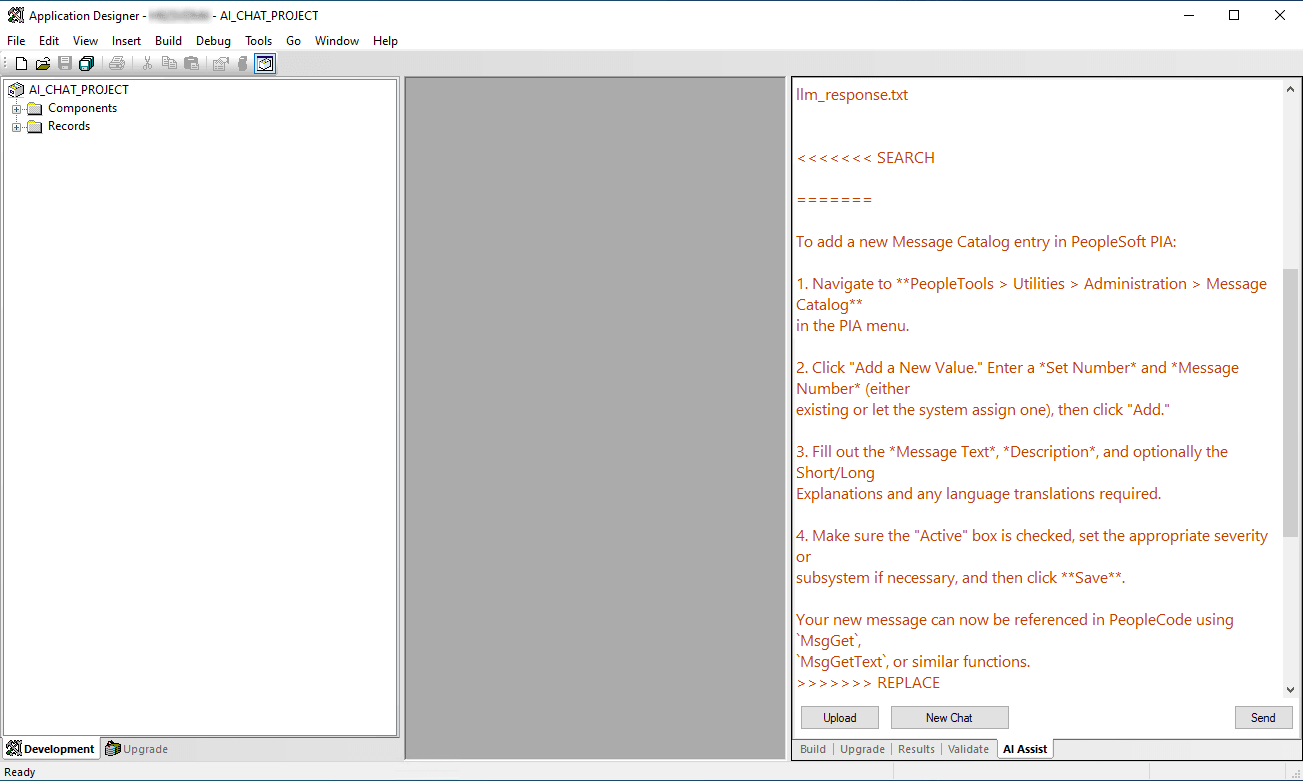
The following example illustrates the AI Assist window in the Application Designer workspace displaying the LLM's response to a user prompt.
Working with Prompts
You can prompt the LLM with questions related to the objects in the current project and the contents of uploaded files. For example, you can generate PeopleCode to implement a requirement, identify the root cause of an issue, summarize the functionality of a component, review a design document, or perform other context-aware tasks based on the current project objects and uploaded content.
The following table illustrates example scenarios and corresponding prompts.
| Scenario | Example Prompt |
|---|---|
|
You are new to a project and want to understand its overall structure before making changes. |
List all objects in the project. |
|
You are new to a project and want to understand its overall structure before making changes. |
Explain the current project. Summarize its purpose, identify the major application objects, and describe how the components, pages, records, and PeopleCode programs are related. |
|
You want to understand unfamiliar PeopleCode before modifying it. |
Summarize the USERMAINT_SELF component postbuild PeopleCode.
Note: The PeopleCode object must be included in the current project |