Setting Scroll Bar Use Properties
Note:
Scroll bars are not supported in fluid applications.
You set the scroll action buttons on the Use tab of the Scroll Bar Properties dialog box:
This example illustrates the fields and controls on the Specifying scroll bar Use. You can find definitions for the fields and controls later on this page.
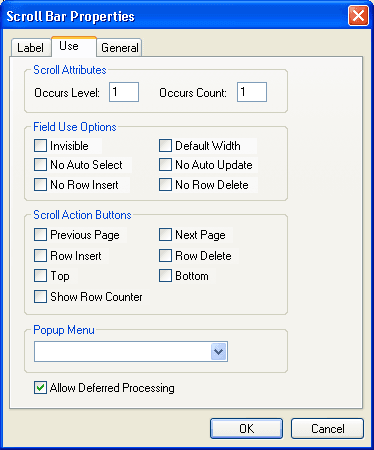
Access the Scroll Bar Properties dialog box. Select the Use tab.
Scroll Attributes
| Field or Control | Description |
|---|---|
|
Occurs Level |
Having an occurs level for the scroll bar enables you to designate the hierarchical parent and child relationship. Entering 1 specifies that the scroll bar is at the first level. Entering 2 specifies that a scroll is at the second level and is a child of, or nested in, the first level of data, and so on up to 3. A scroll can be nested in another scroll or scroll area, but it cannot be nested in a grid. See Level-Based Controls. |
|
Occurs Count |
Enter the number of rows to appear at one time in the grid at runtime. See Level-Based Controls. Note: Always reorder your controls, if necessary, before you enter an occurs count. |
Field Use Options
| Field or Control | Description |
|---|---|
|
Invisible |
Select to make the scroll bar invisible. |
|
Default Width |
This does not apply because the scroll bar does not appear on the page at runtime. |
|
No Auto Select |
Select to prevent the system from retrieving data automatically from the database. Select to populate the scroll bar with data using the ScrollSelect PeopleCode functions. |
|
No Auto Update |
Select to prevent the system from updating data automatically based on the existing key list. Select when the scroll bar contains work field controls that should affect only a page and not the underlying database. |
|
No Row Insert |
Select to prevent the row insert function so that the user cannot insert new rows. |
|
No Row Delete |
Select to prevent the delete function so that the user cannot delete rows. |
Scroll Action Buttons
If you select a Scroll Action Button option, it appears on the page next to the scroll bar in PeopleSoft Application Designer. You must manually move it to the appropriate location on the page definition.
| Field or Control | Description |
|---|---|
|
Previous Page |
Select to display a link that enables the user to move to the previous row or set of rows in the scroll buffer. |
|
Row Insert |
Select to display a button that enables the user to add a row. |
|
Top |
Select to display a link that enables the user to go to the first row of the scroll. |
|
Show Row Counter |
Select to display a counter to show users what rows they are viewing and the total number of rows in the scroll bar, for example: <1 of 3>. |
|
Next Page |
Select to display a link that enables the user to move to the next row or set of rows in the scroll buffer. |
|
Row Delete |
Select to display a button that enables the user to delete a row. |
|
Bottom |
Select to display a link that enables the user to go to the last row of the scroll bar. |