Specifying File Field Properties
The File Layout Field Properties dialog box contains information that is stored at the file field level:
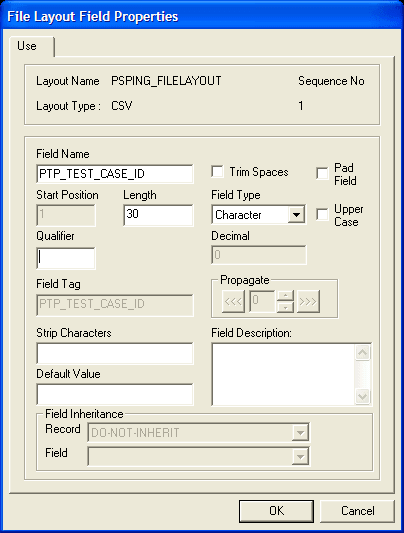
This example illustrates the fields and controls on the File Layout Field Properties dialog box: Use tab. You can find definitions for the fields and controls later on this page.
Important:
You must manually synchronize the file layout field properties with the related properties of any associated field definition. Unexpected results can occur when the properties are not synchronized. These properties are most likely to be not synchronized immediately after an upgrade.
Access the dialog box using one of the following methods:
-
Double-click the file field node.
-
Right-click the file field node and select Selected Node Properties.
Most individual properties are usable by all field types. However, some are specific to a particular field type, for example, the Upper Case check box is applicable to character fields only, the Date Separator field is applicable to date fields only, and so on. The preceding dialog box shows the properties for a character type of field. The following descriptions include all possible properties.
| Field or Control | Description |
|---|---|
|
Date Format (Date) |
Select a date format, such as MMDDYY, DDYYMM, and so on. |
|
Date Separator (Date) |
Enter a character that is used to separate date values. The default value is /. |
|
Decimal |
Enter the number of decimal positions to the right of the decimal point. This property is valid only for fields that are defined as number or signed number. Note: Only 31 characters plus a decimal point are allowed. |
|
Default Value |
Enter the default value to be used by a call to ReadRowset when the corresponding data is imported from a file via a file layout definition. Note: You cannot use the system variables related to date and time (for example, %Date, %Time, %DateTime) to specify the value of the default-value property of a file layout field. The value of the default-value property of a file layout field has no relationship to the value of the default-value property of any corresponding record field (one having the same record name and field name). When data is imported from a file via a file layout definition, the value used for a file layout field that is empty in the input file is determined by the default value of the corresponding file layout field, not the default value of any corresponding record field (even if the value of the default-value property of the file layout field is empty and even if that record field is required). |
|
Field Description |
Enter a description of the field for documentation purposes only. |
|
Field Inheritance |
Optionally select a parent file record and field from which the current field value is to be inherited. If you write to a file, the value is written only in the parent file record, not in the child (inheriting) file record; the value is not written more than once to a file. If no value is present in the parent field, then the system uses the default value that is specified here. For example, the following file sample shows both the EMPLID (8113) and EFFDT (08/06/1999) written only once to a file, though these fields are repeated in the third file record (with a file record ID of 102): |
|
Field Name |
Enter the name that is associated with this file field. Use this name when accessing the file field from PeopleCode. Every field within a file record must have a unique name; however, two different file records can contain the same file field. |
|
Field Tag (XML) |
Enter an XML tag name to be used around the field. The default value is the name of the field. Note: Within a particular file record, each field name and field tag must be unique. |
|
Field Type |
Select the data type of the file field. |
|
Length |
Enter the maximum number of characters in this field. Note: You are allowed only 32-character precision for number and signed number fields; that is, a total of 32 characters both to the right and left of the decimal. Other fields, such as character fields, can be longer. You cannot set a field length for Date, Time, and Datetime type fields. These field lengths are automatically set to the ISO standards for such fields. |
|
Pad Field (CSV) |
Select to enable field padding. The field will be padded with space characters up to the value of the length property. Character data will be left justified, numeric data right justified. |
|
Propagate (FIXED) |
If a field position or length is changed, enter an amount here to increment (positive number) or decrement (negative number) the current field and all fields before it (<<<) or after it (>>>). |
|
Qualifier (CSV) |
Enter a qualifier for the field, that is, the character that surrounds this field, separating it from other fields. Specifying this value overwrites the value that is specified in the file layout properties and file record properties. |
|
Start Position (FIXED) |
Enter the starting position (column) of the field within the file record. Important: If you specify a start position for a field that overwrites a previous field, no data is written to the file. Use Propagate to change the start positions for your file fields. |
|
Strip Characters |
Specify any characters to be removed from the input buffer. Use this field to preprocess input strings. For example, if a field in the input file contains hyphens but you want to remove the hyphens before processing the field, you can enter a hyphen here and it will be stripped out while being read. You can specify more than one character to be stripped out. Be sure to not separate the strip characters. For example, the following code strips out all semicolons and hyphens: The following code strips out all semicolons, hyphens, and spaces: |
|
Trim Spaces |
Select to remove trailing spaces only from an input string. This option is active only for FIXED and CSV formats. This option is different from the Strip Characters field, which removes all spaces from the entire input field if you specify a space. |
|
UpperCase (Char) |
Select to convert lowercase text to uppercase during inbound processing. Use this option primarily when customer data is in lowercase and the PeopleSoft software requires the data to be in uppercase. |
Note:
PeopleSoft applications do not accept numbers that contain thousand separators, as in "," or ".". For example, if you exchange data with Microsoft Excel, you need to disable the "Use 1000 Separator (,)" property.
Related Topics