Specifying File Layout Properties
The File Layout Definition Properties dialog box contains all of the information that is stored at the file layout (root) level.
Access the dialog box by using one of the following methods:
-
Select
-
Press the Alt+Enter keys.
-
Double-click the topmost (root) node of a file layout definition.
-
Right-click an open file layout and select Data Object Properties.
The General tab of the dialog box contains description information for the file layout. The Use tab contains specific information for the file layout:
This example illustrates the fields and controls on the File Layout Definition Properties dialog box: Use tab. You can find definitions for the fields and controls later on this page.
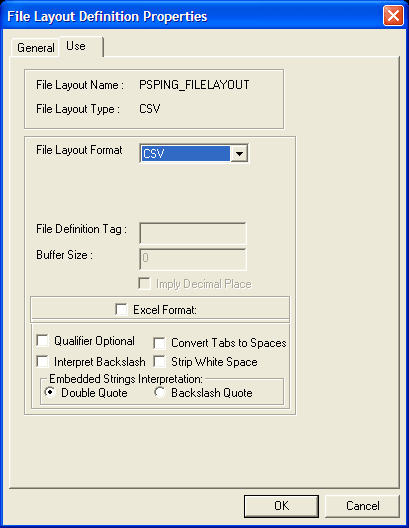
| Field or Control | Description |
|---|---|
|
File Layout Format |
Displays the type of file layout. Values are FIXED, CSV, and XML. |
|
File Definition Tag |
Enter the XML tag name that is associated with this layout (or transaction). This tag can be 30 characters in length. This tag must be unique in the file layout. This field is active when the file layout format is XML. Note: If you leave this field blank, the system inserts <start> into the file as the default tag value. Enter any value to prevent the system from inserting the default <start> tag into the file. |
|
Buffer Size |
Displays the size of the input buffer that is used at runtime. This field is active when the file layout format is XML. Note: Do not edit this value directly. |
|
Imply Decimal Place |
Select to automatically add a decimal place based on the decimal value that is specified in the field definition when you import a file into a PeopleSoft database and no decimal place is specified for numeric values in the file. If you select this option, make sure that the length that you specify for the Number field includes a decimal point, even though it is not visible. In this case, the decimal point is counted as a space. For each occurrence of numeric data that is missing a decimal point character in the input file, a space character is also required in the input file; locate the space character either immediately before the numeric characters or immediately after them. This field is active when the file layout format is FIXED. |
|
Excel Format |
Select to parse the field by using Microsoft Excel CSV specifications. This field is active when the file layout format is CSV. |
|
Qualifier Optional |
Select to parse the field based on delimiters. When a qualifier exists, the field is parsed by using a closing matched qualifier. The system ignores all characters before and after the qualifier. This field is active when the file layout format is CSV. If you do not select this check box, the field must have qualifier pairs. The system ignores all characters before and after the qualifier. |
|
Convert Tabs to Spaces |
Select to convert all tabs within the field to spaces. If you do not select this option, the system ignores all tabs. This field is active when the file layout format is CSV. Note: If the Strip White Space option is also selected, the system removes trailing and leading tabs. |
|
Interpret Backslashes |
Select to interpret backslashes within field data as escape characters. The following characters have special meanings:
If you do not select this check box, the system considers backslashes to be regular text data. This field is active when the file layout format is CSV. |
|
Strip White Space |
Select to remove all leading and trailing white space within field data from the output data. This field is active when the file layout format is CSV. Note: If you select this option, the system removes trailing and leading tabs, regardless of whether you selected the Convert Tabs to Spaces option. |
|
Double Quote |
Select to interpret two double quotes (" "), as one double quote (") in output data. For example, if you
enable this option, This field is active when the file layout format is CSV. |
|
Backslash Quote |
Select to interpret backslash quotes (\") as one double quote (") in output data. For example, if you
enable this option, This field is active when the file layout format is CSV. |
Related Topics