Specifying Spacing and Alignment
Access the class dialog box and select the Spacing/Alignment tab.
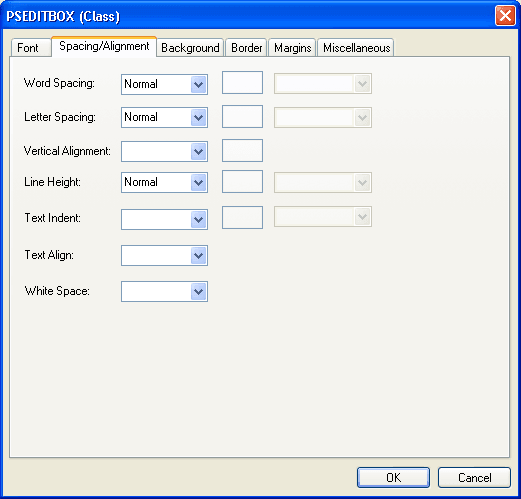
This example illustrates the fields and controls on the PSEDITBOX (Class) dialog box: Spacing/Alignment tab. You can find definitions for the fields and controls later on this page.
| Field or Control | Description |
|---|---|
|
Word Spacing and Letter Spacing |
Select Normal or Length. If you select Length, specify a number to indicate an addition to the default space between words or letters. Values can be negative, but implementation-specific limits might exist. |
|
Vertical Alignment |
Select the vertical positioning of the element. Values are: Baseline: Aligns the baseline (or the bottom if the element does not have a baseline) of the element with the baseline of the parent. Sub: (subscript) Aligns the top of the element with the baseline of the parent element. Super: (superscript) Aligns the baseline of the element with the top of the parent element. Top: Aligns the top of the element with the tallest element in the line. Text Top: Aligns the top of the element with the top of the parent elements font. Middle: Aligns the vertical midpoint of the element (typically an image) with the baseline plus half of the x-height of the parent. Bottom: Aligns the bottom of the element with the lowest element on the line. Text Bottom: Aligns the bottom of the element with the bottom of the parent elements font. Percentage: Refers to the value of the line-height property of the element itself. It raises the baseline (or the bottom if it has no baseline) of the element to the specified amount above the baseline of the parent. Negative values are possible. For example, a value of −100% lowers the element so that the baseline of the element is where the baseline of the next line should have been. This setting allows precise control over the vertical position of elements (such as images that are used in place of letters) that do not have a baseline. Note: Using the top and bottom alignments could cause a loop in which element dependencies occur. |
|
Line Height |
Set the distance between the baselines of two adjacent lines. When a numerical value is specified, the line height is provided by the font size of the current element multiplied with the numerical value. This differs from a percentage value in the way it inherits. When a numerical value is specified, child elements inherit the factor itself, not the resultant value (as is the case with percentage and other units). Negative values are not allowed. |
|
Text Indent |
Specify the indentation that appears before the first formatted line. This value can be negative, but implementation-specific limits might exist. An indentation is not inserted in the middle of an element that was broken by another. |
|
Text Align |
Specify how text is aligned in the element. Because Text Align inherits, all block-level elements inside the DIV element with CLASS=center are centered. Note: Alignments are relative to the width of the element, not the canvas. |
|
White Space |
Specify how to handle white space inside the element. Values are: Normal: White space is collapsed. Pre: Behaves like the PRE element in HTML. Nowrap: Wrapping is done only through elements with a line break. |